www.it-connect.fr


VFS365: Open Source Tool Mounts SharePoint and OneDrive as a Network Drive in Windows
Do your users still ask for a drive letter to access files stored in SharePoint? Jos Lieben, the author of OneDriveMapper, has released VFS365, an open source virtual file system that exposes Microsoft 365 in Windows File Explorer, without synchronization.
When migrating file servers to SharePoint Online, legacy business applications almost always cause trouble. They expect a path such as M:\Comptabilite\Budget.xlsx, not a URL. The OneDrive client, meanwhile, relies on synchronization and web addresses. So what can you do?
For years, some admins worked around the problem with OneDriveMapper, a PowerShell script by Jos Lieben that maps drive letters to SharePoint via WebDAV. But with VFS365, a free software project released under the GPLv3 license, he wants to go even further.
"No per-library configuration, no synchronization.", sums up the project page.
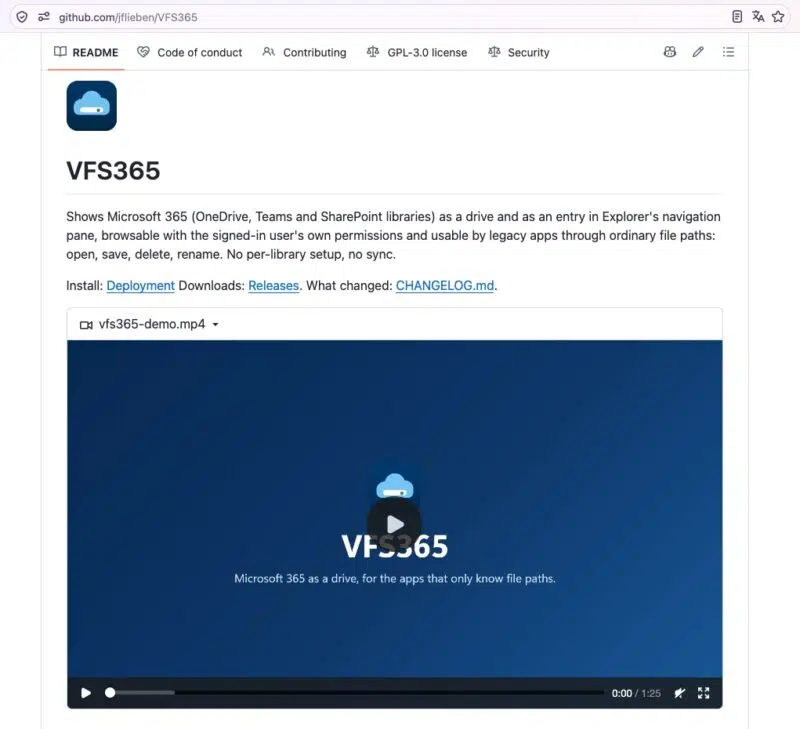
How does VFS365 work?
VFS365 is built on WinFsp, an open source file system driver for Windows. Each user gets their own volume, visible in File Explorer's navigation pane, accessible through a path unique to them and, if you want, through a drive letter. OneDrive and SharePoint (as well as Teams libraries) appear there as standard folders under a global entry named VFS365 (which can be renamed). This can also be useful for occasional access to this cloud service without setting up the OneDrive client and synchronization...
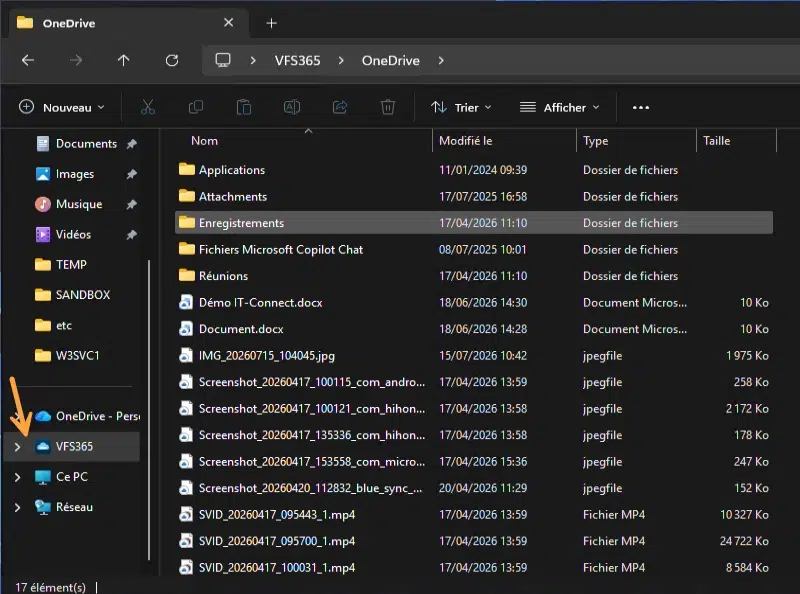
Here are a few features of how it works:
- Automatic discovery : the libraries accessible to the user are identified through SharePoint search, using the method from M365AutoLink, another tool by the same author. They appear and disappear according to actual permissions.
- No pre-copy : nothing is replicated in advance, reads are streamed. Library size does not matter.
- Overwrite the original file : version history and sharing links are preserved. If a colleague has modified the file in the meantime, Microsoft 365 refuses the upload and VFS365 creates a conflict copy instead of overwriting anything.
- Encrypted cache : local copies are encrypted with AES-256 (key protected by DPAPI), limited to 2 GB by default, and deleted on sign-out or when the device leaves Intune.
- Policy-driven management : an ADMX template lets you configure everything through GPO or Intune (drive letter, included or excluded sites, user folder redirection). Azure Virtual Desktop multi-session hosts are supported.
As for requirements, you need a Windows 11 workstation (x64 or ARM64) and an administrator consent, once per Microsoft 365 tenant (the app requests delegated permissions, including Files.ReadWrite.All.). From a security standpoint, the binaries have been signed since version 0.4.2, which is a good sign for enterprise use.
GPO settings you should know about
VFS365 is fully policy-driven, either through GPO or Intune after importing the ADMX template included with each release. The settings are located under Administrative Templates > JSolve > VFS365, in both Computer Configuration and User Configuration. The language file is available only in English, so those are the labels you will see in the console.
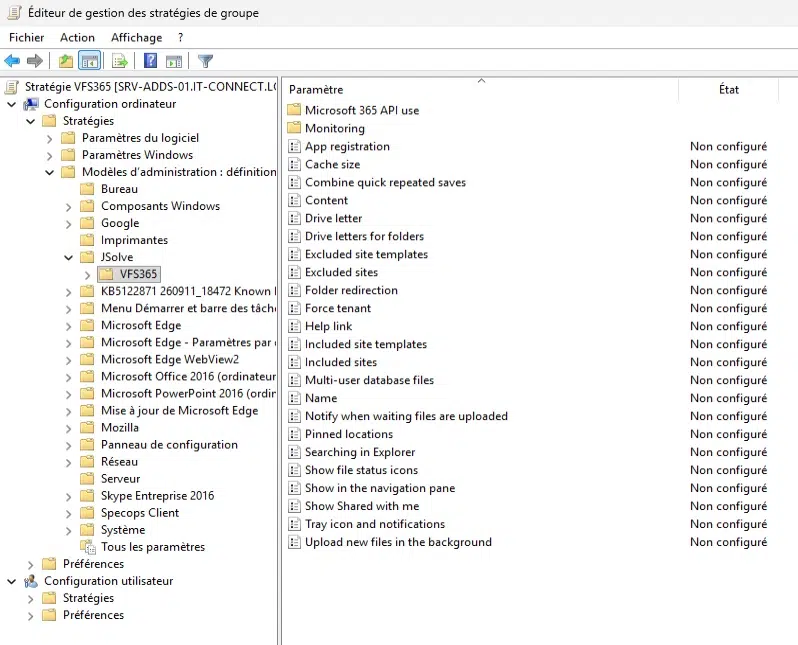
Here are some particularly interesting settings:
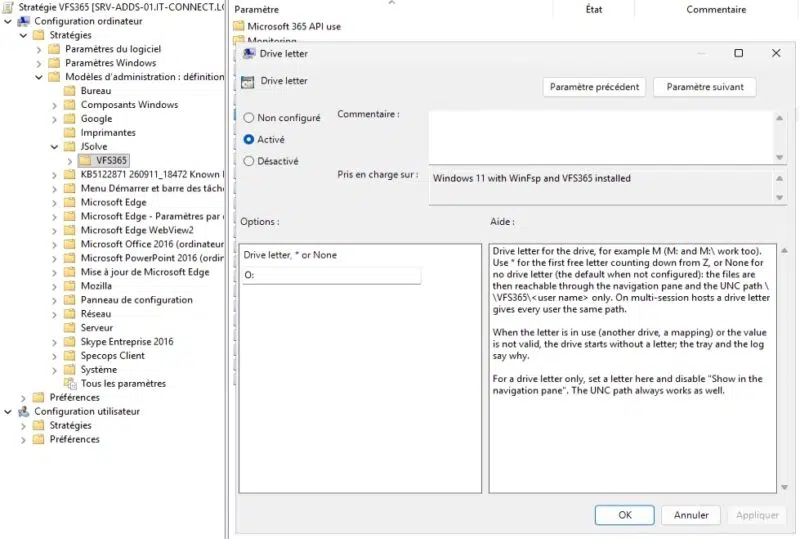
- Drive letter : assigns a drive letter, for example
O, or the first available letter with*. By default, no letter is assigned. - Drive letters for folders : gives a dedicated letter to a library or a specific folder, similar to OneDriveMapper. Existing WebDAV mappings to SharePoint are picked up as well. This makes it possible to have multiple letters (one for OneDrive, another for a specific SharePoint site).
- Excluded sites and Excluded site templates : hide sites by address (
*/sites/RH*) or by site type, for exampleTEAMCHANNELfor private and shared Teams channels. - Pinned locations : display sites that SharePoint search cannot find, such as those protected by Restricted Content Discovery.
- Folder redirection : redirects Documents, Desktop, or Downloads to VFS365 as long as the drive is mounted, with optional migration of existing content. Folders return to their original location when the user signs out.
- Multi-user database files : switches Access, QuickBooks, and SQLite files to read-only, or blocks them. By default, they are treated like ordinary files.
- Searching in Explorer : redirects File Explorer search to SharePoint search in the browser (default behavior). Otherwise, Explorer scans each folder, which creates issues with API limits.
- API budget per user : caps a user's consumption, at 600 resource units per minute by default, so a large copy job does not drain the tenant's API budget.
Finally, the documentation describes a security risk that I also wanted to share. When the drive is not mounted, Windows treats VFS365 as a normal server name and looks it up via DNS, LLMNR, and NetBIOS. Whoever responds gets the user's NTLM response (just run Responder and there you go). It is therefore recommended to disable LLMNR and NetBIOS (which is nothing new and should already be done - as I explained in my tutorial on disabling LLMNR and NetBIOS via GPO), to create a VFS365 DNS record yourself pointing to 127.0.0.1, and to block NTLM for SMB.
VFS365 is the kind of open source tool we love! What do you think?