www.it-connect.fr


Claude Code /compact: What It Does and When to Run It Manually
In this article, we'll look at what the /compact command in Claude Code is for, what problem it solves, and, above all, why it can be worth triggering it manually instead of waiting for the tool to do it automatically.
If you use Claude Code every day, you've probably already seen the message Context left until auto-compact: 12% appear in the corner of your terminal. Sometimes, that message prevents you from doing anything for several minutes. Behind that small indicator lies an important mechanism: the management of the model's context window, which affects both the quality of its responses, the cost of the session, and sometimes even the continuation of the current work.
In this article, we'll see why a Claude Code session eventually becomes saturated, how the tool's automatic compaction works, and in which cases you would be better off running /compact yourself with custom instructions.
Understanding the Problem: Context Saturation
What Is the Context Window?
Before talking about compaction, a quick reminder is in order. A LLM (Large Language Model) like Claude does not "remember" your exchanges, unlike a human. Every time you ask it a question, the entire previous conversation is sent back to the model as input so it can generate a response consistent with what was said before.
The amount of information the model can ingest at once is measured in tokens (roughly, fragments of words) and has a name: the context window. It is finite: for the current Claude family, we are talking about hundreds of thousands of tokens, which is comfortable, but not infinite.
A token corresponds on average to 3 or 4 characters in French. A 200,000-token window therefore represents the equivalent of several hundred pages of text, which sounds huge... until you start feeding it entire code files and command output.
In Claude Code, this window contains, all mixed together: your messages, the model's responses, the system prompt, the content of your CLAUDE.md file, tool definitions, loaded skills, and of course all the output from the commands the agent runs for you.
Why a Claude Code Session Grows So Fast
In practice, a moderately active session fills its window much faster than you might expect. Every time the agent reads a file, runs a shell command, inspects a Git repository, or queries an MCP (Model Context Protocol) server, the result gets added to the history. And as we said, that history is sent back to the model with every exchange.
Let's take an example. In my case, I ask Claude Code to audit a small Python project:
# Typical commands an agent will chain together during an audit
ls -R
cat requirements.txt
cat src/*.py
grep -r "password" .
python -m pytest -v
In three or four exchanges, the agent may have injected several thousand lines into its own context. If you add file reads, attempted fixes, failing test results, and reruns, it's easy to understand why context size grows so quickly.
Also, some sources are particularly heavy:
- Verbose tool output or a stack trace.
- Application logs retrieved with
tailorjournalctl. - Large JSON or YAML files read in full.
- MCP tool definitions when several servers are connected.
The
/contextcommand is your best friend for seeing who is consuming what in the window. It shows the split between the system prompt, skills, MCP servers, theCLAUDE.mdfile, and the current conversation. I recommend running it from time to time, especially if a session feels like it's "slowing down".
Symptoms of a Saturated Session
How can you tell when a session is reaching its limits? Several signs can give it away:
- The model forgets instructions given at the start of the session or mixes up unrelated elements.
- Responses become more generic, less coherent, or less precise.
- Costs increase without any obvious reason, since each new request carries an ever-heavier conversation.
- Response speed drops because the model has to process more tokens on input.
Here is an example of the output of the /context command for a heavily loaded discussion:
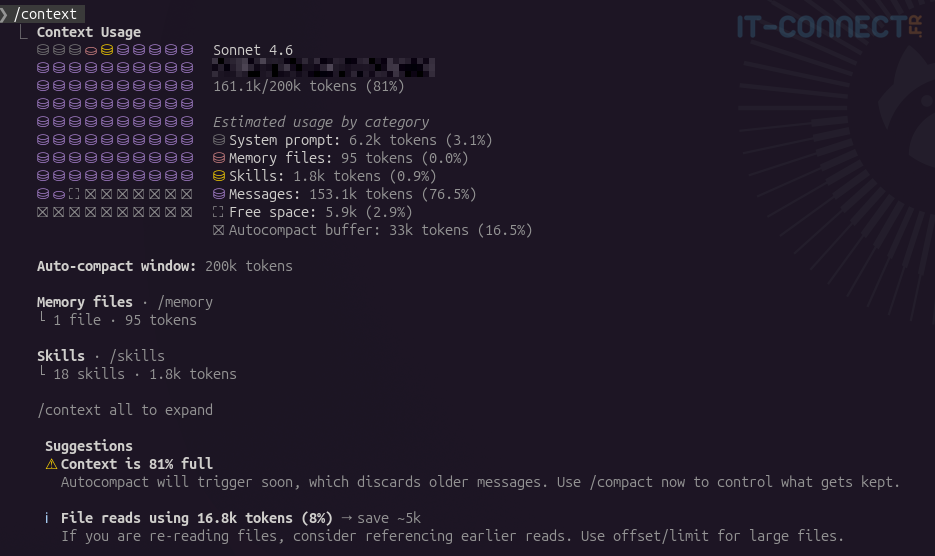
/context command in Claude Code, showing the context window split by category.In short, an overly full context is not just a comfort issue: it gradually degrades the quality of the work. This is exactly where compaction comes in.
Automatic Compaction: How Claude Code Handles Saturation
The Principle of In-Place Summarization
The idea behind compaction is that, instead of letting the session suffocate, Claude Code replaces the full history with a condensed summary generated by the model itself. You keep working in the same session, with the same apparent context, but under the hood, the last 150 messages have been replaced by a few thousand tokens of summary.
In principle, compaction preserves the important elements: decisions made, files touched, errors encountered, next planned step. It also reinjects the last invocation of each skill used (within a total budget of around 25,000 tokens), so that specialized contexts loaded along the way are not lost.
Be careful, though: the oldest skills can be dropped entirely during a compaction if many were invoked during the session. If you are working with multiple skills and one of them is essential for what comes next, make sure to invoke it explicitly again after compaction.
The Trigger Threshold
By default, Claude Code triggers compaction automatically when the context window approaches its limit. You'll see an indicator at the bottom of your terminal gradually counting down:
# Warning message that an auto-compact is near
Context left until auto-compact: 23%
When that threshold is reached, compaction kicks in transparently: you'll see a message saying the conversation is being summarized, then the session resumes normally. You don't need to do anything.
In the vast majority of cases, this works very well. If you're chaining together long, repetitive work (a large refactor, test generation across several modules), you can absolutely let Claude Code handle it on its own.
The Limits of Auto-Compaction
So, if automation works well, why bother triggering /compact manually? For two main reasons.
First, auto-compaction kicks in late, when the window is almost full. And the longer the history to compact, the more the summarization operation itself costs in tokens: the model has to read everything it will summarize before producing its summary. A manually triggered /compact run earlier on a smaller history is therefore faster and cheaper.
Second, and in my view the most important point: you don't control what the model chooses to keep. Auto-compaction does its best with a generic instruction. If your session contains a mix of topics (debugging, documentation review, then an implementation in progress), the automatic summary may very well "dilute" what really mattered to you and therefore reduce its importance, or in the worst case forget it entirely.
This is especially true when, during a long exchange, you change scope, change how you work, or move from one solution that didn't work to another that is more effective. In that case, it may not seem useful to keep certain elements during compaction.
This is where manually invoking /compact makes perfect sense.
Using /compact Manually: Use Cases
Command Syntax and Behavior
Let's get practical: the command is typed directly into the Claude Code prompt, and is used very simply:
# Standard compaction, with no special directive
/compact

# Targeted compaction, with a directive about what to keep
/compact Focus on architecture decisions and the database schema
In the first case, Claude Code produces a generic summary of the conversation. In the second, the model uses your directive to weight what it considers important to retain. The elements mentioned in the directive will be prioritized in the summary, while the others may be reduced to a few lines or omitted.
After execution, you'll get your usual prompt back with a greatly freed-up context window. The conversation continues, but the model now "sees" a summary instead of the raw history. Here is the context window for the same conversation after compaction:
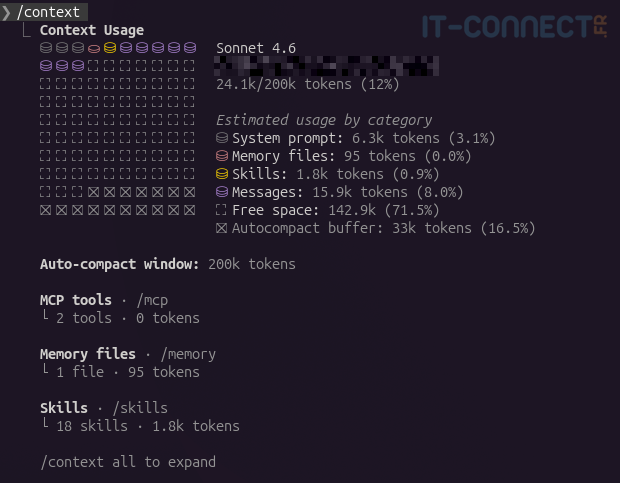
/context command in Claude Code, after compaction.Compacting Before a Phase Change
The most useful manual use case is a phase change. Imagine a session where you've just spent an hour hunting down a bug in an API. The bug is fixed, the tests are passing. You now want to switch to writing documentation for that same API.
At this point, the session history contains plenty of information:
- All the attempts to reproduce the bug.
- Successive file reads.
- The failing test outputs.
- The intermediate patches.
We no longer need any of that to write the documentation. What matters is the API's final behavior, not the tortuous path taken to get there. A targeted /compact is very useful at that point:
# Prepare the session for the next phase
/compact Keep only the final API behavior, endpoint names, and error cases to document. Forget the debugging attempts.
The model will then produce a much cleaner and more useful summary for what comes next, and you continue from a clean base, in the same session.
What I call a phase change is therefore a transition that can be the right moment to tell Claude: "OK, now let's focus on this, so optimize your memories for that."
Guiding the Summary with Targeted Instructions
I showed this a bit in the previous example, but know that the more specific your compaction directive is, the better the result. A few formulations that work well in my experience:
# Prioritize certain files
/compact Keep all decisions made about `src/auth/` and forget the rest.

# Prioritize a deliverable
/compact I need to be able to resume writing the Dockerfile without any extra context.

# Prioritize errors seen
/compact Keep the error messages encountered and the workarounds applied.
The model usually follows these instructions very well. Note that the /compact directive does not "command" the work ahead: it only guides what the model should retain from the past. Don't expect it to serve as a new roadmap for the rest of the session; that's a different topic.
/compact or /clear: An Important Difference
There is a related command, /clear, which completely empties the history and restarts a session from scratch. The difference is important and you need to know it to avoid wiping out all your work:
| Command | Effect | When to use it |
|---|---|---|
/compact | Summarizes the history, keeps continuity | Same topic, but the session is getting too heavy |
/clear | Deletes the history, starts over from scratch | Complete change of subject, new project |
In my case, I've made it a habit to ask myself one simple question before choosing: "Do I still want Claude to remember anything from what came before?". If the answer is yes, even partially, then it's /compact. If the answer is no, you might as well switch to /clear, which costs nothing, whereas /compact costs a summary of the entire current context.
Finally, the advantage of /clear is that it restarts a healthy conversation while keeping, for example, the system prompt read at initialization, the CLAUDE.md, the configured skills, tools, and MCP servers, etc.
Automating the Behavior via CLAUDE.md
Last tip, and an important one: you can define a default compaction directive in the CLAUDE.md file at the root of your project. Claude Code will read these instructions at each compaction, whether it is manual without a directive or automatic.
Here is an example section you can add to your CLAUDE.md:
# Compact instructions

During compaction, prioritize:
- validated architecture decisions made by the user
- the file paths modified and the reason for the modification
- working build and test commands
Forget:
- abandoned attempts
- verbose tool output
This saves you from having to retype a directive each time. For a project you work on regularly, it helps standardize how compaction will be handled from one session to the next.
Be careful not to overload your CLAUDE.md though. This file is loaded into the context at every session start, so every extra line consumes space permanently. A concise compaction directive is better than three detailed paragraphs.
Conclusion
In this article, we've seen how Claude Code's context window works, what the /compact command does, and when it can be useful to trigger it manually rather than relying on auto-compaction. In short: let automation handle short, linear sessions, but use /compact as soon as there is a phase change in your work or when you want precise control over what is retained.
In my opinion, context management is one of the most underrated skills when using a coding agent every day. Taking ten seconds to type /compact with a good directive can make the difference between a session that stays relevant for three more hours and one that has to be abandoned.
There is still a lot to say about optimizing the use of Claude Code (model choice, skills, MCP servers...), but we'll have the opportunity to come back to that in other articles.
Feel free to share your own compaction habits in the comments, or come and discuss them on our Discord server.