www.it-connect.fr

Windows 11 26H2 Is Here: What’s New, Support, and How to Install It
Microsoft is officially rolling out Windows 11 26H2, also known as Windows 11 2026 Update, just two weeks before support for 24H2 ends for Home and Pro editions. The result: few visible changes, but a refreshed support cycle. Here’s everything you need to know about this new release.
I suspected it was coming soon after the evaluation ISO images went live, and that was confirmed on September 29, 2026, when Microsoft announced the availability of Windows 11 version 26H2. This is the annual update to its operating system, and therefore the only one in 2026 intended for all Windows 11 computers (26H1 being reserved for certain machines).
The Redmond company is reusing the same approach it used last year with 25H2, so the 24H2, 25H2, and 26H2 releases all share the same servicing branch. These versions are very closely related, especially since the new features have already been on your machine for some time. Microsoft delivered them gradually through monthly cumulative updates while keeping them dormant.
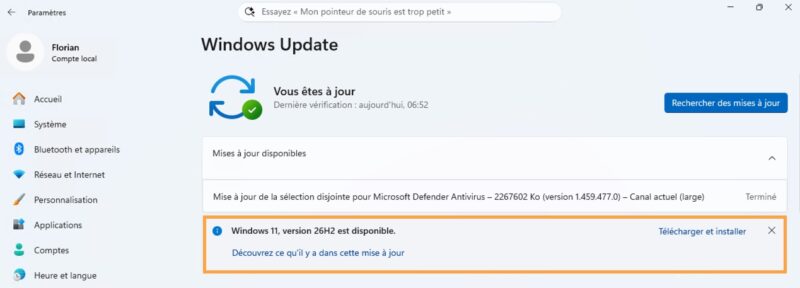
The way you move to Windows 11 26H2 says it all: a simple enablement package (KB5121794) weighing 174 KB to install. It activates the pending features and upgrades the system to version 26H2 (build 26300). "An enablement package is a lightweight update that turns on new features already included in the operating system through previous monthly updates," Microsoft notes.
Warning: the KB5121794 support page states that this package applies only to devices running Windows 11 24H2 or 25H2, on which KB5124010 from September 22, 2026 (or a newer cumulative update) has been installed. PCs running Windows 11 26H1 are not eligible for this update. As for systems still on 23H2, whose support ends on November 10, 2026 for Enterprise and Education editions, they will need a full upgrade.
What’s New in Windows 11 26H2
When installing Windows 11 26H2, do not expect a feature exclusive to this version. This release brings together the improvements delivered over the past year to 24H2 and 25H2. What you need to understand is that if your PC is up to date, you are probably already benefiting from most of them. Still, the release is a good opportunity to see what’s coming.
👉 New features for end users
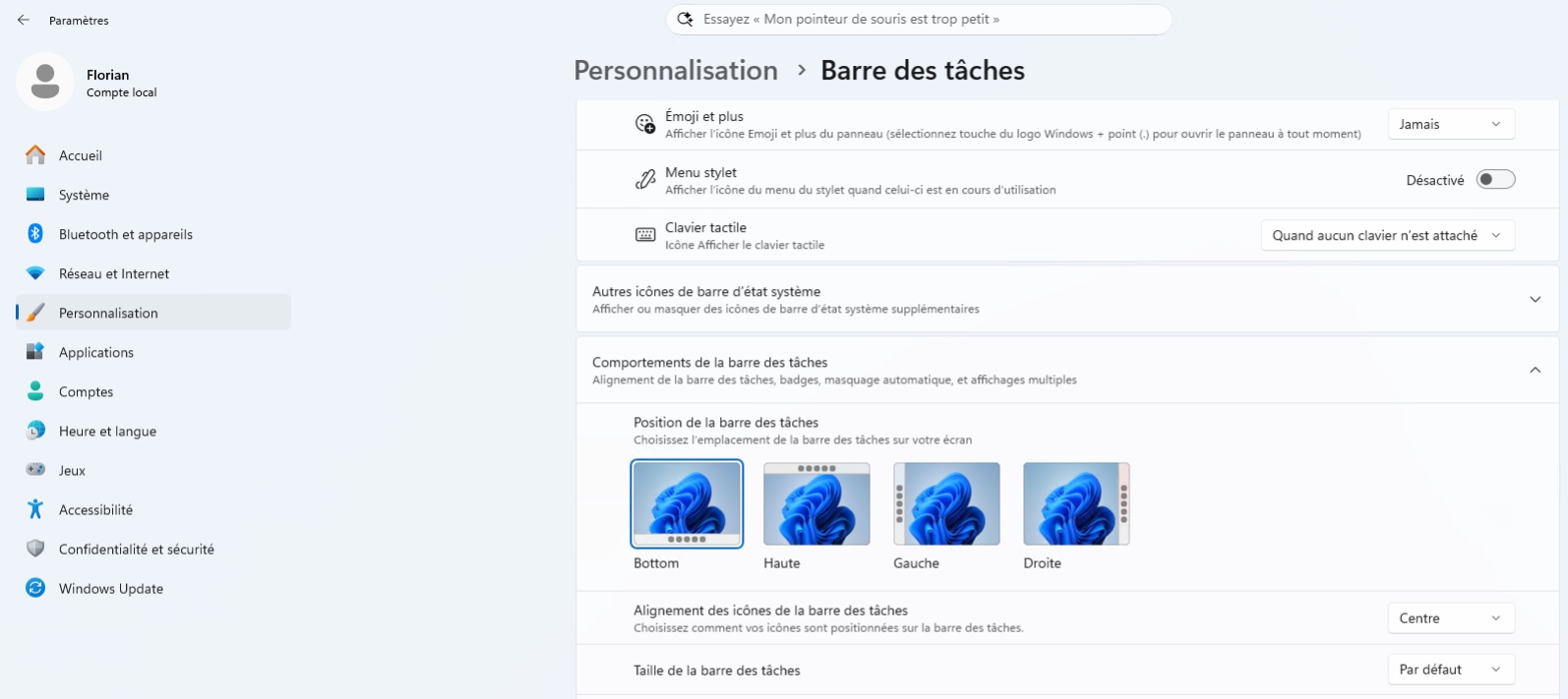
- Start menu and taskbar: the Start menu offers new layouts and several sizes, while the taskbar can be moved to different positions (including the top or a side) and use a more compact format.
- Windows Search: results now include a preview, typos and incomplete app names are handled better, and frequently used folders are indexed automatically.
- File Explorer: AI actions are available for compatible images, document summaries from OneDrive and SharePoint are supported, additional archive formats are handled, and performance is improved.
- Task Manager: it now displays NPU activity (load and memory) and flags applications running in an AppContainer.
- Accessibility: Magnifier is more precise and can apply a screen tint, Narrator includes a braille viewer, and Voice Access supports natural language commands on Copilot+ PCs.
👉 Security side
- Administrator protection: administrative rights are granted on demand in an isolated profile to make privilege escalation harder. The feature is enabled through GPO or via Intune, and I explain how in my tutorial on Administrator Protection to secure admin access in Windows 11.
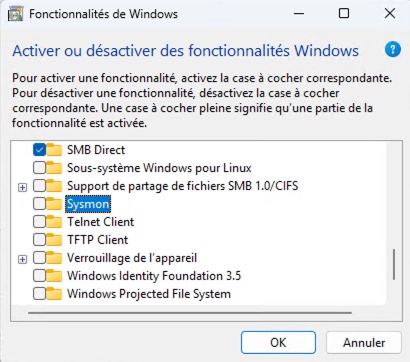
- Built-in Sysmon: the Sysinternals logging tool is now native, but it remains disabled by default. As I wrote in February, Sysmon and RSAT tools for Arm64 arrived with update KB5077241.
- Smart App Control: it can now be turned on or off without reinstalling Windows. One less major constraint.
- Windows Hello: enhanced biometric sign-in protection (Enhanced Sign-in Security) works with compatible external fingerprint readers.
- Post-quantum cryptography: Windows now supports the ML-KEM and ML-DSA algorithms, standardized by NIST, through the CNG and .NET APIs.
- Drivers: the kernel no longer trusts cross-signed drivers by default. However, WHCP-certified drivers and some trusted legacy drivers are still accepted.
Some of these new features therefore require action from your side, especially if you want to configure Administrator protection or enable Sysmon.
👉 Administration side
- Windows Autopilot: Autopilot device preparation now supports device association. The goal is to identify trusted devices before enrollment, apply targeted policies, and automate enterprise device enrollment. I discussed the Device Association feature in a previous article.
- Removing preinstalled apps: on Enterprise and Education editions, the dedicated group policy now accepts additional MSIX and APPX packages, making it easier to customize the list.
- RSAT on Arm64: Server Manager, the Group Policy Management console, and the DNS, DHCP, and Active Directory tools now work on Windows 11 Arm64 PCs.
👉 Enabled by default on business PCs
Microsoft is also enabling several features by default on business devices that were not enabled before (subject to eligibility):
- Windows backup settings: enabled by default on eligible devices. A policy already configured by the admin remains in effect, and restore remains disabled by default. However, first sign-in restore is now possible on Microsoft Entra hybrid-joined devices, Cloud PCs, and multi-user environments. Note that, as I explained in July, devices located in the European Union are not affected by automatic backup activation.
- Taskbar: app-specific actions become available by default from the taskbar.
- File Explorer: several navigation and usability improvements are enabled.
Point-in-time restore is also included, allowing a PC (applications, settings, and personal files) to be rolled back to a recent restore point. According to Microsoft’s documentation, this feature is enabled by default on managed devices if the system volume is at least 200 GB. Everything is covered in my tutorial on restoring Windows 11 in minutes with Point-in-time Restore.
How Do You Install Windows 11 26H2?
On a personal PC, go to Settings > Windows Update and enable "Get the latest updates as soon as they’re available". Even so, there is no guarantee you will get it immediately, since the rollout is gradual. As usual, Microsoft may temporarily block the update (with what it calls a safeguard hold) on devices affected by a known compatibility issue. For now, though, no known issues are listed for this release.
In enterprise environments, Windows 11 26H2 is available through the usual tools: Windows Autopatch, WSUS, or the Microsoft Update Catalog. Existing update rings and policies remain valid. "We recommend [...] starting with targeted deployments to validate applications, devices, and critical business processes," it says.
Microsoft is also reassuring about the move to Windows 11 26H2: "Many organizations may find that validating version 26H2 requires less effort than a traditional feature update".
For a manual installation or a test environment, I shared last week download links for the KB5121794 enablement package and the Windows 11 Enterprise 26H2 evaluation ISO image.
Few New Features, but a Fresh Support Cycle
As mentioned earlier, Windows 11 26H2 mainly brings together the improvements distributed throughout the year. The real value is elsewhere: installing 26H2 resets the support cycle, with 24 months for Home and Pro editions, and 36 months for Enterprise and Education editions. According to Microsoft’s usual schedule, that gives the following dates:
| Version | Home and Pro | Enterprise and Education |
|---|---|---|
| Windows 11 24H2 | October 13, 2026 | October 12, 2027 |
| Windows 11 25H2 | October 12, 2027 | October 10, 2028 |
| Windows 11 26H2 | October 2028 (24 months) | October 2029 (36 months) |
The end date is coming up soon for Windows 11 24H2 Home or Pro: you know what you need to do.
What do you think?