www.it-connect.fr

Microsoft Entra ID Finally Adds Soft Delete for Devices
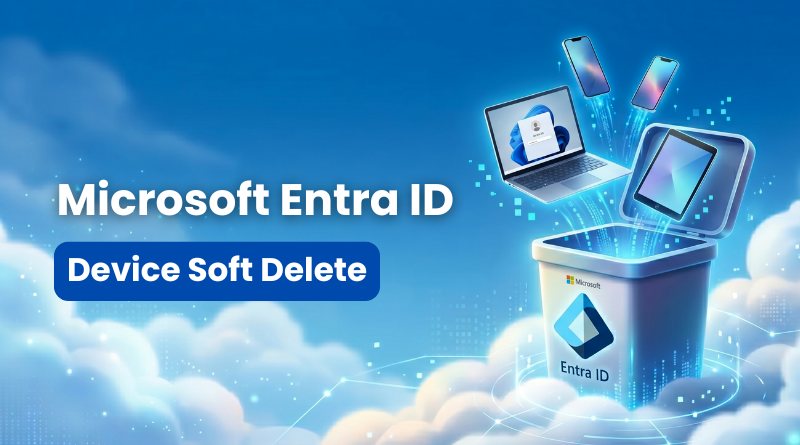
Until now, accidentally deleting a device in Entra ID meant permanent loss. That will no longer be the case, because Microsoft has introduced a highly anticipated new feature in Entra ID: soft delete for devices. Available in Public Preview, this feature gives administrators a valuable 30-day safety net. Here is what we know so far about this change.
How does device soft delete work?
In Microsoft Entra ID, device identities are tied to access and security policies. There is a strong and important link between the two. Yet until now, a simple mistake could delete a device from Entra ID (provided you had the required permissions) in an irreversible way. The problem is that the device takes important data down with it, such as the LAPS password or the BitLocker recovery key.
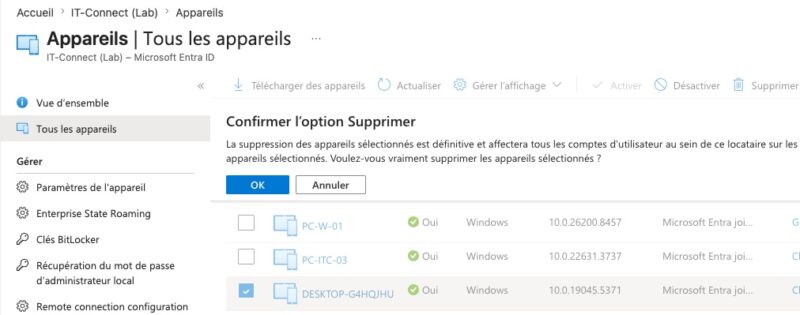
The soft delete feature (“Device Soft Delete”), announced by Microsoft and currently in Public Preview, addresses this issue. When a device is deleted, it will be moved into a dedicated container for deleted devices for 30 days. Only at the end of this grace period will the device be permanently deleted.
"ADRS (Azure Device Registration Service) initiates an unenrollment process that disables the device’s authentication refresh tokens, then moves the object representing the device into the temporarily deleted items container. The device keeps its unique identifier and encryption keys while in this temporary deletion state," explains the Microsoft documentation.
In practice, here is what happens when a device is softly deleted:
- ADRS immediately removes its access (authentication) and disconnects it.
- Information associated with the device, such as BitLocker recovery keys, LAPS passwords, and unique identifiers, is safely preserved.
- The device can no longer connect or access resources protected by Microsoft Entra ID.
- Administrators can no longer manage or update the device, which no longer appears in standard Entra or Intune results.
- The Device ID corresponding to its unique device identifier cannot be reused until the object is restored or permanently deleted.
Which devices are supported?
Microsoft explains that this feature, in Public Preview, supports the following device types:
- Microsoft Entra joined : corporate-managed devices that are directly joined to Microsoft Entra ID.
- Microsoft Entra hybrid joined : corporate-managed devices joined to your on-premises Active Directory domain and registered with Microsoft Entra ID.
- Microsoft Entra registered : personal or BYOD devices registered with a work or school account.
There are still exceptions, meaning some device types remain subject to hard delete:
- Devices with no recognized type, such as those created through the Microsoft Graph API.
- Certain specific device types, such as secure VMs with managed identities, non-persistent VDI instances, and printers.
For now, the essentials are supported. The fact that Entra Hybrid Joined devices are supported is a clear advantage on paper, especially for preventing duplicate objects. If a device is accidentally removed from the synchronization scope, it can be restored from the soft delete recycle bin during the next synchronization cycle. This avoids recreating a new device and the consequences that can follow.
How do you restore a deleted device?
To view or restore these devices in limbo, you can use the admin console, the command line with PowerShell, or the Microsoft Graph API directly.
In addition, you must have one of the following administrative roles: Cloud Device Administrators, Intune Administrators, or Global Administrators.
- Via the admin console
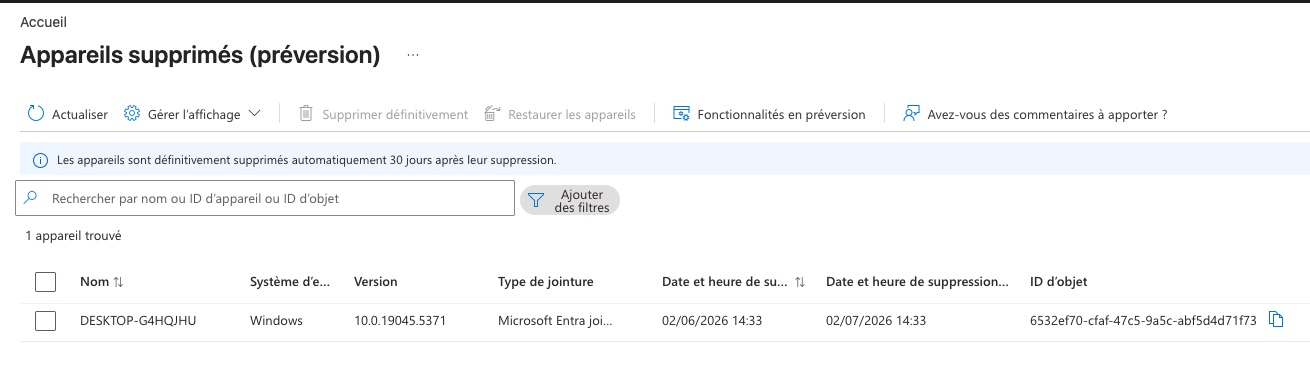
The soft delete section is already accessible, even though it should only be available when the feature reaches general availability, as AdminDroid reveals. You can therefore access the list of deleted devices using this link:
- https://entra.microsoft.com/#view/Microsoft_AAD_Devices/DeletedDevices.reactview
It works well:
- Via Microsoft Graph PowerShell
If you do not have the Microsoft Graph Beta module, you can install it with this command:
Install-Module Microsoft.Graph.Beta -Scope CurrentUser -AllowClobber -ForceThen, connect to your tenant:
Connect-MgGraph -Scopes "Device.ReadWrite.All", "Directory.ReadWrite.All"Next, to retrieve the full list of machines in the soft delete container, run the following command:
Get-MgBetaDirectoryDeletedItemAsDevice


DeletedDateTime     Id                                   AccountEnabled AlternativeNames ApproximateLastSignInDateTime
---------------     --                                   -------------- ---------------- -----------------------------
02/06/2026 12:33:17 6532ef70-cfaf-47c5-9a5c-abf5d4d71f73 True           {}               23/01/2025 15:51:50
This command returns information about deleted devices, including the unique identifier, the date and time the device was deleted, and more. You can restore a device with this command:
Restore-MgBetaDirectoryDeletedItem -DirectoryObjectId <Id>What do you think?