www.it-connect.fr


Forensic Windows Part 5: Analyzing BAM and DAM
On a Windows system, two discreet registry keys keep track of the programs launched by each user, along with the date of their last execution. These two keys are called BAM and DAM. They are not designed for digital forensics, but they provide execution evidence directly attributable to a user account, making them a valuable artifact during incident response.
What Are BAM and DAM?
BAM (Background Activity Moderator) and DAM (Desktop Activity Moderator) are mechanisms introduced starting with Windows 10 and still present in Windows 11. Their purpose is to regulate application activity in order to optimize system performance and power consumption.
BAM: focuses on background processes. The service relies on the bam.sys driver and records the path of executables as well as the timestamp of their last execution. This tracking allows it to limit or suspend certain activities when the user is no longer active or after logoff.
DAM: works on a similar principle, but applies to desktop applications. It is closely tied to Modern Standby, where it restricts application activity when the screen is off.
Where Is BAM and DAM Data Stored?
BAM and DAM correspond to two registry paths. Unlike the previous artifacts in this series, the data is split per user: each account has its own subkey, named after its SID. You therefore need to know the SID of the targeted user, bearing in mind that a machine usually has several.
HKLM\SYSTEM\CurrentControlSet\Services\bam\State\UserSettings\<SID>
HKLM\SYSTEM\CurrentControlSet\Services\dam\State\UserSettings\<SID>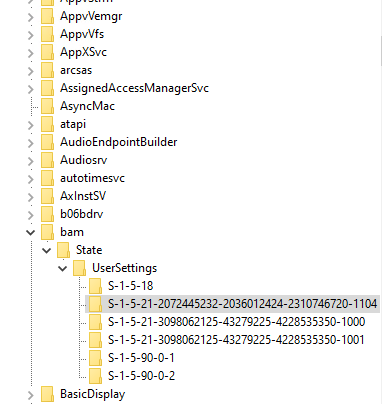
Unlike BAM, the DAM mechanism is not always usable. Its operation depends on power management features, especially Modern Standby. On many systems, notably desktops, virtual machines, or servers, the key exists but remains empty, as in my case.
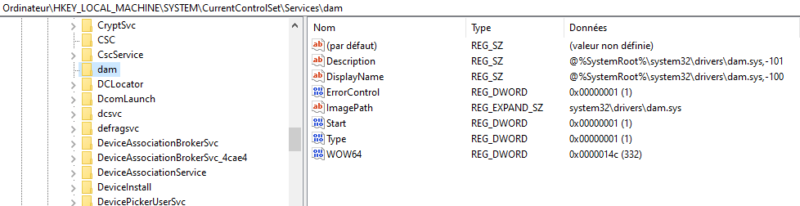
Because this information is associated with a SID, each subkey corresponds to a distinct user context. This makes it possible to reconstruct user activity on the same machine.
On a live system, the following command displays the SID of the current account.
Whoami /user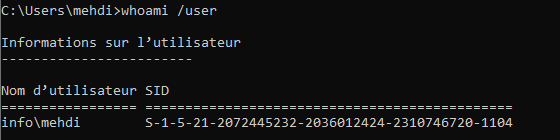
Analyzing BAM and DAM Content
Direct Reading in the Registry
When opening the registry path, it is already possible to identify several pieces of information about the applications used. For example, we can observe here the execution of a C++ library installation, our SysMainView tool, as well as the famous BloodHound.
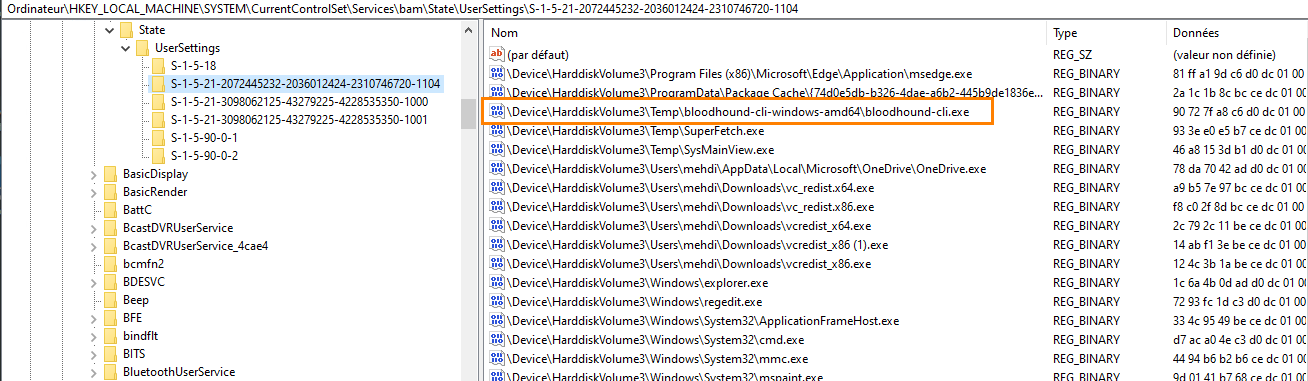
Of course, raw registry reading remains limited. There are tools that make this data easier to interpret.
Extraction with Registry Explorer
We will use Registry Explorer developed by Eric Zimmerman. The tool is available for download from ericzimmerman.github.io/

Once downloaded, run the tool as administrator.
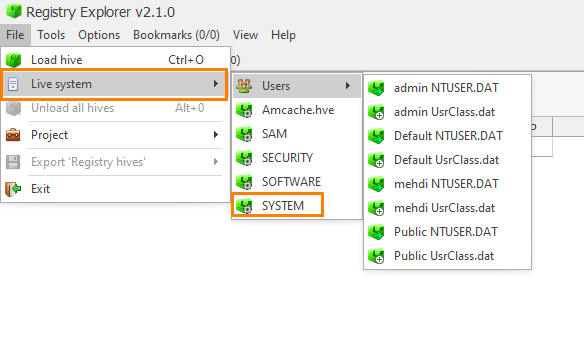
From the interface, load a hive by selecting File - “Live System”, then open the SYSTEM registry hive.
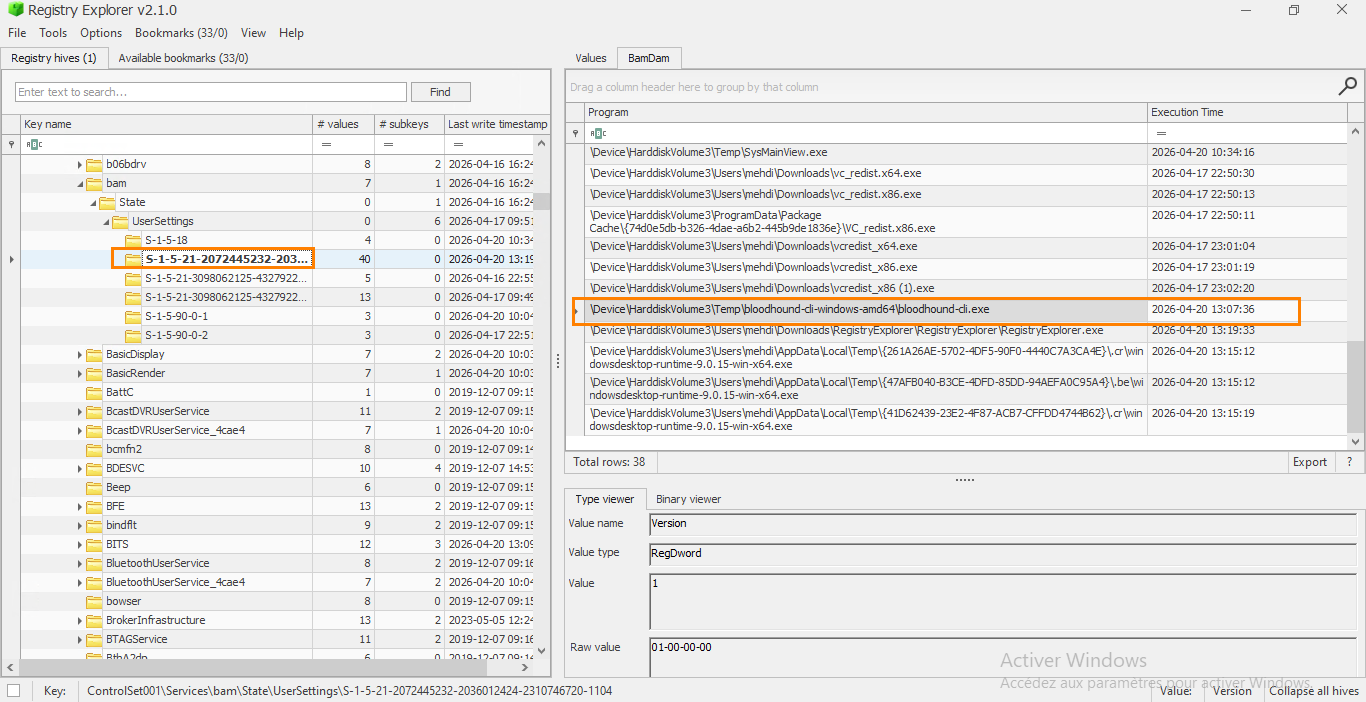
Once loaded, navigate to the BAM path.
Then select the desired user SID; the information related to the executed applications will appear in the main pane.
It is also possible to export this data in different formats to make analysis easier.
Benefits and Limitations
BAM keeps a record of an application’s execution, even if it has been deleted by the user. As long as the entry is still present, it is possible to recover execution evidence for a period of up to seven days.
In a forensic context, BAM and DAM provide useful visibility into program activity.
They make it possible to identify which executable was launched, when, and under which user context. This can be especially useful for highlighting the execution of malware or unauthorized software.
However, it is important to note that these mechanisms have certain limitations. Programs executed from removable media or network shares are not recorded in BAM, which can hide part of the real activity. In addition, timestamps are not always perfectly accurate and may differ by a few minutes from the actual execution time.
Conclusion
BAM and DAM are simple yet effective sources for identifying recent executions on a Windows system. Although they are time-limited and incomplete in some cases, they remain valuable artifacts when used alongside other investigation sources.
These elements should therefore be interpreted with caution and systematically correlated with other artifacts such as Prefetch, UserAssist, ShimCache or Amcache in order to obtain a reliable and complete view.
In the next article, we will explore dynamic registry entries.
FAQ
What is BAM (Background Activity Moderator) in Windows?
BAM is a Windows service, introduced with Windows 10 version 1709, that regulates background process activity. It records the path of launched executables in the registry, along with the timestamp of their last execution, making it a useful execution artifact in digital forensics.
What is the difference between BAM and DAM?
BAM (Background Activity Moderator) tracks background processes, while DAM (Desktop Activity Moderator) applies to desktop applications and depends on Modern Standby. Both record execution evidence per user, but DAM is usually populated only on devices using Modern Standby.
Where are BAM and DAM registry keys located?
On recent Windows versions, the data is located under HKLMSYSTEMCurrentControlSetServicesbamStateUserSettings<SID> and under the equivalent path for dam. On older versions, the State segment is missing. Each user has a subkey named after their SID.
How long are BAM entries retained?
Entries cover about seven days of activity. Entries older than seven days are removed at Windows startup, and an entry is also removed after reboot if the associated executable has been deleted. The analysis window is therefore sliding and time-limited.
Why is the DAM key often empty?
DAM is only truly populated on systems using Modern Standby, which is common on laptops and tablets. On desktops, virtual machines, or servers, the key usually exists but remains empty.
How do you analyze BAM with Registry Explorer?
Launch Registry Explorer (Eric Zimmerman) as administrator, load the SYSTEM hive via File then Live System, navigate to the BAM path, and select the desired SID. The executables and their timestamps are then displayed and can be exported for analysis.