www.it-connect.fr

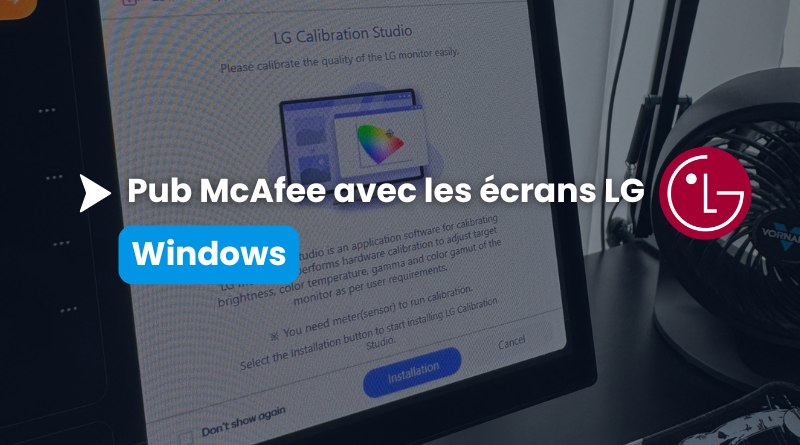
LG Monitor Connected, and Windows Installs a McAfee Ad: Microsoft Steps In
31 McAfee pop-ups out of 32 startups. That’s the result obtained by YouTuber Gamers Nexus after simply plugging a brand-new LG monitor into a Windows 11 PC. An ad pushed by LG without asking users first. Here’s what we know about the case, and above all about the Windows mechanism that made it possible.
From Reddit to the Windows leadership team in just a few days
Here’s the pattern reported by many users: you plug an LG monitor into a Windows PC, Windows Update fetches the drivers, and then a program called LG Monitor App Installer appears without any confirmation prompt. That’s not the worst part: a few moments later, a pop-up appears as well, offering a 30-day free trial of McAfee.
The issue gained traction in mid-July, starting with a post on the r/pcmasterrace Reddit community from a user who owned three LG UltraGear monitors. To identify where the installation came from, he opened Windows Reliability Monitor using the perfmon /rel command and found a successful update entry for the 9PM9N6F47JB8-LGElectronics.LGMonitorApp package.
Gamers Nexus then reproduced the behavior on an LG UltraGear 34GX900A-B, a monitor sold for around $1,200. According to him, the app installed itself after the drivers, then the McAfee pop-up appeared on 31 of the 32 subsequent startups, including on LG monitors that were three years old. In practice, you have no say in the matter: the app installs and runs without user consent.
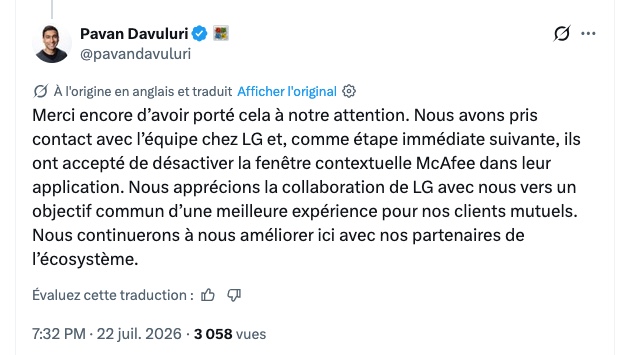
The rest of the story unfolded on X. On July 19, Tim Sweeney, CEO of Epic Games, called out Pavan Davuluri (Executive Vice President of Windows + Devices at Microsoft) about this issue with LG monitors. Following that message, Microsoft contacted LG’s teams and, Pavan Davuluri says: "They agreed to disable the McAfee pop-up from their app", at least for the time being.
For its part, LG shared information with several media outlets, including TechRadar and PCGamesN. In those statements, the hardware vendor says that McAfee is never installed without explicit user consent, that LG Monitor App Installer is distributed through the official Windows distribution process, and that the app neither collects nor transmits personal data. That answer misses the point somewhat, because the criticism is not about the silent installation of the antivirus, but about the LG app itself, and the advertising it later displays.
Device metadata: the Windows mechanism that allows silent installation
As an admin, this is the part that should particularly grab your attention. To install this application, LG did not exploit any flaw: the vendor used a documented Windows feature called device metadata, which has been present since Windows 8. Microsoft’s documentation on automatic installation of UWP device apps describes a four-step process:
- The device is connected, and Windows queries the WMIS (Windows Metadata and Internet Services) service.
- The device metadata is downloaded and then parsed to identify the associated app.
- The drivers are downloaded from Windows Update if needed.
- The app is downloaded and installed for the signed-in user.
No consent screen appears during this process, which makes it possible to install apps quietly. Microsoft even states this clearly in its own documentation: the automatic installation feature displays no notification when the app is installed, which some users may find confusing and frustrating. The only workstation-side requirements are having accepted the recommended settings during Windows setup, being signed in to the Microsoft Store, and having internet access.
This issue has taken on a new dimension in recent days, but what LG is doing is not new. Older reports about the LG app date back to July 2025 on the Microsoft Tech Community forum, with no response from the vendor at the time.
One last detail, and it matters for what comes next: Microsoft’s documentation says that device metadata is deprecated and will be removed in a future version of Windows, in favor of the Driver Package Container Metadata mechanism. If Microsoft is going to evolve the system, it would be a good opportunity to give control back to the user.
How can you block these automatic installations?
In an enterprise environment, the issue goes far beyond advertising for an antivirus. This is a third-party, uncontrolled piece of software with auto-start and broad permissions (the Microsoft Store listing mentions system access) arriving on managed endpoints without IT approval, simply by plugging in a monitor. It makes me think of a scenario: one of your users goes to a client or partner site, connects to a display, and if it’s an LG model, they’ll pick up that famous app along the way.
Two actions are possible.
- Prevent automatic download:
In Group Policy Editor (gpedit.msc locally, or a domain GPO), go to: Computer Configuration, Administrative Templates, System, Device Installation, then enable the following setting: Prevent automatic download of applications associated with device metadata.
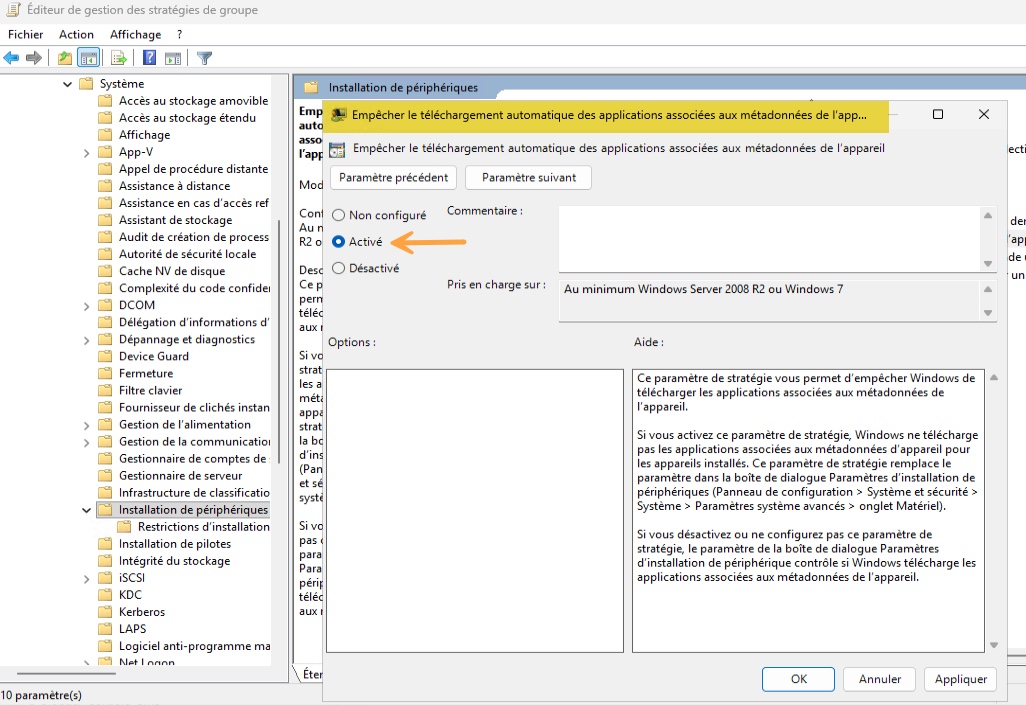
Be careful, this setting was called Prevent device metadata retrieval from the Internet up through Windows 11 25H2 administrative templates, where it was renamed (I do not have the exact French wording, but you will need to find it if this affects you). In all cases, this setting writes the PreventDeviceMetadataFromNetwork value to the HKLM\SOFTWARE\Policies\Microsoft\Windows\Device Metadata Windows Registry key.
This approach to locking things down and cleaning things up ties in with the guidance we covered in our tutorial on removing default apps from Windows 11 25H2 with a GPO or Intune, a setting that Microsoft has since evolved into a dynamic list of apps to remove. On the hardware side, our tutorial on managing by GPO the devices allowed to install on Windows complements this approach.