www.it-connect.fr

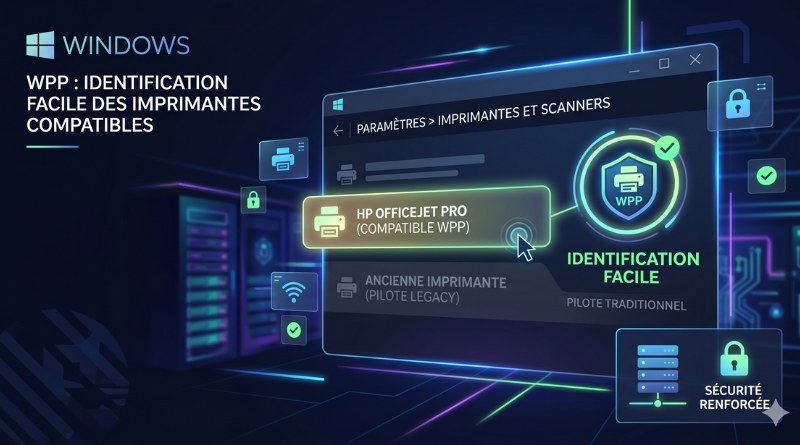
How to Tell if Your Printers Are Compatible with Windows Protected Print
Microsoft has added a new visual indicator to Windows 11 to help you instantly spot devices compatible with Windows Protected Print. Here’s what you need to know about this new feature.
Why Windows Protected Print matters
Windows Protected Print uses Microsoft’s new printing platform. It is designed to make printing more secure and, above all, to simplify driver management, notably by phasing out legacy drivers. It is compatible with all Mopria-certified printers, an alliance that brings together major brands and some software vendors.
On the security side, Microsoft highlights several benefits:
- Reduced privileges for running the most common printing tasks,
- XPS rendering per user,
- Binary restrictions with a set of measures to make it harder to exploit a vulnerability through the Print Spooler service,
- Restrictions on module loading.
A new icon directly in Windows
Microsoft has introduced a new visual indicator in Windows directly within the operating system settings. By going to Settings > Bluetooth & devices > Printers & scanners, you will now see a dedicated new icon. It looks like a shield, as shown here:

Here’s what you should remember about this new compatibility indicator:
- The icon appears next to each installed printer that supports Windows Protected Print.
- To be compatible with this mode, the printer must support the IPP (Internet Printing Protocol).
"This update allows IT administrators to quickly determine whether printers are ready for Windows protected print mode before enabling it across managed devices," Microsoft explains in its article.
Enabling protected print mode with Group Policy
To enable protected print mode across a set of machines, you can do it manually in Windows settings, but also through a Group Policy, or an Intune policy.
Via an Active Directory Group Policy, this setting must be enabled:
- In French: Configuration ordinateur > Stratégies > Modèles d'administration > Imprimantes > Configurer l'impression protégée par Windows
- In English: Computer Configuration > Administrative Templates > Printers > Configure Windows protected print
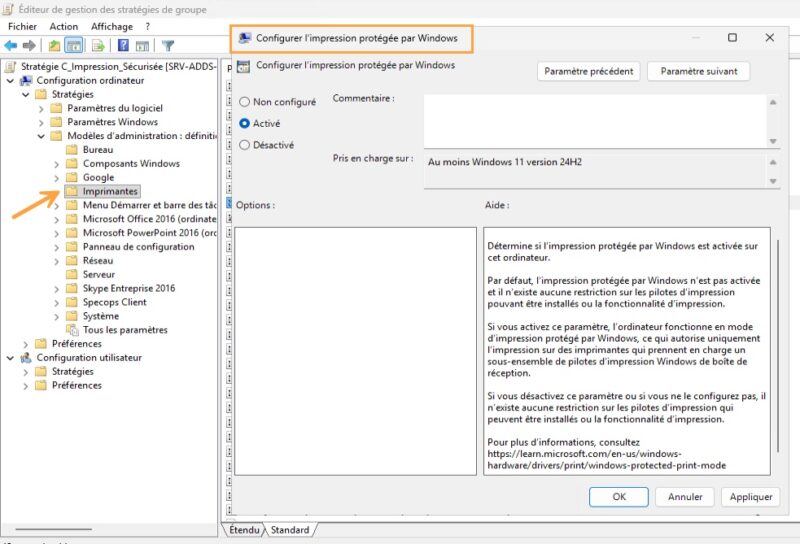
On a machine where the policy applies, this mode will then be enforced. It will not be possible to disable it from Settings.
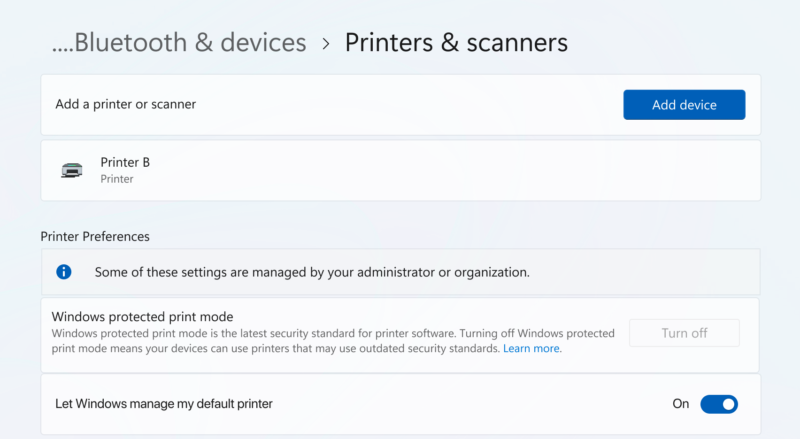
Through Microsoft Intune, you can define a policy targeting the following OMA-URI setting:
OMA-URI: ./Device/Vendor/MSFT/Policy/Config/Printers/ConfigureWindowsProtectedPrint
Data Type: String
Value: <enabled/>
It is important to note that enabling protected print mode should not be done only on Windows endpoints. You must also enable this mode on the print server, otherwise it will not use Microsoft’s new printing platform.
Finally, it is worth looking into this mode now, since Microsoft will make it the default in the future. When? We do not know.