www.it-connect.fr

Microsoft Entra Cloud Sync Adds Device Sync in Preview
Microsoft has recently added a much-anticipated feature to Microsoft Entra Cloud Sync: the synchronization of computer objects from Active Directory to Microsoft Entra ID, called Device Sync. Available in public preview since the end of July 2026, it fills one of the main functional gaps that still existed between Cloud Sync and Microsoft Entra Connect Sync (the legacy synchronization client).
Microsoft announced in April 2026 the transition of Entra Connect Sync instances (formerly Azure AD Connect) to Entra Cloud Sync. This reduces the administrative overhead associated with Entra Connect Sync, since the synchronization engine is managed in your tenant rather than on a dedicated server (so there is one less component to maintain). During this announcement, the Redmond company also stated that this transition would happen in phases, as all Connect Sync features became available in Cloud Sync. This new feature is a good example of Microsoft’s effort to close the gaps between the two tools.
Device synchronization in Entra Cloud Sync
Until now, synchronizing computer objects from Active Directory to Entra ID, allowing devices to become Microsoft Entra hybrid joined, was only available with Microsoft Entra Connect Sync. This was one of the main reasons organizations with AD domain-joined endpoints kept Connect Sync when they wanted to move them to hybrid join.
Since the end of July 2026, Cloud Sync has included Device Sync as a public preview feature, making it easier to migrate hybrid environments to the modern, cloud-managed Cloud Sync architecture.
Terminology that is not trivial
Device Sync allows computers to be synchronized from Active Directory to Entra ID, but not the other way around. In other words, device writeback is still, for now, a Microsoft Entra Connect Sync-only feature. With this announcement, I remain optimistic about device writeback eventually coming to Cloud Sync, so that hybrid environments can benefit from bidirectional synchronization.
How does Device Sync work?
The feature relies on a new synchronization job, AD2AADDeviceSync, integrated into a Cloud Sync configuration of type AD to Microsoft Entra ID. Once enabled, this job synchronizes AD computer objects to Entra ID (from on-premises to Cloud), allowing the corresponding devices to become hybrid joined.
Device Sync is disabled by default on existing configurations.
Synchronized attributes:
| Entra ID attribute | Active Directory attribute | Mapping type |
| AccountEnabled | userAccountControl | Expression |
| DeviceId | objectGUID | Direct |
| DeviceOSType | operatingSystem | Expression |
| DeviceTrustType | None - The defined value is ServerAd | Expression |
| DisplayName | displayName, dNSHostName | Expression |
| OnPremiseSecurityIdentifier | objectSid | Direct |
| RegisteredOwnerReference | mS-DS-CreatorSID | Only once, when the object is discovered in AD |
| SourceAnchor | objectGUID | Direct |
| UserCertificate | userCertificate | Direct |
Implementing device synchronization
Prerequisites
To enable device synchronization in Cloud Sync, make sure that:
- The installed Entra Cloud Sync provisioning agent is version 1.1.1107 or later
- You create an "AD to Microsoft Entra ID" cloud sync configuration
- You have a verified custom domain, or use the technical domain in the form of "onmicrosoft.com"
- If the SCP is not already configured, an Active Directory Enterprise Administrator account is required
- To configure device synchronization in Entra Cloud Sync, you need the Entra ID role Hybrid Identity Administrator
Configure the service connection point (SCP)
The SCP allows devices joined to Active Directory to know which Microsoft Entra tenant they should register with. With Entra Connect Sync, this was configured by the setup wizard. To configure it with Cloud Sync, Microsoft provides a PowerShell script to implement it. You can find it here:
Enable Entra Cloud Sync device synchronization
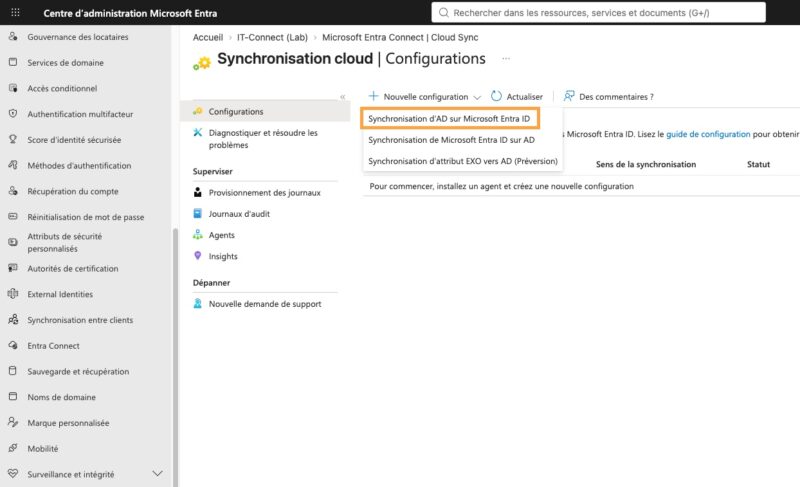
The final step is to enable device synchronization in the Cloud Sync configuration in the Entra ID admin center.
- Sign in to the Entra ID admin center.
- Go to the Entra Connect > Cloud Sync > select your existing configuration, or create one if needed.
- Select the Properties tab and verify that device synchronization is enabled.
- Select the edit icon to the right of the section name and check "Enable device Sync", then save the changes.
Conclusion
Device Sync is a significant step forward for Cloud Sync, but it is still a preview feature at this stage: it is best to validate it in a test environment before any production rollout, and to stay alert for changes that may arrive before general availability.
It is also important to keep in mind that it does not close all the gaps with Connect Sync: device writeback from Entra ID to AD is still unavailable in Cloud Sync for now.
That said, this new feature fits a clear direction: Microsoft is pushing Cloud Sync as the reference hybrid synchronization solution, an even more urgent shift since Connect Sync versions earlier than 2.5.79.0 will stop working on September 30, 2026.