www.it-connect.fr


How to Remove Microsoft Copilot on Windows 11 in Enterprise
Microsoft has decided to give system administrators a little more control back! Following the installation of the April 2026 updates, it is now possible to uninstall the Copilot AI assistant from Windows 11 computers used in business environments. Here’s what you need to know about this new option.
A ready-to-use policy to uninstall Copilot
This month’s security updates bring a highly anticipated addition to endpoint management: the ability to remove Microsoft’s AI assistant, aka Copilot, using a new policy called RemoveMicrosoftCopilotApp, available through Policy CSP (see this page) and through an Active Directory Group Policy Object (GPO). This new policy can therefore be deployed via Microsoft Intune or in an on-premises environment where devices are managed by Active Directory.
The arrival of this setting is not really a surprise: Microsoft had already tested it in January 2026 after integrating it into Windows 11 Insider Preview Build 26220.7535.
However, to take advantage of this setting and remove Copilot without hassle, the device must meet certain prerequisites:
- Run Windows 11 version 25H2 and have the KB5083769 update installed.
- Have both Microsoft 365 Copilot and Microsoft Copilot installed at the same time (don’t ask me why).
- The user must not have installed the Microsoft Copilot app themselves.
- The app must not have been launched within the last 28 days.
That still creates quite a few constraints, which may make Copilot harder to remove on some devices. But at least it also prevents it from being uninstalled when the user is allowed to do it (some of you may be assigning Microsoft 365 Copilot licenses sparingly).
As Redmond clarified in a new message serving as the official announcement: "The new RemoveMicrosoftCopilotApp policy setting lets you uninstall Copilot from devices in your organization in a non-disruptive way".
The US company also added more details about the scope: "If this policy is enabled, the Microsoft Copilot app will be uninstalled. Users can still reinstall it if they want to. This setting applies only to Enterprise, Professional, and Education client SKUs."
Where can you find this GPO setting?
To locate this setting through Group Policy, just open the Group Policy Editor and navigate to this path:
- User Configuration > Administrative Templates > Windows Components > Windows AI.
There, you should see a setting titled "Remove Microsoft Copilot App".
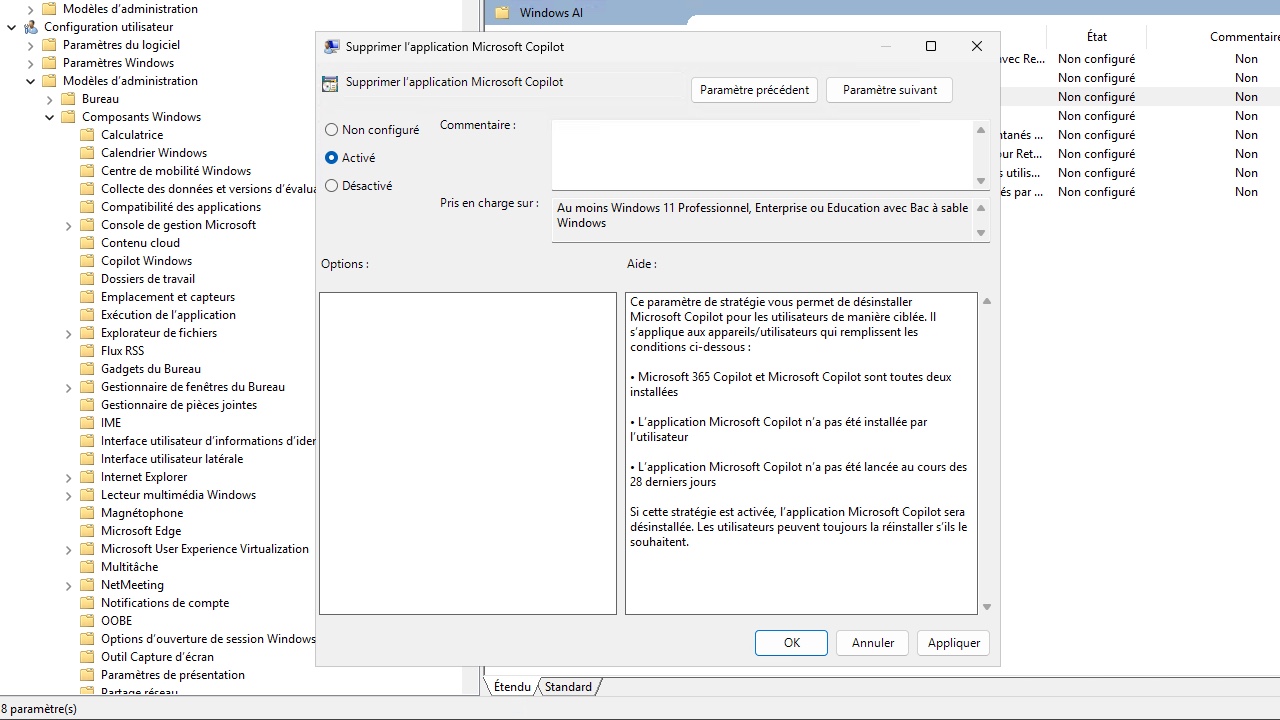
Initially, Microsoft wanted to bring AI everywhere, including Windows, and especially not leave too much choice to Windows 11 users. Now, Redmond seems to be slowing down and changing strategy by giving us the ability to choose. Last month, Microsoft also stopped automatically installing the Microsoft 365 Copilot app with Office apps on Windows devices.