www.it-connect.fr

Exchange Online: How to Disable SMTP AUTH and Secure Email Sending
In many Microsoft 365 tenants, SMTP AUTH is still enabled even though nobody uses it anymore, and attackers know very well that it is an easy way in.
The copier that sends scans by email, the ERP that ships invoices, the PowerShell script that notifies the IT team every morning: these uses often rely on Exchange Online's SMTP AUTH protocol, with a service account and a password - stored in clear text - in the configuration. The problem is that this protocol remains open for all mailboxes, including those that never needed it, and it is a prime target for password spraying attacks.
In this article, I will show you how to disable SMTP AUTH in Exchange Online properly, without breaking legitimate flows. We will start by understanding how the two configuration levels work (organization and mailbox), then we will see how to audit SMTP AUTH usage in your tenant. After that, we will disable the protocol with the Exchange admin center and with PowerShell, before going further with authentication policies to block basic authentication. Finally, we will go over the alternatives for applications and printers.
SMTP AUTH in Exchange Online: how does it work?
What is SMTP AUTH?
SMTP AUTH, also known as "authenticated SMTP", allows a client to authenticate to Exchange Online to submit an email, usually over TCP port 587 with the smtp.office365.com endpoint. It is a simple method that is well suited to applications and devices (such as multifunction copiers) that generate and send email without being able to support other authentication methods.
SMTP AUTH supports basic authentication (username and password) and modern authentication via OAuth 2.0. Another important point: modern mail clients (Outlook for Windows, etc.) do not use SMTP AUTH to send email. Disabling this protocol therefore has no impact on your users' day-to-day use.
Note: if you want to review the basics of mail protocols, check out our article Mail: discovering the SMTP, POP, IMAP, and MAPI protocols.
Two configuration levels: organization and mailbox
SMTP AUTH is controlled at two levels in a Microsoft 365 tenant:
- The organization setting, associated with the
SmtpClientAuthenticationDisabledproperty. It applies to the entire tenant. - The mailbox setting, associated with the same property on each user's mailbox (
Get-CASMailbox). What you need to understand is that it takes precedence over the organization setting.
At the mailbox level, the SmtpClientAuthenticationDisabled property can take three values:
| Value | Meaning | Effect |
|---|---|---|
$true | SMTP AUTH disabled | The mailbox cannot use SMTP AUTH, regardless of the organization setting |
$false | SMTP AUTH enabled | The mailbox can use SMTP AUTH, even if the organization has disabled it |
$null (empty) | Inherits from the organization | The mailbox follows the setting defined in Get-TransportConfig |
In short: disabling SMTP AUTH at the organization level is not enough. Any mailbox whose value is $false will continue to accept SMTP AUTH connections.
Disable SMTP AUTH or block basic authentication?
These two concepts are often confused, even though they do not act in the same place:
| Mechanism | What it blocks | Effect on SMTP AUTH with OAuth |
|---|---|---|
SmtpClientAuthenticationDisabled (organization or mailbox) | The SMTP AUTH protocol itself | Also blocked |
Exchange Online authentication policy (AllowBasicAuthSmtp) | Basic authentication on SMTP, before it even reaches Entra ID | Allowed |
| Entra ID security defaults (security defaults) | Basic authentication, and therefore SMTP AUTH | Not relevant: SMTP AUTH is disabled |
| Conditional Access "block legacy authentication" | Legacy auth connections, after password verification | Allowed |
In practice, the best approach is to combine the first two mechanisms: disable SMTP AUTH everywhere except for a few identified accounts, and block basic authentication so those accounts must use OAuth.
Warning: if security defaults are enabled in your tenant, SMTP AUTH is already disabled in Exchange Online. To use SMTP AUTH, you would then need to disable security defaults, which is not trivial and must be paired with equivalent Conditional Access policies.
Why disable SMTP AUTH?
Reduce the Microsoft 365 attack surface
Basic authentication does not support multi-factor authentication (MFA). An attacker who has a list of email addresses can therefore test common passwords via SMTP AUTH without ever being challenged by MFA. This is in fact a documented technique: when an attacker targets an account, they rely on this type of authentication protocol that is not protected by MFA to perform password spraying attacks.
Want an example? In 2025, a botnet of more than 130,000 devices targeted Microsoft 365 accounts using basic authentication. More recently, a TeamFiltration-based campaign compromised 7 Microsoft 365 accounts, all forgotten service accounts, protected by a simple password and no MFA. This account profile is exactly what you typically find behind SMTP AUTH usage: an account created for a copier or an application, whose password never changes.
The end-of-life timeline for basic authentication on SMTP AUTH
SMTP AUTH is the last Exchange Online protocol that still accepts basic authentication. Microsoft announced its retirement in April 2024, then revised the timeline several times. The current timeline, published by the Exchange team on January 27, 2026, is as follows:
| Deadline | What changes |
|---|---|
| Until the end of December 2026 | No change: basic authentication still works with SMTP AUTH |
| End of December 2026 | Basic authentication for SMTP AUTH is disabled by default on existing tenants. Administrators will still be able to re-enable it if needed |
| Tenants created after December 2026 | Basic authentication for SMTP AUTH is unavailable by default. OAuth is the supported method |
| Second half of 2027 | Microsoft will announce the final retirement date for basic authentication on SMTP AUTH |
As of this writing, Microsoft has not specified which setting will allow basic authentication to be temporarily re-enabled after the end-of-December 2026 transition. You can find the message history on this page.
In other words, if you do nothing, your devices and applications that use SMTP AUTH with a password may stop sending email in just over two months. It is better to get ahead of the change. For more context on basic authentication and its risks, you can read the article Microsoft 365 - Exchange Online: end of life for SMTP basic authentication.
Prerequisites
To follow this tutorial, you need the following:
- An account with the Exchange Administrator role (or Global Administrator) in the Microsoft 365 tenant.
- The ExchangeOnlineManagement PowerShell module installed on your workstation. If not, follow our tutorial PowerShell: how to install the Exchange Online V3 module?.
- For the sign-in logs section, an account with at least the Reports Reader role in Microsoft Entra ID.
All PowerShell commands in this article must be run in an Exchange Online session, so you might as well connect now (unless you want to do everything through the web).
# Install the Exchange Online module (if needed)
Install-Module -Name ExchangeOnlineManagement -Force

# Connect to Exchange Online
Connect-ExchangeOnline -UserPrincipalName admin@votredomaine.fr
Audit SMTP AUTH usage in your tenant
Before disabling anything, you need to know who is using SMTP AUTH today. Disabling the protocol blindly risks breaking email sending, and since this may involve invoices or user scans, it is better to avoid problems.
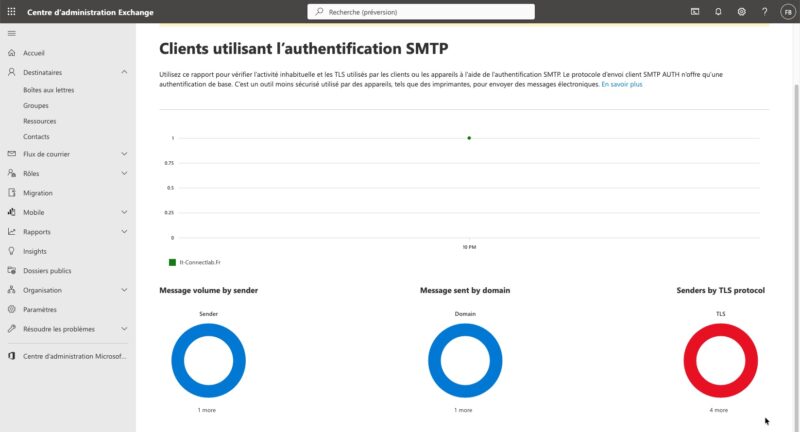
The SMTP AUTH clients report in the Exchange admin center
Microsoft provides a dedicated report in the Exchange admin center. To access it, sign in to the Exchange admin center, then go to Reports > Mail flow > SMTP AUTH clients report.
By default, the report shows the last 7 days, but there is also a delay before data appears. Extend the date range to 90 days to catch occasional uses, such as a monthly script or a quarter-end job. You will get the list of messages sent through this method, and most importantly, you can see whether basic authentication was used or not.
If you want "live" information, check the mail flow directly. Here is an example in PowerShell:
Get-MessageTraceV2 -SenderAddress chris.tal@it-connectlab.fr

Received            Sender Address             Recipient Address            Subject        Status
--------            --------------             -----------------            -------        ------
22/10/2026 19:09:53 chris.tal@it-connectlab.fr florian.burnel@it-connect.fr Test SMTP AUTH Delivered
Microsoft Entra ID sign-in logs
SMTP AUTH connections using basic authentication also appear in Microsoft Entra ID sign-in logs. This is an interesting source because it also shows failed attempts, and therefore any ongoing attacks.
Sign in to the Microsoft Entra admin center, then go to Entra ID > Monitoring & health > Sign-in logs. Add the Client app column if it is not shown (via Manage view then Edit columns). Then add a filter on Client app to select SMTP (this will show only what matters here). Be sure to do the same in the Non-interactive user sign-ins tab.
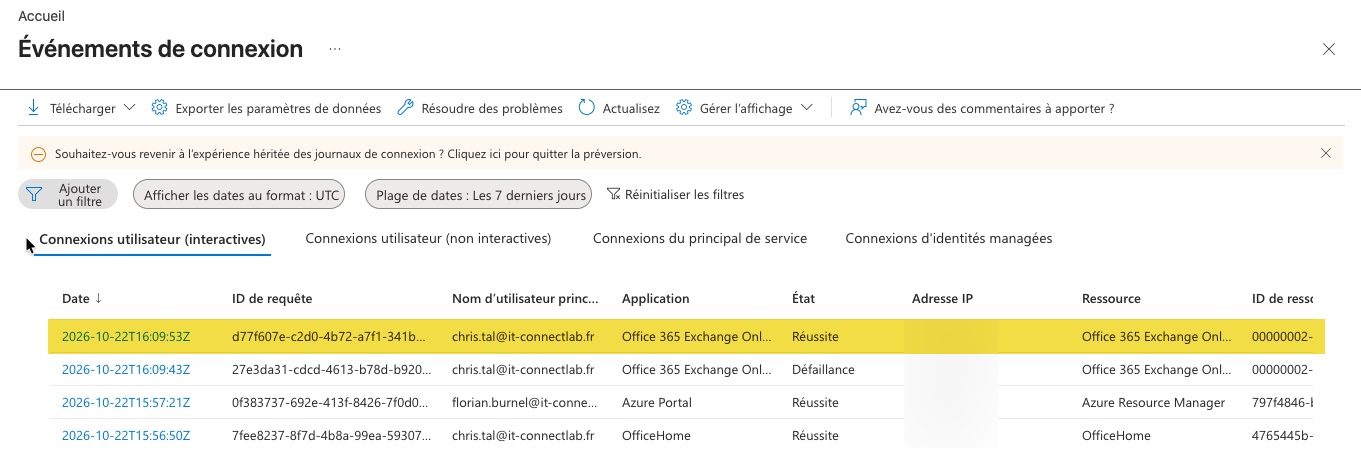
By looking at the authentication details, you will be able to see that this is SMTP AUTH:
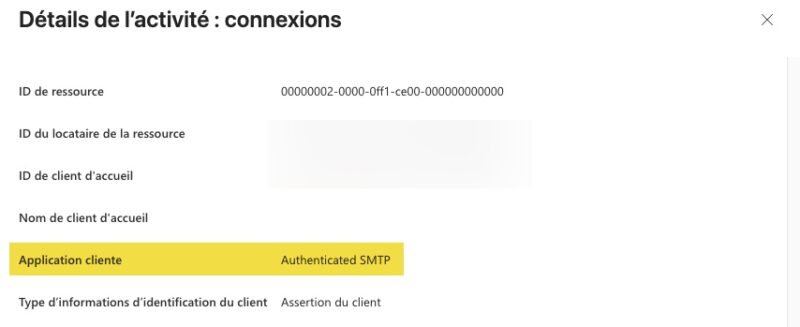
Note: if you see dozens of failed SMTP logins on accounts that have no reason to use this protocol, you can assume SMTP AUTH is being used against you.
The configuration state with PowerShell
The report shows usage, but not configuration. To know which mailboxes can use SMTP AUTH, you need to cross-reference the organization setting with the setting on each mailbox. Let's start with the organization setting:
Get-TransportConfig | Format-List SmtpClientAuthenticationDisabledIf the value is True, SMTP AUTH is disabled for the organization. If it is False, it is enabled.
The script below then calculates the effective state of each mailbox, taking inheritance into account (a mailbox with the $null value).
# Retrieve the organization setting
$OrgSmtpAuthDisabled = (Get-TransportConfig).SmtpClientAuthenticationDisabled

# Calculate the effective SMTP AUTH state for each mailbox
$SmtpAuthReport = Get-CASMailbox -ResultSize Unlimited | ForEach-Object {

    if ($null -eq $_.SmtpClientAuthenticationDisabled) {
        # The mailbox inherits the organization setting
        $Source = "Organization"
        $Disabled = $OrgSmtpAuthDisabled
    }
    else {
        # The mailbox has an explicit value that takes precedence
        $Source = "Mailbox"
        $Disabled = $_.SmtpClientAuthenticationDisabled
    }

    [PSCustomObject]@{
        DisplayName        = $_.DisplayName
        PrimarySmtpAddress = "$($_.PrimarySmtpAddress)"
        MailboxValue       = $_.SmtpClientAuthenticationDisabled
        Source             = $Source
        SmtpAuthEnabled    = -not $Disabled
    }
}

# Display the mailboxes allowed to use SMTP AUTH
$SmtpAuthReport | Where-Object { $_.SmtpAuthEnabled } | Format-Table -AutoSize

# Export the full result to CSV
$SmtpAuthReport | Export-Csv -Path "C:\Scripts\Audit-SmtpAuth.csv" -NoTypeInformation -Encoding UTF8 -Delimiter ";"
A few explanations about this script:
Get-CASMailbox -ResultSize Unlimited: retrieves the client access settings of all mailboxes (users, shared mailboxes, resources).Source: indicates whether the state comes from the organization (inheritance) or from an explicit mailbox value.SmtpAuthEnabled: equalsTrueif the mailbox can actually use SMTP AUTH.Export-Csv: the;delimiter makes it easier to open the file in Excel.
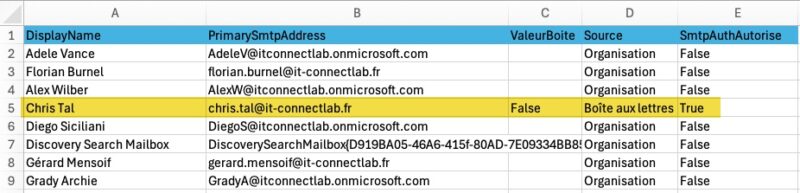
By cross-referencing this file with the SMTP AUTH clients report export, you get the list of accounts that truly need it (they appear in the report) and the list of accounts that are allowed for no reason (they appear only in the PowerShell audit).
The previous PowerShell script highlighted that SMTP AUTH was allowed on a user's account.
Disable SMTP AUTH for the entire organization
Once legitimate uses have been identified and documented, you can disable SMTP AUTH at the organization level. Accounts that still need it will be handled with an exception at the mailbox level (see the next section).
Warning: if legitimate accounts use SMTP AUTH by inheriting the organization setting ($null value), configure their exception with $false first, then disable SMTP AUTH for the organization. Otherwise, those accounts will be blocked.
From the Exchange admin center
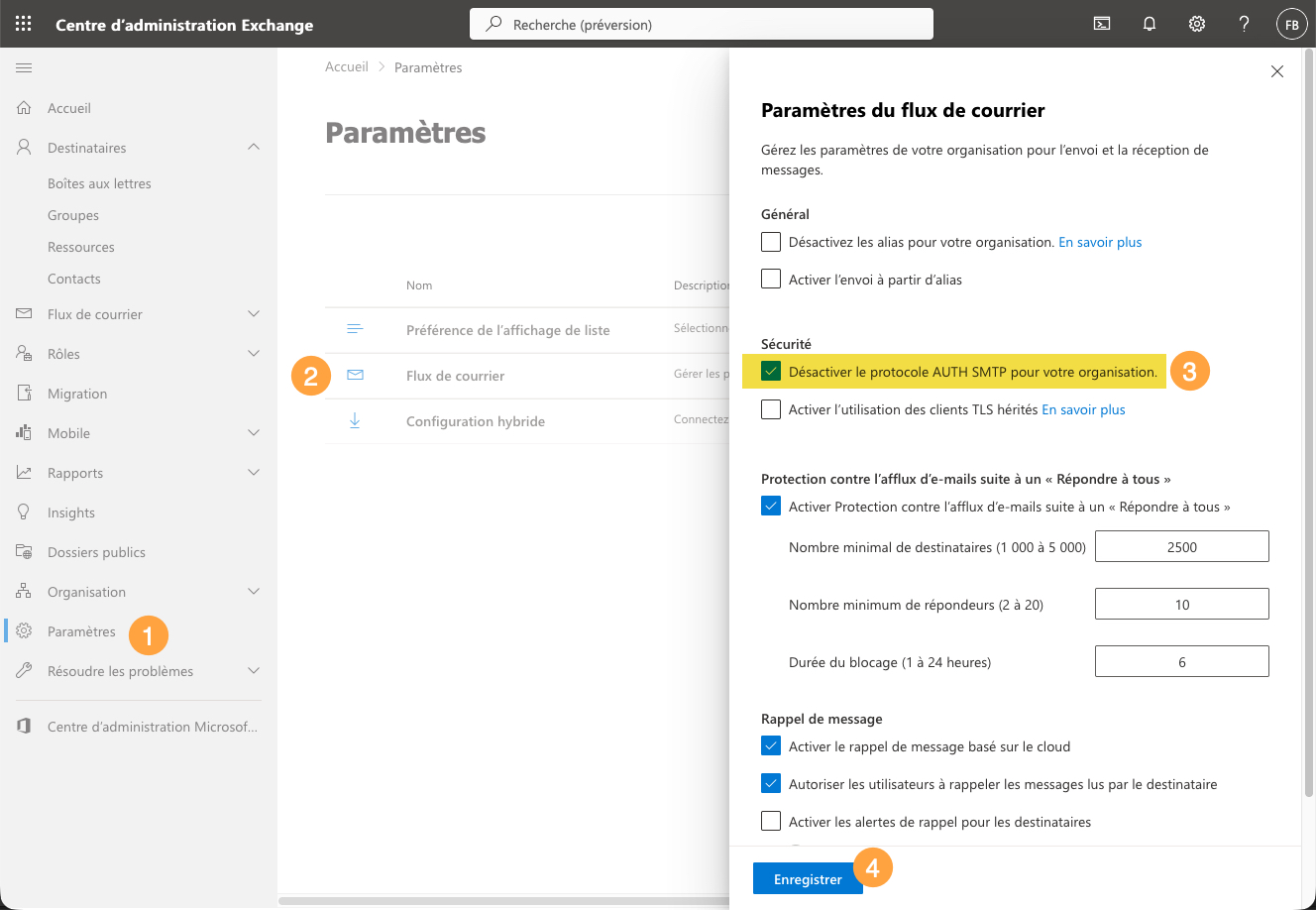
The procedure is as follows:
- Sign in to the Exchange admin center.
- Go to Settings > Mail flow.
- In the Security section, check Turn off SMTP AUTH protocol for your organization.
- Click Save.
With PowerShell
The same operation can be done with a single command, plus another command for verification:
Set-TransportConfig -SmtpClientAuthenticationDisabled $true

Get-TransportConfig | Format-List SmtpClientAuthenticationDisabled
You should get the following output:
SmtpClientAuthenticationDisabled : TrueTo roll back, simply set the value to $false.
Manage SMTP AUTH at the mailbox level
Clean up explicit values
Start by listing the mailboxes that have an explicit $false value, because they bypass the organization setting:
Get-CASMailbox -ResultSize Unlimited |
    Where-Object { $_.SmtpClientAuthenticationDisabled -eq $false } |
    Select-Object DisplayName, PrimarySmtpAddress, SmtpClientAuthenticationDisabled
For each mailbox that is not part of your documented exceptions, there are two possible approaches:
- Set the value back to
$null: the mailbox follows the organization setting. This is the approach I recommend, because it keeps the configuration readable: the organization defines the rule, and only exceptions have an explicit value. - Force the value to
$true: the mailbox remains blocked even if someone re-enables SMTP AUTH at the organization level one day. This adds extra protection, but it increases the number of explicit values, which makes audits harder. It can make sense for sensitive accounts (administrators, executives).
The previous command clearly highlighted the account identified during the audit:
DisplayName PrimarySmtpAddress         SmtpClientAuthenticationDisabled
----------- ------------------         --------------------------------
Chris Tal   chris.tal@it-connectlab.fr                            False
The following script resets all $false values to $null, except for the accounts listed in $Exceptions:
# Accounts allowed to use SMTP AUTH (your documented exceptions)
$Exceptions = @(
    "votre-scanner@votredomaine.fr",
    "votre-erp@votredomaine.fr"
)

# Identify mailboxes with SMTP AUTH explicitly enabled, excluding exceptions
$MailboxesToReset = Get-CASMailbox -ResultSize Unlimited | Where-Object {
    $_.SmtpClientAuthenticationDisabled -eq $false -and
    "$($_.PrimarySmtpAddress)" -notin $Exceptions
}

# Reset the value to $null so the mailbox follows the organization setting
# SIMULATION MODE: remove -WhatIf after verifying the list of affected mailboxes
foreach ($Mailbox in $MailboxesToReset) {
    Set-CASMailbox -Identity $Mailbox.Identity -SmtpClientAuthenticationDisabled $null -WhatIf
}
The -WhatIf parameter shows the changes without applying them. Run the script once with this parameter, check the list, then run it again without -WhatIf.
Allow SMTP AUTH for a specific account
For accounts that truly need SMTP AUTH (while waiting for a migration to another method), enable the protocol only at the mailbox level:
# Allow SMTP AUTH for a specific mailbox
Set-CASMailbox -Identity votre-scanner@votredomaine.fr -SmtpClientAuthenticationDisabled $false

# Verify the applied value
Get-CASMailbox -Identity votre-scanner@votredomaine.fr| Format-List SmtpClientAuthenticationDisabled
Of course, this work is also a good opportunity to document the configuration and any exceptions you put in place. In all cases, I recommend using a dedicated account per use case, with a strong, unique password.
From the Microsoft 365 admin center
For a one-off change, the GUI also does the job:
- Open the Microsoft 365 admin center and go to Users > Active users.
- Select the user, then open the Mail tab.
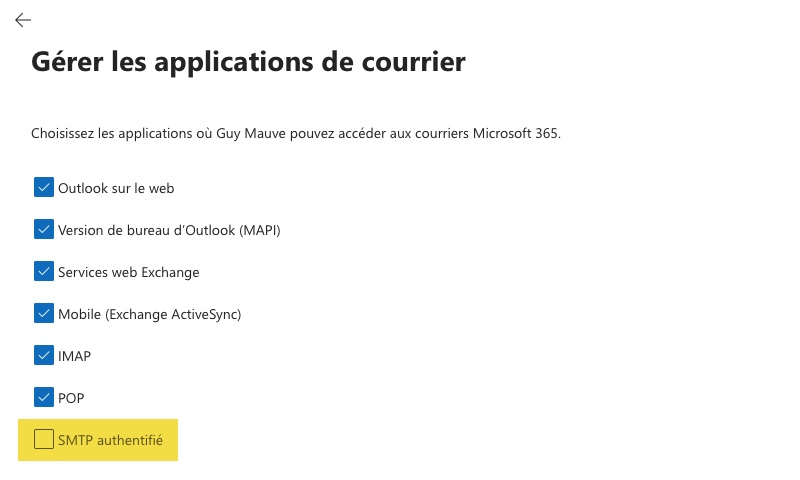
- In the Email apps section, click Manage email apps.
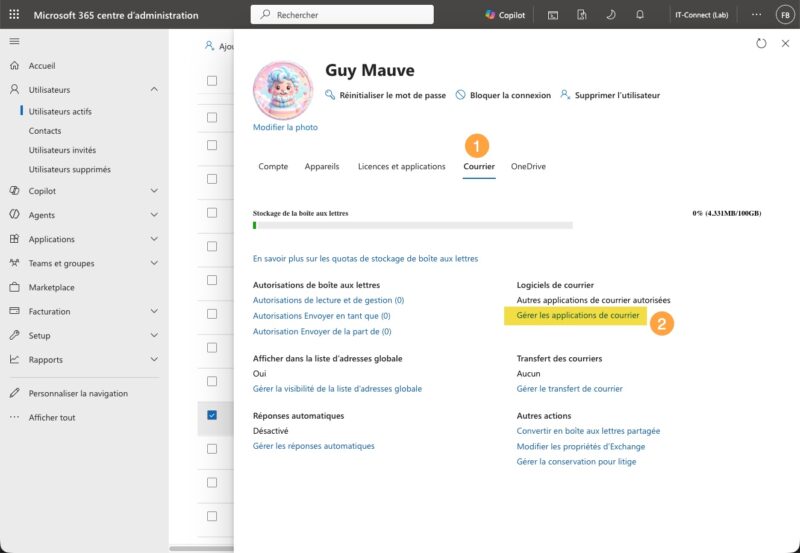
4. Check or uncheck Authenticated SMTP (checked = enabled, unchecked = disabled), then click Save changes.
Block basic authentication on SMTP with an authentication policy
Disabling SMTP AUTH handles accounts that do not need it. But for the accounts you kept as exceptions (the copier, the ERP, etc.), ask yourself the following question: how do they authenticate? SMTP AUTH accepts two methods:
- Basic authentication: the client sends a username and password (
AUTH LOGINcommand, which appears asTlsAuthLoginin the SMTP AUTH clients report). This is the method attackers exploit, and the one Microsoft will disable by default at the end of December 2026. - Modern authentication (OAuth 2.0): the client presents a token issued by Microsoft Entra ID (
AUTH XOAUTH2command). No password is transmitted.
The SmtpClientAuthenticationDisabled setting does not distinguish between the two: it allows or blocks the protocol as a whole. That is where Exchange Online authentication policies come in. They act only on basic authentication, protocol by protocol. With AllowBasicAuthSmtp set to False, an account allowed to use SMTP AUTH can no longer connect with a username and password: OAuth is the only option left.
By combining the two mechanisms, you get three possible states for an account:
| SMTP AUTH on the mailbox | Authentication policy | Result |
|---|---|---|
| Disabled | Does not matter | No SMTP AUTH sending possible, even with OAuth |
| Enabled | Blocks basic SMTP authentication | Sending possible only with OAuth |
| Enabled | Allows basic SMTP authentication | Sending possible with a username and password (highest-risk state) |
Authentication policies also have another advantage over Conditional Access: the block happens at the very first step, when the client sends credentials to Exchange Online, before the request reaches Microsoft Entra ID. Brute-force or password-spraying attacks are stopped quickly, without reaching the identity provider.
Create a default policy that blocks basic authentication
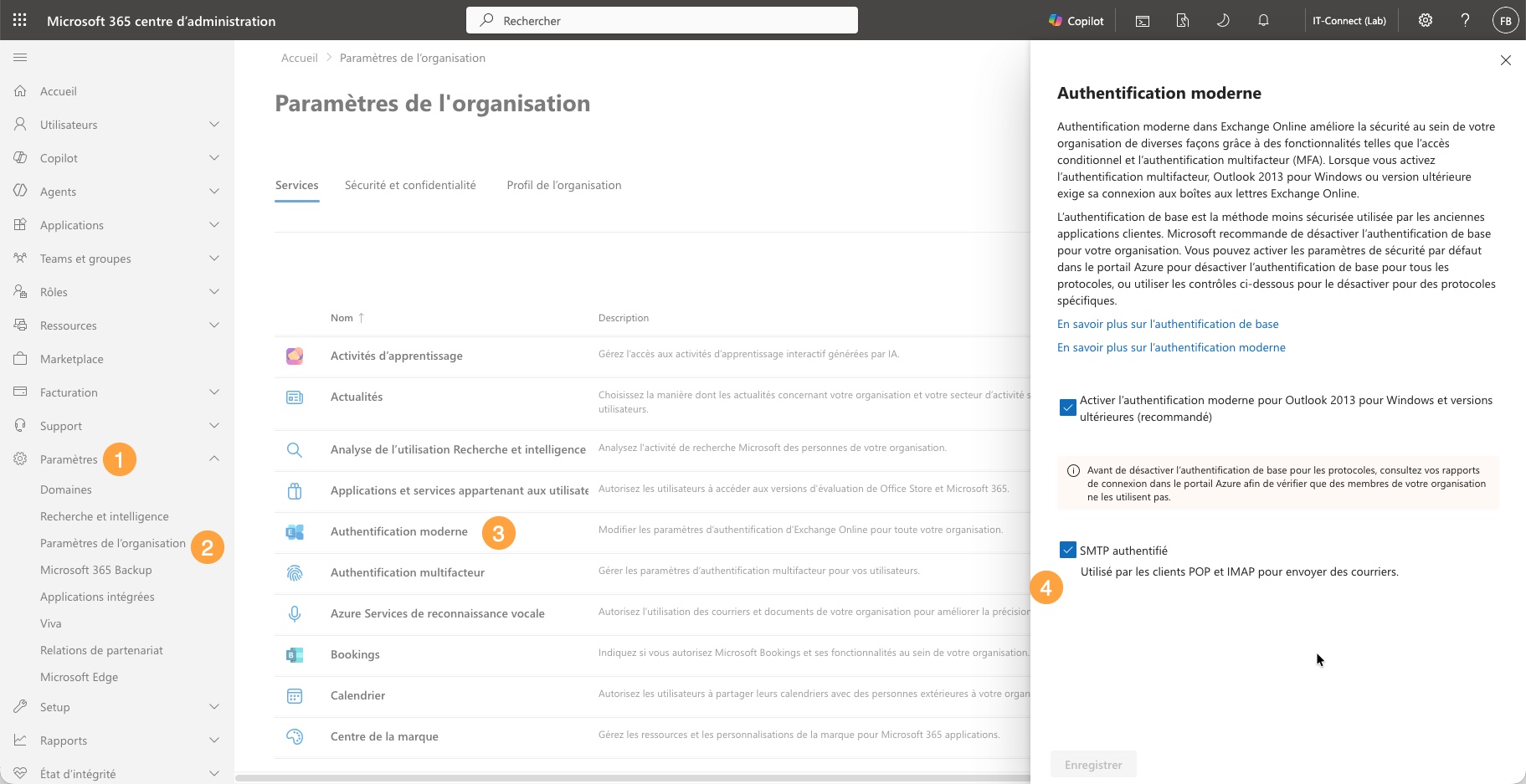
First check whether a policy already exists in your tenant. The settings on the Settings > Org settings > Modern authentication page in the Microsoft 365 admin center are based on authentication policies. If you have already changed them, a default policy may already exist. If it is enabled like in the image below, both methods are possible: username/password / OAuth.
If no policy exists, create one. With no additional parameter, a new policy blocks basic authentication for all protocols, including SMTP (all AllowBasicAuth* options are False by default):
# Create a policy that blocks basic authentication for all protocols
New-AuthenticationPolicy -Name "Block Basic Auth" -AllowBasicAuthSmtp:$false

# Set this policy as the organization's default policy
Set-OrganizationConfig -DefaultAuthenticationPolicy "Block Basic Auth"

# Verify the configuration
Get-AuthenticationPolicy -Identity "Block Basic Auth" | Format-List AllowBasicAuthSmtp
Get-OrganizationConfig | Format-Table DefaultAuthenticationPolicy
If a default policy already exists, modify it instead of creating a new one:
# Block basic authentication for SMTP in an existing policy
Set-AuthenticationPolicy -Identity "<Policy-Name>" -AllowBasicAuthSmtp:$false
The default policy applies to all users who do not have a policy assigned directly.
Note: Microsoft has already removed basic authentication for the other Exchange Online protocols (EWS, ActiveSync, POP, IMAP, remote PowerShell, etc.). Blocking all protocols in the policy therefore has no side effects on those.
Plan for a temporary exception
If a device still cannot do anything other than basic authentication, you can still create a dedicated policy and assign it only to the affected account:
# Create a policy that allows basic authentication only for SMTP
New-AuthenticationPolicy -Name "Allow Basic Auth SMTP" -AllowBasicAuthSmtp

# Assign this policy to the copier account
Set-User -Identity votre-scanner@votredomaine.fr -AuthenticationPolicy "Allow Basic Auth SMTP"

# Apply the policy in 30 minutes instead of 24 hours
Set-User -Identity votre-scanner@votredomaine.fr -STSRefreshTokensValidFrom $([System.DateTime]::UtcNow)
A few clarifications about these commands:
-AllowBasicAuthSmtp: the switch without a value allows basic authentication for SMTP. All other protocols remain blocked.Set-User -AuthenticationPolicy: a policy assigned directly to a user overrides the default policy.-STSRefreshTokensValidFrom: forces the policy to take effect within 30 minutes.
Keep in mind that this exception has a limited lifespan: it will not survive the final retirement of basic authentication, whose date will be announced in 2027.
Test and validate the configuration
Once the configuration is in place, check the global state with the audit script shown earlier: only your documented exceptions should appear with SmtpAuthEnabled set to True.
On the client side, an application that tries to authenticate via SMTP AUTH on a mailbox where the protocol is disabled will receive an error like this:
535 5.7.139 Authentication unsuccessful, SmtpClientAuthentication is disabled for the Tenant. Visit https://aka.ms/smtp_auth_disabled for more information.The message ends with for the Tenant when the block comes from the organization setting, and with for the Mailbox when it comes from the mailbox setting. That is a good hint for troubleshooting!
When basic authentication is finally retired for SMTP AUTH, clients still using it will receive the following message:
550 5.7.30 Basic authentication is not supported for Client Submission.What alternatives are there for applications and printers?
Disabling SMTP AUTH looks great on paper, but it comes with constraints. Most importantly, you need to offer another solution for legitimate use cases. Here are the available options:
| Solution | Principle | Recipients | Points to watch |
|---|---|---|---|
| SMTP AUTH with OAuth 2.0 | Same protocol, but with a token instead of a password (Entra ID application with the SMTP.SendAsApp permission) | Internal and external | SMTP AUTH must remain enabled on the mailbox in question. The device or application must support OAuth |
| High Volume Email (HVE) | Dedicated, license-free HVE accounts on the smtp.hve.mx.microsoft endpoint (port 587) | Internal only | Billed on usage (Microsoft 365 pay-as-you-go). Works even if SMTP AUTH is disabled for the organization |
| SMTP relay with connector | Inbound connector authenticated by fixed public IP address or certificate, sending to the domain's MX record (port 25) | Internal and external | Requires a fixed public IP address. No copy in Sent Items |
| Microsoft Graph | The application sends email through the sendMail API instead of SMTP | Internal and external | Requires changes to the application code |
| On-premises Exchange server (hybrid) | Relay via a receive connector on an Exchange Server | Internal and external | Only if a hybrid infrastructure already exists |
| Third-party sending service | External SMTP service (transactional) | Internal and external | Remember to update SPF, DKIM, and DMARC |
For connector-based relay, follow our tutorial Configure Office 365 as an SMTP Relay. And if you send email from PowerShell scripts, note that Send-MailMessage is deprecated: you can send email with PowerShell using MailKit, which supports OAuth.
Warning: do not replace SMTP AUTH with Direct Send (anonymous sending to your MX record from any source). This method requires no authentication and is abused to spoof internal addresses. It is also recommended to block it with the Set-OrganizationConfig -RejectDirectSend $true command.
Conclusion
Disabling SMTP AUTH in Exchange Online takes a single command, but doing it properly requires a bit more method: understand the priority of the mailbox setting over the organization setting, audit actual usage, then handle exceptions one by one. By combining protocol disablement with an authentication policy that blocks basic authentication, you significantly reduce the attack surface of your Microsoft 365 tenant while keeping control over the timeline instead of being forced into Microsoft's planned change at the end of the year.
If you are not quite sure where you stand, start by checking your logs and run the audit right now. It would not be surprising to find that everything is in order, or conversely, that the list of accounts that truly need SMTP AUTH is much shorter than the list of accounts that currently have access to it.
Feel free to share your feedback in the comments.