www.it-connect.fr

ShimCache Forensics on Windows: How to Find Activity Traces
In this article, we’re going to step slightly outside the usual scope of system administration and take a look at Windows forensics.
The goal is to understand how to identify traces of activity on a system, and more importantly, what the first reflexes should be during a post-incident analysis. Without diving into advanced analysis, we’ll focus on simple but effective techniques that make it possible to quickly recover actionable clues.
To begin, we’ll explore a well-known artifact: the ShimCache (also called AppCompatCache). This element can contain valuable information about files that have been present on or executed on a system. We’ll see how to use this data to identify suspicious files and start a first forensic analysis.
Table of Contents
Introduction to Forensics
Forensics, or digital forensics, is a discipline focused on collecting, analyzing, and preserving digital evidence in order to understand activity or an incident on a system.
On Windows, this means leveraging different data sources to reconstruct a timeline of events, identify suspicious actions, and in some cases, attribute those actions to a user or a process.
In a forensic analysis, it is essential to distinguish between several types of data, because each has its own characteristics, lifespan, and level of volatility. We can group them into three broad categories:
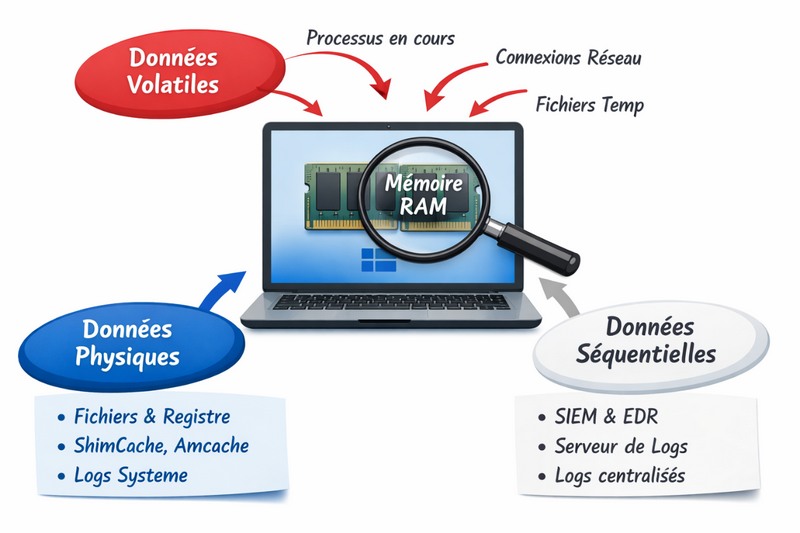
Persistent data (physical)
This refers to data stored permanently on disk. It remains present even after a system restart.
Examples include:
- Windows event logs
- artifacts such as ShimCache or Amcache
- system and application files
- traces left in the registry
These data form the foundation of any forensic analysis, because they make it possible to go back in time and establish an activity history.
Centralized data (sequential)
These data correspond to information collected and forwarded to external systems, such as a SIEM or an EDR.
They offer several advantages:
- they can be accessed without directly interacting with the compromised machine
- they may contain events that are already correlated or enriched
- they make it possible to retain traces even if the system has been altered or cleaned
Examples:
- logs sent to a SIEM
- EDR telemetry
- logs centralized on a log server
These data are especially useful in a remote incident detection and response approach.
Volatile data (temporary)
These are data present only at a given moment, generally in memory or in temporary locations.
They are critical, but very fragile, because they can disappear during a reboot or when the system is shut down.
Examples include:
- memory contents (RAM)
- running processes
- active network connections
- temporary files
These data are often the richest source of information during an ongoing compromise, but they require rapid action to capture them before they disappear.
Understanding ShimCache
To understand ShimCache, we first need to understand how Windows internally handles application compatibility.
When an application encounters a compatibility problem, for example due to an API change between Windows versions, the system relies on a compatibility database called the Shim Database (SDB). This database contains fixes that adjust program behavior without modifying the code.
These SDB files are stored on the system, for example in:
C:\Windows\AppPatch\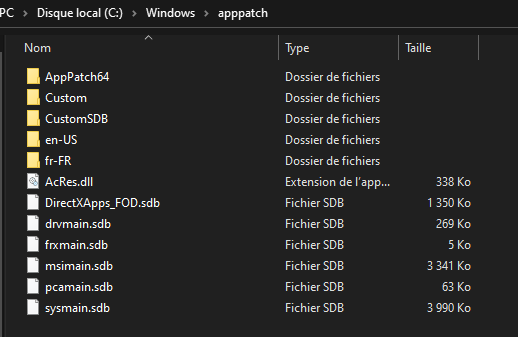
Notable files include:
sysmain.sdbdrvmain.sdbmsimain.sdbpcamain.sdb
When a program runs, Windows can intercept certain calls through compatibility layers called Shims. In practical terms, instead of calling a Windows API directly, the application goes through this intermediary mechanism, which adjusts the request or the response.
The Shim therefore acts as an interception layer between the application and the system.
This mechanism is notably driven by internal Windows functions (such as BasepCheckBadApp in kernel32.dll), which consult the SDB database to determine whether a fix should be applied. In this context, ShimCache (AppCompatCache) is used as a fast cache containing information about executables encountered by the system.
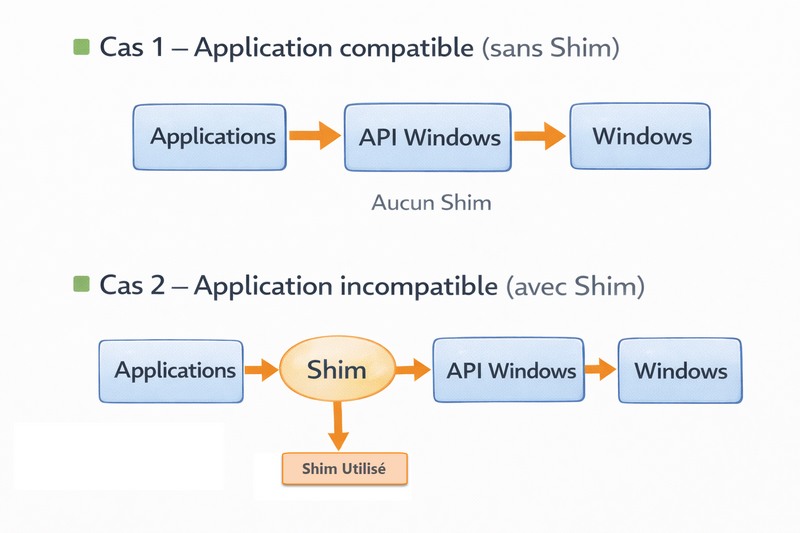
To simplify the flow:
- A program is launched
- Windows checks compatibility through the SDB database
- API calls may be intercepted by shims
- The system analyzes the file
- An entry is added to ShimCache
- This information is then stored in the registry
This mechanism was never designed for security, only for application compatibility. However, it leaves behind exploitable traces, which is why it is now a very useful forensic artifact.
ShimCache is stored in the Windows registry under the following path:
HKLM\SYSTEM\CurrentControlSet\Control\Session Manager\AppCompatCacheAnd in the physical file of the SYSTEM hive:
C:\Windows\System32\Config\SYSTEM\Limits of ShimCache analysis
ShimCache still has a few limitations that are important to keep in mind during a forensic analysis.
First, it has a limited size (for example, around 1024 entries depending on the Windows version). This means older entries are gradually overwritten by newer ones, which can lead to a loss of history.
Second, it does not contain only executed programs. ShimCache can also reference files that were simply opened, browsed, or scanned by the system. In other words, the presence of a file in this cache does not guarantee that it was actually executed. To confirm execution, it should be supplemented with sources such as Prefetch and RecentFileCache and Amcache, which we will cover in a future article.
Analyzing the ShimCache file
We will now move on to analyzing this file.
First, if we open the registry key containing the AppCompatCache value directly, we quickly see that the data is in binary format. As a result, this information is not usable as-is and is difficult to read without the proper tool.

To make analysis easier, we’ll use a well-known tool in the forensic world, developed by Eric Zimmerman. His suite of tools makes it easy to parse ShimCache content.
You can download the tools here:
Download the AppCimpartCacheParser tool and place it in a folder after extraction; in my case, I put it in the C:\Temp folder.

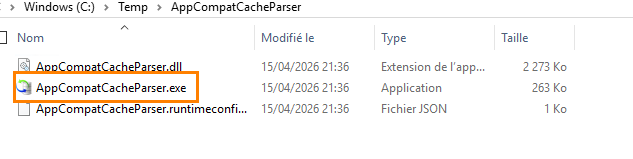
Next, open an elevated Command Prompt and run the tool with the following parameters:
--csv C:\temp\ --csvf Test1.csv
First analysis
Before running the command, I simply browsed the SysInternals folder up to the Autoruns64.exe file, without launching the program. So this was only file navigation.
After a system reboot, I run the previous command to generate the Test1.csv file.
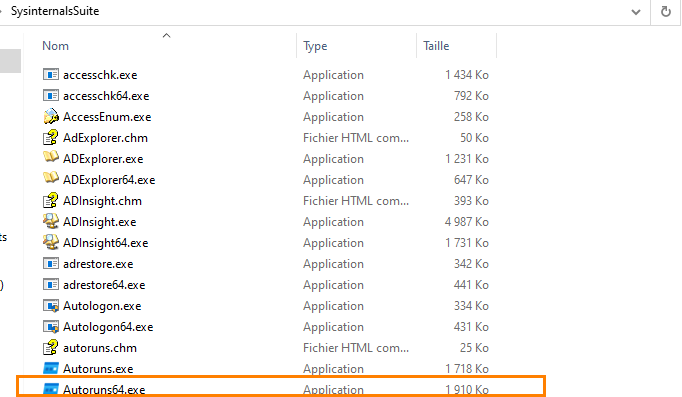
By analyzing the file, we can see that the items that were browsed do appear in ShimCache, up to the level reached during exploration.

Second analysis
In a second test, I went a little further into the folder, up to the procexp64.exe file, again without running the program.

After another reboot, I once again run the command to generate a Test2.csv file.

Once again, the files visible during browsing appear in the results. Notably, we can see .exe files, but not necessarily other file types.

Real-world case: a deleted file
To go further, I downloaded a WannaCry malware sample. It was immediately deleted by the antivirus. Even so, a trace appears in ShimCache. This shows a very interesting point in forensics: even if a file is quickly deleted, it can still leave an exploitable trace in the cache.

Note: contrary to a common misconception, the presence of an entry in ShimCache does not mean that a shim was applied. An application may be fully compatible with Windows and still appear in the cache without any corrective mechanism being used.
ShimCache therefore reflects the files observed by the system, not only applications corrected by shims.
Conclusion
As you can see, ShimCache contains information and timestamps about files encountered by the system: files that were opened, browsed, or scanned... but not necessarily executed.
It is therefore an excellent starting point in a forensic analysis, especially for identifying suspicious tools such as BloodHound, Mimikatz, or other executables. However, given the limitations mentioned above, it should be correlated with other artifacts such as Prefetch, Amcache, or event logs.