www.it-connect.fr

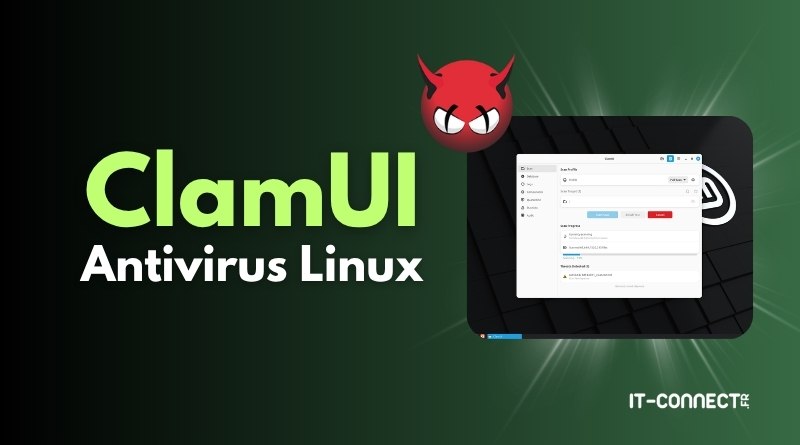
ClamUI: A Graphical Antivirus for Your Linux PC
Managing ClamAV from a Terminal is not difficult, but on a desktop machine, a graphical interface makes the antivirus accessible to all users, including those who do not regularly use the command line. That is where ClamUI comes in.
ClamAV is a popular open source antivirus engine widely deployed on Linux servers and NAS devices. However, its use relies entirely on commands and a text configuration file. This approach works well for a system administrator, but much less so for a user who simply wants an antivirus on their Linux computer.
Whether you want to scan a USB drive, check a download, or schedule a weekly scan of your Linux Mint or Fedora workstation, it is always nice to have an antivirus just a click away. In this tutorial, we will discover ClamUI, a graphical interface that controls ClamAV, from on-demand scanning to real-time protection, including quarantine management and scan scheduling.
What is ClamUI used for?
ClamAV does not have an official graphical interface. For a long time, the only project filling that gap was ClamTK, a historic Perl-based interface that was simple but aging and limited in features. ClamUI is a newer open source project that offers much broader coverage of ClamAV features.
ClamUI is a desktop application built with GTK4 and libadwaita, giving it a native look on GNOME environments and solid integration across most modern Linux desktops.
Before discussing installation and configuration, it is important to understand the tool's philosophy: ClamUI is not a new antivirus engine. It is a wrapper that calls the ClamAV tools (clamscan, clamdscan, freshclam, clamonacc) on your behalf and presents the results in a readable interface. Everything you would do from the command line, ClamUI does for you, but with buttons, checkboxes, and logs displayed on screen.
Note : ClamAV is an open source antivirus engine for Linux that detects threats by comparing files against a signature database, meaning hashes of known malware that are regularly updated. Its effectiveness therefore depends on how up to date its signature database is.
What features does ClamUI offer?
The interface covers a wide range of functions that go beyond simple scanning and let you take full advantage of ClamAV's capabilities:
- On-demand file and folder scanning, with selection through a dialog box or drag and drop.
- Background scanning: scans run asynchronously.
- Scan profiles: save configurations for specific use cases (a quick scan of the Downloads folder, a full scan of the home directory, and so on).
- Quarantine management: isolate detected files, with a hash-based verification mechanism to secure restores.
- Real-time protection (On-Access): control
clamonaccdirectly from the interface. - Automatic device scanning: scan USB drives and external storage as soon as they are connected to your PC.
- Scan scheduling: create recurring scans for specific locations.
- Built-in configuration editor: modify
clamd.confandfreshclam.conffrom the GUI. - File manager integration: a "Scan with ClamUI" entry added to the context menu in Nautilus, Dolphin, and Nemo.
- System security audit: a dashboard that checks firewall status, the presence of AppArmor/SELinux, the state of SSH configuration, and other security items.
- Optional VirusTotal integration: send a hash to VirusTotal for a second opinion, manually enabled, with the API key stored in the system keyring.
Want to learn how to use it? Keep reading.
Prerequisite: the ClamAV engine
First of all, note that ClamUI needs the ClamAV engine to work. It is an interface, not a complete antivirus by itself. You therefore need to install ClamAV on your machine: the installation phase is also the only time you will use the command line.
# Mise à jour des dépôts et installation de ClamAV
sudo apt update
sudo apt install -y clamav clamav-daemon

# Activation du démon ClamAV au démarrage
sudo systemctl enable --now clamav-daemon
At a minimum, ClamUI needs clamscan and freshclam (the signature update service).
Once this first step is complete, you will be ready to install ClamUI.
Installing ClamUI on Linux
ClamUI is available as different packages, including a Flatpak and a .deb file. The Flatpack version installs directly from the app store that is natively available on many distributions. Below is an example on Linux Mint.
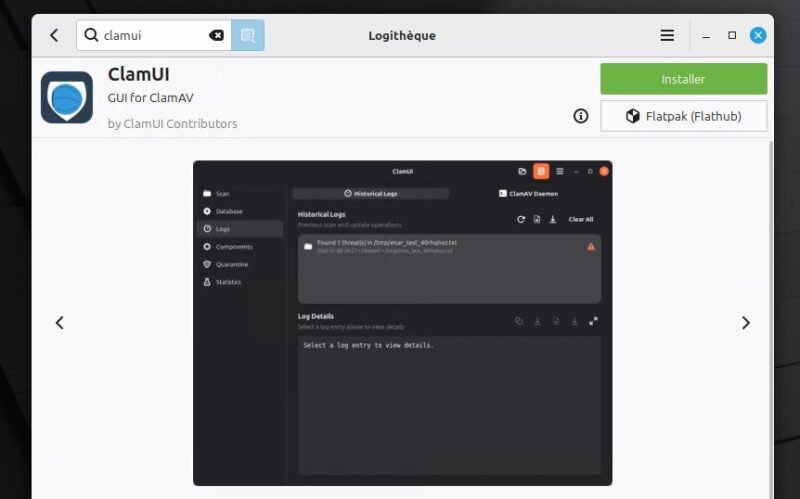
With version 0.2.0 distributed as a Flatpak, I noticed an issue with operations that require privilege elevation (such as configuring On-Access Scanning). So if you want to use these advanced features, download and install the .deb package for ClamUI, because this version works properly (but it does not include native integration with the file manager). You can install it with this command:
sudo apt install ./clamui_0.2.0_all.debIf you test it on another distribution, I would love to hear your feedback.
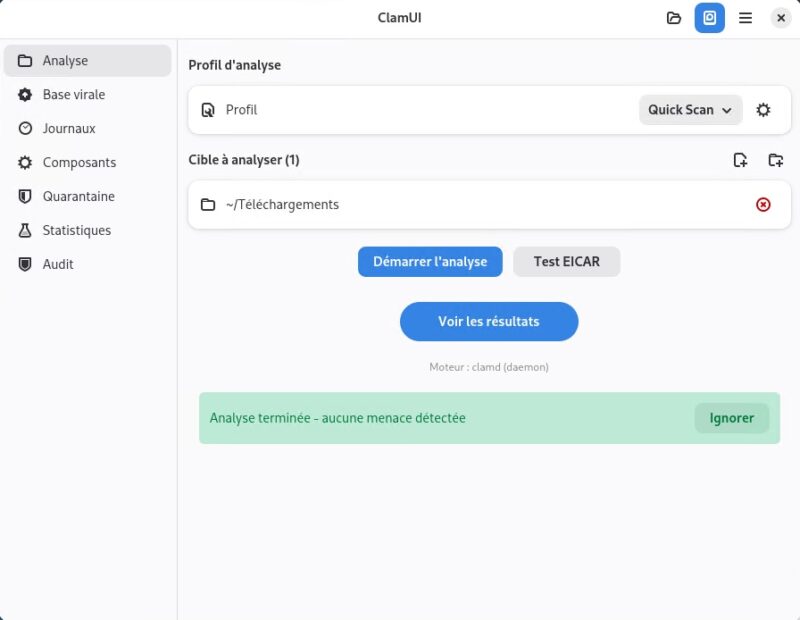
Thanks to the various preconfigured profiles, you can easily scan your personal folder (Home), the Downloads folder, or the entire system. You can also create your own custom profiles.
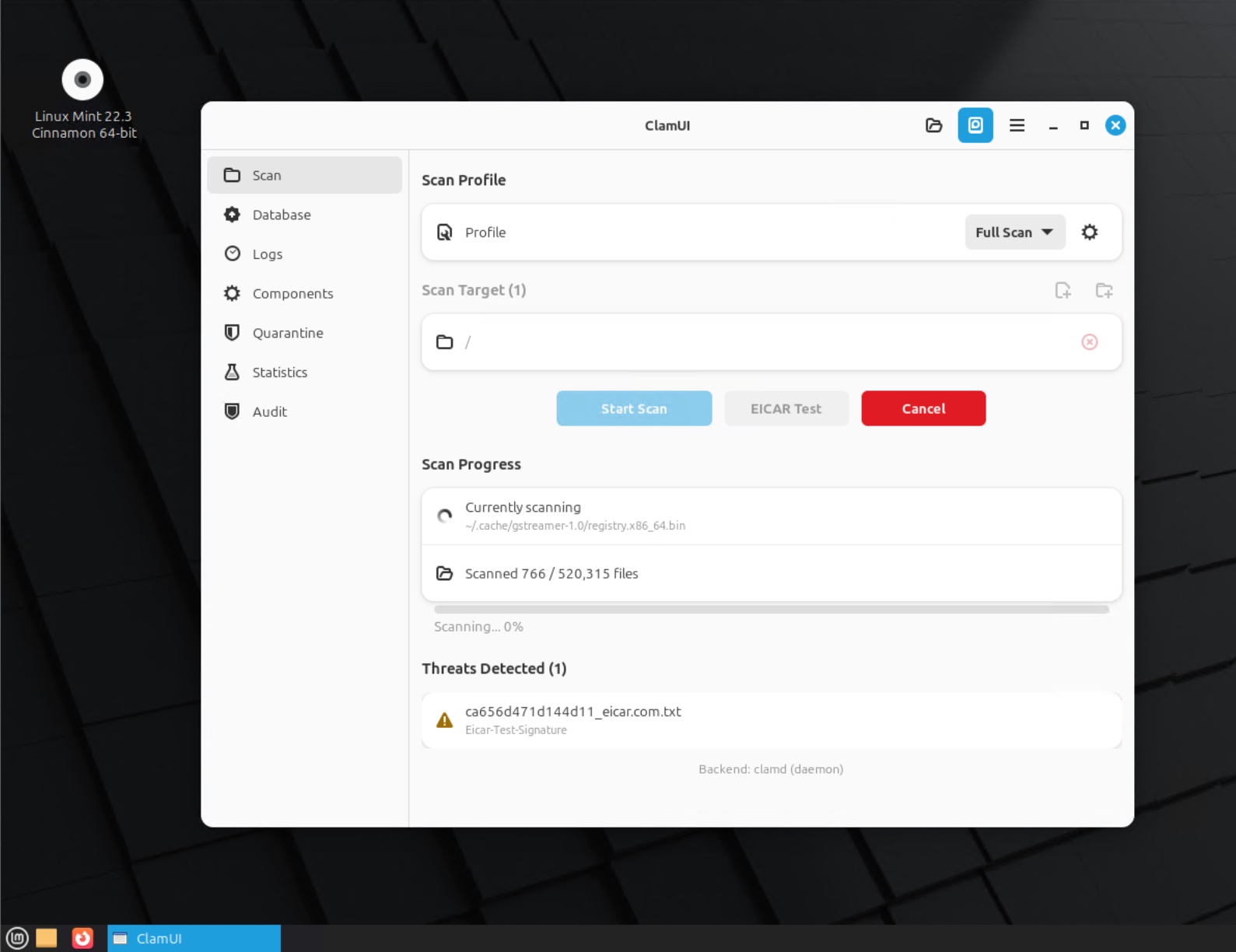
Note : to verify that everything is working, you can use the EICAR test file, a harmless fake virus recognized by all antivirus products.
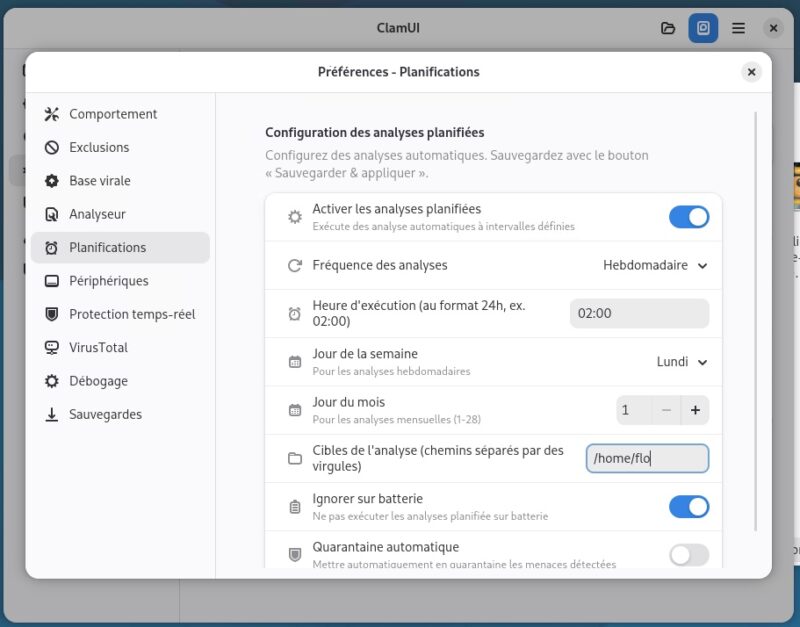
In ClamUI's settings, you can schedule an antivirus scan of your system. You can specify the frequency, execution time, targets to scan, or even pause the scan if the machine is running on battery power. The advantage of ClamUI is that it intelligently organizes the various settings related to ClamAV's features. The text-based configuration file, on the other hand, is not necessarily well organized by default....
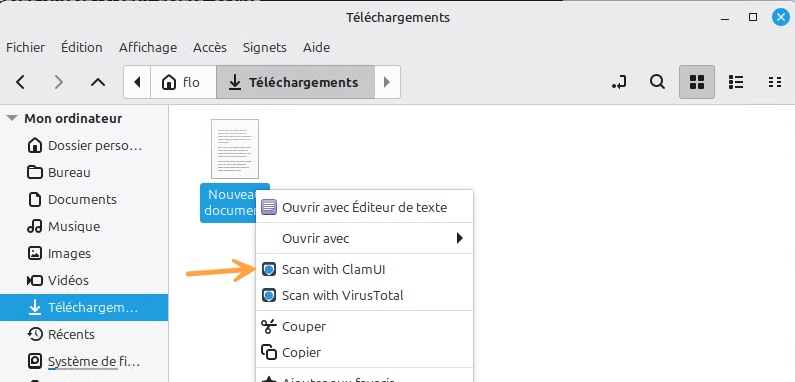
Integration into the file manager's context menu (Nemo on Linux Mint) is very practical. It lets you launch an antivirus scan on a file with a simple right-click!
Conclusion
ClamUI brings ClamAV what it was missing on desktop systems: a modern, full-featured graphical interface. On-demand scanning, real-time protection, scheduling, quarantine, file manager integration, and on-demand scan are all there without opening a Terminal. In any case, keep in mind that ClamUI controls ClamAV without replacing it, and it remains one security building block among others, not the only one you should rely on.
See you in a few days for a complete hands-on guide to ClamAV from the command line. It will be a good opportunity to learn more about ClamAV antivirus and how it works.