www.it-connect.fr

Apple Container Machine: A WSL-Like Linux Environment on Mac
Developers and sysadmins coming from Windows are familiar with WSL, the subsystem that brings a real Linux environment integrated into the host system. If you want Linux on Mac, the closest equivalent has arrived with version 1.0 of Apple's Container tool. Its name: container machine.
Rather than packaging an application into a disposable container, this mode provides a persistent Linux environment, with your macOS home folder mounted inside it. You can install packages, run services, and test your application across multiple distributions. In this article, I'll show you what container machine is, how it compares to WSL, and how to create and use it!
This article assumes that container is already installed on your Mac. If that's not the case, start with our Apple Container guide, which covers installation and a full introduction. Ready for a WSL alternative on Mac? Keep reading.
What Is container machine?
container machine is a mode of Apple's open source container tool that provides a persistent Linux environment on an Apple Silicon Mac. Unlike a classic container, which is modeled after an application and meant to be started and destroyed, a containerized machine is modeled after a complete Linux system: it boots the image's init system and can host services that run continuously. It is the closest equivalent to WSL on macOS.
Its main advantage for development is host integration: your username and macOS home directory are mounted into the Linux environment. Your repositories and configuration files are therefore available on both sides. You edit your code with your usual macOS tools, then build or run it inside Linux, without copying anything.
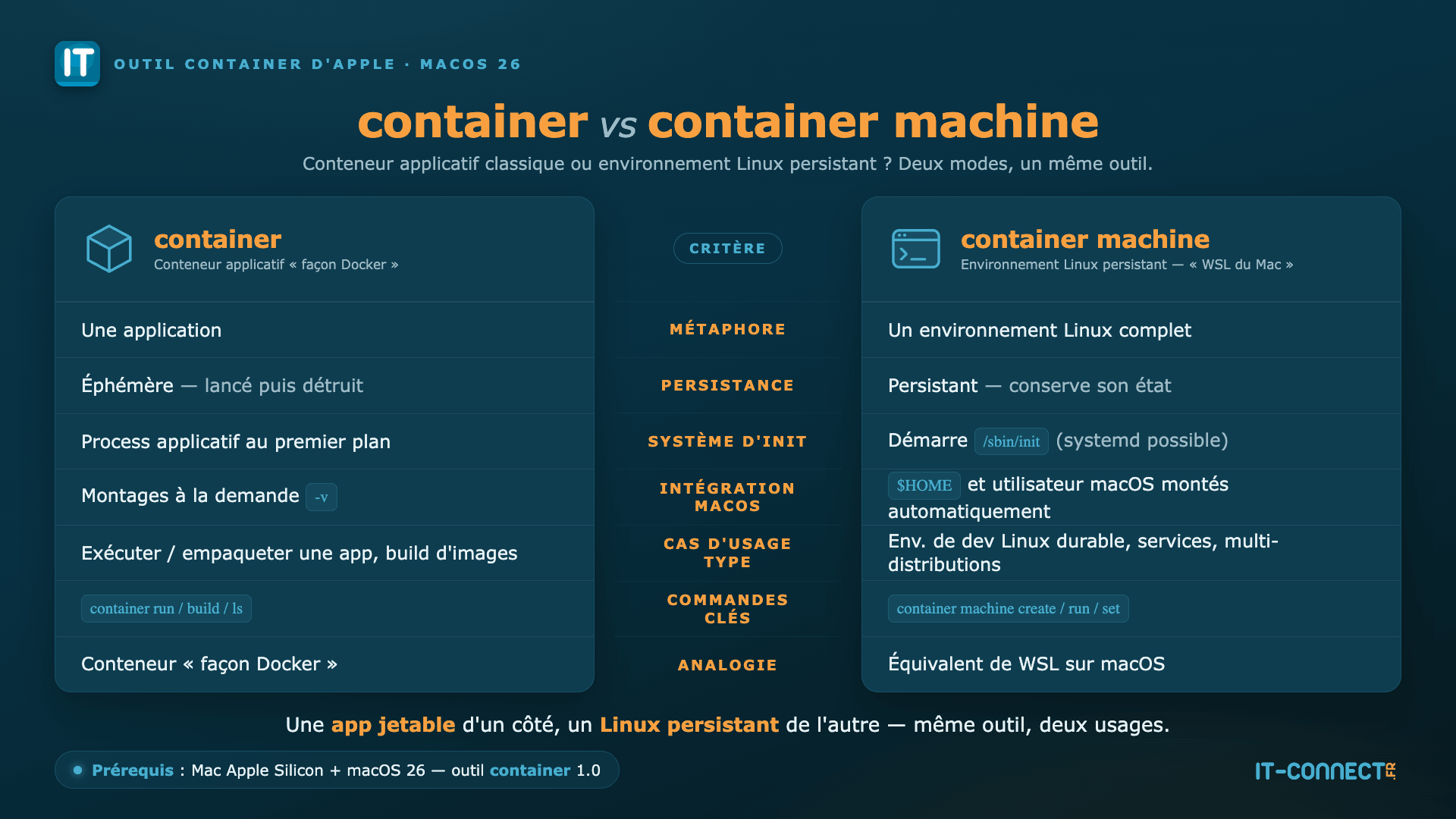
The distinction between an application container and a Linux environment is important to understand machine mode:
- A container answers the question: "how do I run this application in an isolated and reproducible way?" It is ephemeral by nature.
- A container machine answers: "how do I get a complete, durable Linux environment on my Mac?" You come back to it, install tools, launch services, and keep state there.
container machine, a WSL equivalent on macOS?
The analogy with WSL (Windows Subsystem for Linux) is relevant, and it is probably the best reference for anyone discovering this mode. It is fair to say that the two share several things in common:
- A real Linux kernel runs in a lightweight virtual machine, not through simple emulation.
- The host file system is integrated: under WSL, your Windows drives are accessible. Here, your macOS home folder is mounted inside the Linux environment.
- You can run real Linux services (with
systemdon a suitable image) and test your application across multiple distributions. - The "edit on the host, build on Linux" workflow is the same.
That said, the analogy has its limits, and it is only fair to be clear about that:
| Criterion | container machine (macOS) | WSL2 (Windows) |
|---|---|---|
| Vendor | Apple | Microsoft |
| Technology | Micro-VM via Virtualization.framework | Lightweight VM via the Virtual Machine Platform (Hyper-V) |
| Model | One VM (and one kernel) per machine | Utility VM with shared kernel across distros |
| Host file system integration | macOS home folder mounted | Windows drives mounted under /mnt, access via \wsl$ or \wsl.localhost\ |
| Multiple distributions | Yes (one machine per image) | Yes (multiple distros) |
| Linux graphical apps | No (no WSLg equivalent yet) | Yes (WSLg) |
| Host ↔ Linux interoperability | Partial (shared files) | Advanced (mutual binary invocation) |
| Maturity | Very recent (2026), evolving | Mature, integrated into Windows |
| Platform | Apple Silicon + macOS 26 | Windows 10/11 |
Linux on Mac prerequisites
The machine mode that brings Linux on Mac shares the prerequisites of the container tool, namely:
- An Apple Silicon Mac (M1 or newer).
- macOS 26 (Tahoe), the officially supported version.
- The
containertool installed and its service started (container system start).
Create and use a container machine
Create a machine
Creation is done from a Linux image, just like with a container:
container machine create alpine:latest --name devboxTo list running machines, the command is not the same as for containers.
container machine ls

NAME    CREATED              IP            CPUS  MEMORY  DISK  STATE    DEFAULT
devbox  2026-06-29 10:43:16  192.168.64.3  5     8G      75M   running  *
Open a shell and run commands
container machine run lets you get a shell or run a single command. If the machine is stopped, it starts automatically. Without a command, you get an interactive shell as a user matching your macOS account. The values returned by the commands below are particularly interesting.
Let's see how to run a single command.
Which user is used by our devbox machine?
container machine run -n devbox whoamiThis returns: it-connect, which is the user I am logged in as on my Mac.
Now run this command:
container machine run -n devbox pwdThis returns the current directory you are in on the Mac terminal.
Then, to open an interactive shell, run this command:
container machine run -n devboxThis is where the "WSL equivalent" philosophy really makes sense: you are not root in an anonymous environment, but yourself, with your $HOME and your repositories at hand.
Edit on macOS, compile in Linux
Because your repository lives in your macOS home folder and is mounted inside the machine, the workflow becomes smooth: you write your code in your macOS editor, you run it in the Linux environment, and both sides see exactly the same files, without any copy step.
This back and forth makes perfect sense when the real target is a Linux server. A common case: you are preparing a script intended to run on a Linux server (for example, a scheduled task via cron). The trap is that macOS command-line tools are BSD versions, whose behavior can differ from the GNU coreutils found on a Linux server distribution (Debian, Ubuntu, etc.). Testing the script directly on the Mac can therefore be misleading: the container machine gives you a real Linux environment to validate it under the conditions of its target.
Build a suitable machine image
First step, and an important one to know: not all images are suitable for a machine. A container machine starts the image's init system (PID 1); therefore, you need an image that includes /sbin/init. The alpine:latest image works, but Alpine relies on busybox, neither BSD nor GNU: it would not reproduce the behavior of a Debian/Ubuntu server. This is documented on this page.
For a true GNU environment, we build an Ubuntu image with an init system, based on the Dockerfile provided in the official documentation. Start by creating a folder for this project.
mkdir ~/ubuntu-machine && cd ~/ubuntu-machineThen create a Dockerfile in this directory with Apple's example:
FROM ubuntu:24.04
ENV container container
RUN apt-get update && \
    apt-get install -y \
      dbus systemd openssh-server net-tools iproute2 \
      iputils-ping curl wget vim-tiny man sudo && \
    apt-get clean && \
    rm -rf /var/lib/apt/lists/* && \
    yes | unminimize
RUN >/etc/machine-id
RUN >/var/lib/dbus/machine-id
RUN systemctl set-default multi-user.target
RUN systemctl mask \
    dev-hugepages.mount \
    sys-fs-fuse-connections.mount \
    systemd-update-utmp.service \
    systemd-tmpfiles-setup.service \
    console-getty.service
RUN systemctl disable networkd-dispatcher.service
Next, build the image, then create the machine from it (the build requires Rosetta 2, as with any container build command):
container build -t local/ubuntu-machine:latest .
container machine create local/ubuntu-machine:latest --name devubuntuNote: this local/ubuntu-machine:latest image serves as the base for a real Ubuntu machine. We will reuse it later in the article.
From there, you have an Ubuntu machine running via Apple Container. You can open a shell or run a command, as we saw earlier.
The back and forth in practice
Let's put this into practice with a representative example. We will write, on the Mac side, a small maintenance script intended for a Linux server: it calculates yesterday's date, a classic use case for naming an archive or a daily report. It is incomplete in our case, but it helps illustrate the mechanism.
We will first run it on the Mac to observe its failure (the date command there is BSD-based), then inside the Ubuntu machine where it will work correctly (GNU version), just like on the target server. That is the point: one shared file, but two different behaviors depending on the environment.
On the Mac, create the script in your home folder (you would normally edit it with VS Code):
mkdir ~/maintenance && cd ~/maintenance

cat > rapport-veille.sh << 'EOF'
#!/usr/bin/env bash
# Destine a un serveur Linux : calcule la date de la veille (syntaxe GNU)
hier=$(date -d "yesterday" +%Y-%m-%d)
echo "Generation du rapport pour le $hier"
EOF

chmod +x rapport-veille.sh
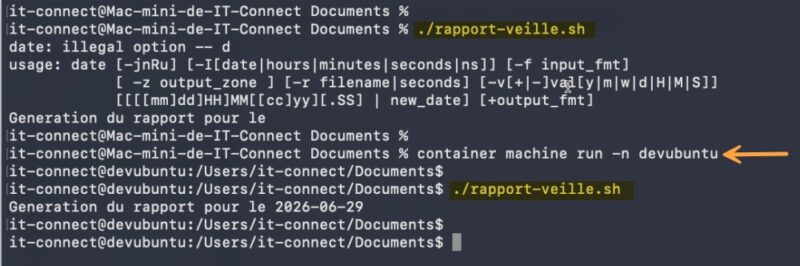
Run directly on the Mac, it fails: macOS's date command (BSD) does not recognize the -d option:
./rapport-veille.sh
date: illegal option -- d
usage: date [-jnRu] [-I[date|hours|minutes|seconds|ns]] [-f input_fmt]
            [ -z output_zone ] [-r filename|seconds] [-v[+|-]val[y|m|w|d|H|M|S]]
            [[[[mm]dd]HH]MM[[cc]yy][.SS] | new_date] [+output_fmt]
Generation du rapport pour le
In the Linux machine, you find the script without copying it! That is a special feature of this execution mode, and above all, it runs exactly as it would on the production server. Several steps are required to reach that goal.
Open a shell in the Ubuntu machine
container machine run -n devubuntuFrom here, you are inside the Linux environment!
The macOS home folder is mounted: the script is already visible to Ubuntu.
cd ~/maintenance
./rapport-veille.sh
The execution works correctly! The image below clearly illustrates the difference in behavior depending on the execution context.
You can now edit the script on the Mac, save it, and run it again in the Ubuntu machine. The advantage: no transfer is needed, because the file is shared. You develop with the comfort of your macOS machine, while validating the real behavior on Linux.
Note: the date case is only an example. The same caution applies to sed -i (which requires an extra argument in BSD: sed -i '' on macOS versus sed -i on Linux). This is precisely why you validate a Linux script in a Linux environment.
Running persistent services
This is one of the major benefits of a container machine compared to an application container: because it starts the image's init system, it can host real services managed with systemctl. To illustrate this, let's install a small classic web stack: the Apache server and the MariaDB database, all inside a machine based on our local/ubuntu-machine:latest image.
Open a shell in the machine, then install the two packages:
sudo apt-get update
sudo apt-get install -y apache2 mariadb-server
Then start both services and enable them at machine boot, exactly as on a Linux server:
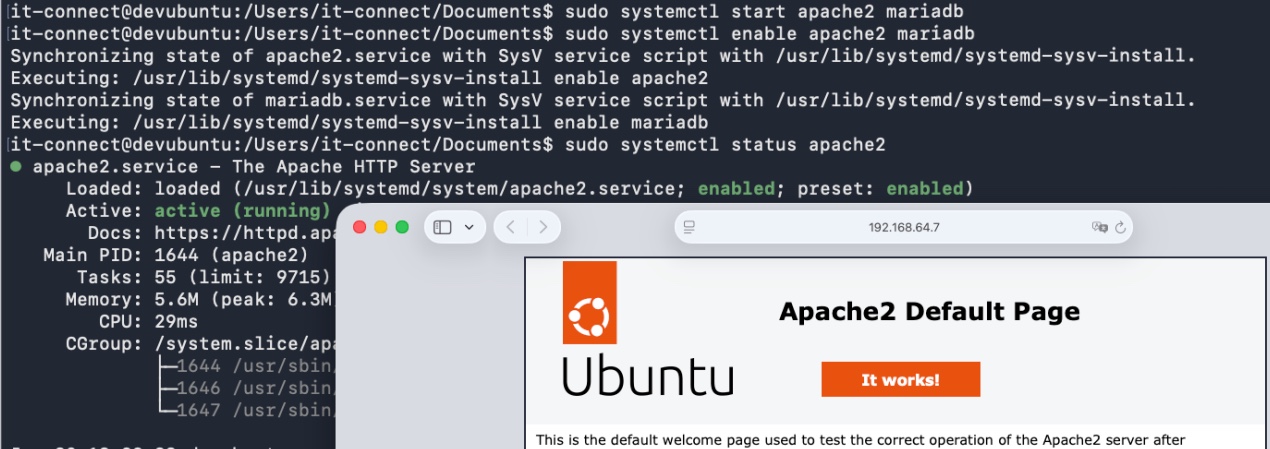
sudo systemctl start apache2 mariadb
sudo systemctl enable apache2 mariadb

sudo systemctl status apache2
sudo systemctl status mariadb
MariaDB provides an initialization script to harden the installation (root password, removal of anonymous accounts, and the test database). A good security hygiene habit to keep:
sudo mariadb-secure-installationAll that remains is to verify that Apache responds. The machine has its own IP address on the host network: retrieve it with the container machine ls command, then open the default page from the Mac (via the terminal or your browser).
open http://192.168.64.4The home page appears: your server is running inside the machine and is reachable from macOS. And above all, all of this state persists: the next time you run container machine run, Apache and MariaDB are still installed and configured, with nothing to reinstall. That is the key difference from an application container, whose state disappears with the process (unless you declare persistent volumes).
Multiple distributions in parallel
Nothing stops you from creating as many machines as you have target distributions. Each one shares the same $HOME and the same personal configuration files (dotfiles: .bashrc, .gitconfig...) coming from your Mac, which is convenient for validating an application across several environments:
container machine create alpine:latest --name alpine-dev
container machine create ubuntu:24.04 --name ubuntu-dev
container machine create debian:13 --name debian-dev
Nested virtualization (KVM) in a container machine
The development branch documentation mentions support for nested virtualization: exposing /dev/kvm inside a machine (via a --virtualization option and a Linux kernel compiled with CONFIG_KVM=y), for M3 chips and newer.
However, based on testing, this capability is not yet exposed in the stable 1.0.0 CLI. If you try to use this option, it is rejected by the command because it is unknown. Something to watch in future versions!
container machine versus other "Linux on Mac" solutions
I also want to point out that the machine mode described in this article is not arriving on an empty field. Several projects already make it possible to run Linux on a Mac: Lima (and Colima for container runtimes), Canonical's multipass for Ubuntu VMs, UTM for virtual machines via QEMU, or even OrbStack (which has an excellent reputation).
What makes container machine stand out is its reliance on Apple's native frameworks, its direct integration with the macOS home folder, and the fact that it shares the same tooling as container (you stay in the same ecosystem for both your containers and your Linux environments). In return, these alternatives are certainly more mature in some respects.
Conclusion
With container machine, the Mac gains a true on-demand, persistent, well-integrated "Linux on demand" environment that will remind many developers of WSL. It still lacks WSLg for graphical environments, which is already available through Windows Subsystem for Linux (WSL). Still, this is a recent feature and it is only at the beginning of its journey.
To go further:
- Our guide to Containers on macOS: using container, Apple's native tool.
- The official documentation for machine mode in the
apple/containerrepository. - The reference documentation for WSL for comparison on the Windows side.
FAQ
How do I run Linux on a Mac with container machine?
container machine is a mode of Apple's container tool that provides a persistent Linux environment on an Apple Silicon Mac. You create a machine from an image that includes an init system (for example Alpine, or an Ubuntu image built with systemd), then open a shell with container machine run. Your macOS session's home folder is automatically mounted there.
Is container machine the equivalent of WSL on Mac?
It is the closest thing to it: a real Linux kernel in a lightweight VM, host file system integration, and the ability to run services. However, it still lacks the maturity of WSL, especially a WSLg equivalent for graphical applications and equally advanced host/Linux interoperability.
What is the difference between a container and a container machine?
A container is modeled after an application and is ephemeral. A container machine is modeled after a complete, persistent Linux system: it boots the image's init system, preserves state from one session to the next, and aims for a durable environment rather than a disposable service.
What are the prerequisites for using container machine?
An Apple Silicon Mac, macOS 26 (Tahoe), and the container tool installed with its service started. Most importantly, the image used must include an init system (/sbin/init). So it does not necessarily have to be systemd, even though it can be. Alpine, for example, works directly (busybox/OpenRC init), but without systemctl. A plain Ubuntu image, however, does not work as-is: you must first build a machine image with an init system, which is what Apple's official Dockerfile does by adding systemd (as seen earlier).