www.it-connect.fr

Windows 11 KB5120998 Brings Back Moveable Taskbar, But Bugs Emerge
The optional update released on August 27, 2026 by Microsoft, also known as KB5120998, brings back a long-awaited setting: the taskbar can now be positioned at the top, left, or right of the screen. Let’s take a look at the new features introduced by this update, along with the few bugs already reported by some users.
Three highly requested features, finally delivered by Microsoft
If you’re used to installing optional updates on your Windows 11 PC, you may already have received the one Microsoft released on Thursday, August 27, 2026: KB5120998. For reference, it upgrades Windows 11 25H2 to version 26200.9278 and Windows 11 24H2 to version 26100.9278.
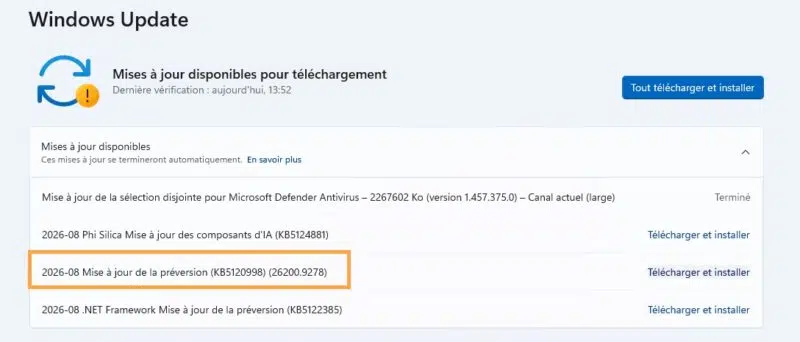
Here are the three main new features included in this update:
- Moveable taskbar
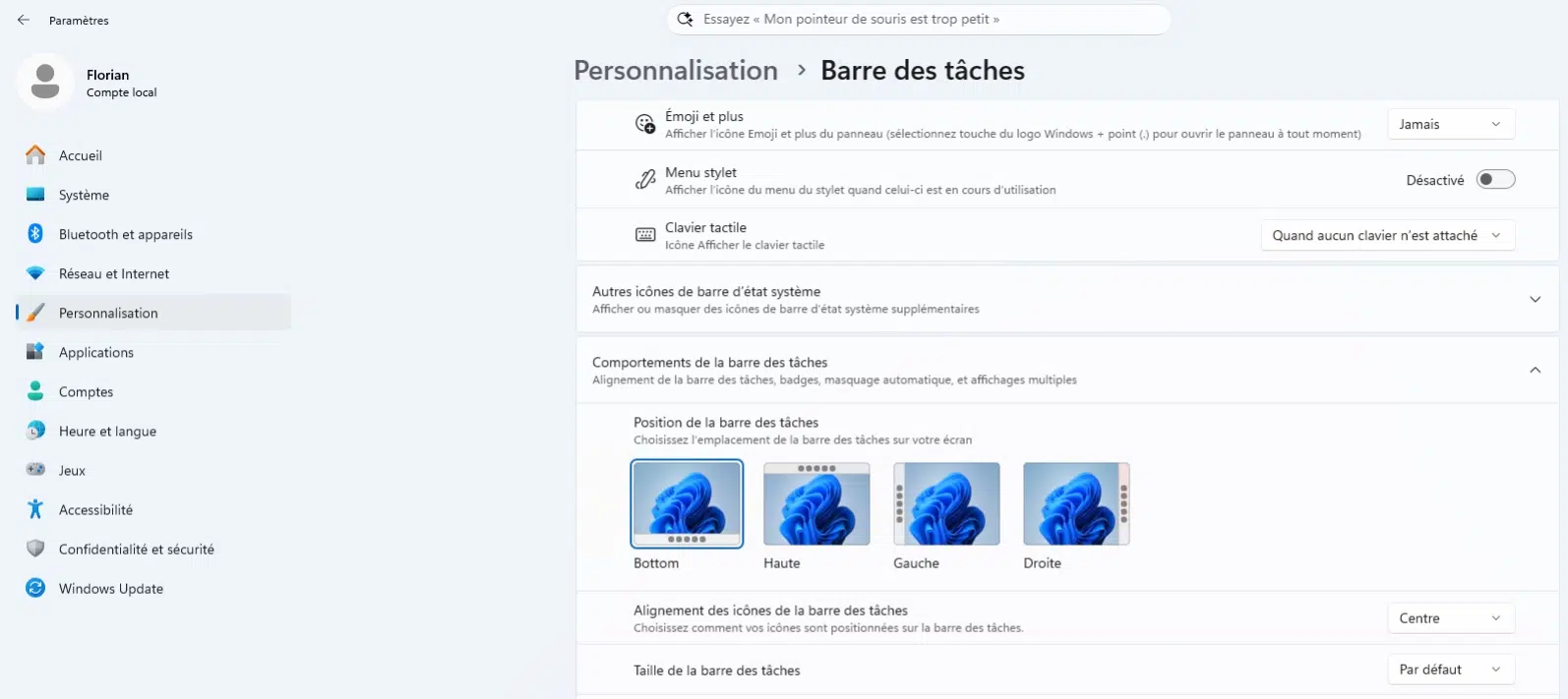
Without delay, after installing the update, go to: Settings > Personalization > Taskbar > Taskbar behaviors > Taskbar position. You can choose between bottom, top, left, and right! Everything else should follow, including animations and the tooltips associated with apps.
But as often happens, there are a few caveats. For example, the search box and the compact taskbar are only supported in the top and bottom positions.
- Compact taskbar
A Taskbar size option lets you switch to "Small." Unlike the existing option, which only reduced icon size, this one also reduces the taskbar height. Access to the Start menu, Search, and the notification area is preserved in this display mode.
- Resizable Start menu
A new setting (Settings > Personalization > Start > Start menu size) lets you change the size of the Start menu, with several options including "Small," "Large," and the default "Automatic" mode. Microsoft also takes the opportunity to rename the "Recommended" section to "Recent." Finally, it becomes possible to hide your name and profile picture.
Other new features in KB5120998
Search also gets several improvements, including a new setting that lets you choose whether web suggestions and Microsoft Store suggestions are shown alongside results that match local resources. Windows will now also automatically index the folders you use most on your PC, but you can disable this behavior in the settings.
On the AI side, Windows is beginning to be able to identify agentic processes. In practical terms, Microsoft is laying the technical groundwork needed to distinguish what comes from an AI agent versus what comes from a human user.
I also noticed a few interesting improvements for administrators:
- Administrator Protection, which relies on just-in-time privileges and profile separation, is finally available in a stable release. It took time, since this feature was announced in October 2025. It remains disabled by default. I covered it in a dedicated article about Administrator Protection.
- This update also confirms the permanent removal of WMIC, a topic I covered in my article about the removal of WMIC in Windows 11 24H2 and 25H2.
- This update changes the PC’s behavior on restart: if a PC was manually put into sleep mode, it will return to sleep once the update is complete. Good to know.
- If you use Windows Autopilot, note that this release adds support for Device Association mode (introduced in this article).
Find all the information about this update on Microsoft’s website.
Final reminder: Windows 11 24H2 in Home and Pro editions will stop receiving updates on October 13, 2026. PCs running Enterprise and Education editions will remain supported until October 12, 2027.
Default cursor and black wallpaper: early bugs
Shortly after this update went live, the first rather negative reports started appearing on social media, especially on Reddit. Here are the two issues reported:
- The custom cursor disappears. The mouse pointer reverts to white and large size, with no way to change it back. It also appears impossible to edit the cursor again.
- The wallpaper turns black. The wallpaper is replaced by a completely black screen, and the custom background disappears if it is restored.
The second issue may be more problematic in enterprise environments, even if the impact is purely visual. In both cases, uninstalling KB5120998 fixes the issue, which clearly shows there is a connection.
Feel free to share your feedback if you ran into issues after installing this update.