www.it-connect.fr

Intune: Remote Help Finally Adds Unattended Windows Remote Access
Microsoft has announced a new addition for Intune: unattended remote access for Remote Help on Windows devices. It is a long-awaited feature for support teams, but it comes with a few limitations. Here’s what you need to know about this update.
Until now, every remote support session with Remote Help on Windows required a user to be physically present to accept the connection. In other words, on Windows there was no unattended access mode where a technician could take control of the PC without the user’s explicit approval. However, this unattended mode did exist, but only on Android.
Microsoft has now fixed that by adding this feature to Remote Help for Windows. It can be useful in a variety of scenarios, including after-hours maintenance on a workstation. This should improve efficiency instead of spending more time finding a time slot than actually troubleshooting...
A Separate Session, Not Control of the User’s Session
But be careful: with this mode, the technician does not get direct access to the user’s session. They connect to the Windows sign-in screen, authenticate with their own credentials, and work in a separate Windows session. The user’s session remains locked. In a way, this makes sense from a GDPR standpoint, etc... In principle, the user must explicitly agree for someone to connect remotely to their session.
In its article, Microsoft provides more details about this new mode called unattended:
- The technician can authenticate with a local Windows account, an Active Directory domain account, or an Entra ID account, depending on the environment.
- Least privilege applies: a standard user account does not automatically gain administrator rights.
- If someone is already signed in to the computer, a Remote Desktop Connection dialog appears, giving them 30 seconds to decide. If they do not respond, the unattended session starts automatically.
- During the session, the user only sees their lock screen and has no visibility into the technician’s actions, just like in classic RDP.
- The user can take back control at any time by signing back in from the lock screen. The technician is notified and can disconnect.
This unattended connection mode is built directly on Remote Help, so it includes the associated tracking, including active sessions and the history showing the session type (Unattended or Attended). In all cases, an unattended session automatically ends after 12 hours, and that is not negotiable.
How Do You Set It Up?
If you want to deploy unattended remote support, there are several configuration steps to complete. Microsoft explains that you need to do the following:
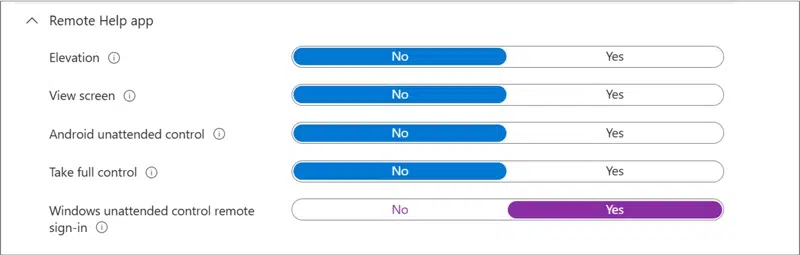
- Create a custom role (RBAC) with the permission "Remote Help app > Windows unattended control remote sign-in".
- Deploy two Azure Virtual Desktop agents (the agent and its bootloader), packaged as Win32 apps in Intune.
- Configure workstations to accept Remote Desktop connections through an Intune policy.
In short, the Redmond company is reusing the Azure Virtual Desktop component to establish the remote session for Remote Help.
And beyond this configuration, there are prerequisites to meet that may frustrate some teams:
- Intune Suite license, the Remote Help add-on, or Microsoft 365 E3/E5. This is also a good reminder of Remote Help’s integration into the E3 and E5 plans announced at the end of 2025.
- Physical x64 machines only. Virtual machines are not supported.
- The device must be powered on, connected to the Internet, and have the Intune Management Extension installed.
Another limitation: the unattended session can only be launched from the device page in the Intune admin center, never from the Remote Help app. That is also specified in the article’s FAQ, along with the fact that Windows 365 is not supported for now.
Find all the details in this Microsoft article.