www.it-connect.fr

How to Upgrade Windows Server 2019 or 2022 to 2025 via Windows Update
Since mid-April 2026, it has been possible to upgrade a server running Windows Server 2019 or 2022 to Windows Server 2025 via Windows Update. How do you perform an in-place upgrade of a server? What are the prerequisites? Let’s find out together in this tutorial.
Upgrading a Windows Server as easily as a Windows workstation is Microsoft’s promise with this new method. Indeed, this is the first time this approach has been offered: receiving Windows Server 2025 directly through Windows Update, just like monthly updates. The main benefit is being able to change a server’s operating system without having to reinstall and reconfigure everything. This is an in-place upgrade, so you keep everything: data, applications, and settings. Only the operating system changes.
This approach is new. Historically, upgrading a server operating system required downloading an ISO file, mounting it, and then launching the installation wizard. It is still possible to move to Windows Server 2025 using that method, but it is no longer the only available option.
This approach may come as a surprise, but in reality, I find it fairly close to the experience offered on Linux. When you want to upgrade a machine from Debian 12 to Debian 13, you need to change the package source in the repositories to point to the new version. Then the download is performed through APT (just like software updates, etc.).
On Windows, even though you do not change the package source, you use the usual mechanism: Windows Update. Most importantly, we will see that there is a manual action to perform in the Registry to tell the system that you intend to upgrade the OS.
Prerequisites
An upgrade is not something to take lightly. Let’s take the time to cover the prerequisites required to apply the method described in this tutorial. Be careful: for other methods, the prerequisites are not the same (you can go directly from Windows Server 2012 R2 to Windows Server 2025, by using a different approach).
Here are the prerequisites to meet:
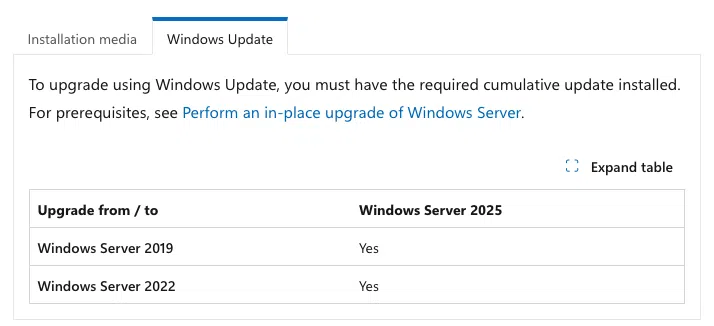
- Compatible versions: only Windows Server 2019 and Windows Server 2022 are supported for this direct migration path via Windows Update.
- Updates : the source system must also have the March 2026 cumulative updates installed at a minimum. For Windows Server 2022, this is at least update KB5078766. For Windows Server 2019, you must have installed update KB5078752 or a later update. A server restart is required to complete the installation of the updates.
- Disk space : you must have at least 30 GB of disk space on the drive where Windows is installed (drive C: in principle). Microsoft even mentions 40 GB in its documentation.
- License: your Windows Server 2019 or 2022 license will not work on Windows Server 2025, so you must make sure you have a license to activate this new version. One small exception applies if you have a volume license with Software Assurance (SA).
As always, be sure to perform a full backup of your server before starting such an operation. If it is a virtual machine, taking a snapshot may be a good idea.
Finally, plan a maintenance window: the operation is carried out via Windows Update, but it is still impactful and takes time. You must stop the services before starting the upgrade, which will necessarily affect production (or not, depending on your infrastructure).
Warning: it is not recommended to perform an in-place upgrade of an Active Directory domain controller. Prefer installing a new machine and then promoting it as a domain controller. The old machine should then be decommissioned.
Enabling the feature in the Windows Registry
By default, Windows Update will not offer to upgrade your server to Windows Server 2025. Fortunately... otherwise, imagine the disaster in production if the server upgraded itself. As an administrator, you must explicitly allow this behavior by adding a specific registry key on your server.
To make this change, I encourage you to use PowerShell. Open a PowerShell console or the PowerShell ISE editor (as administrator) and run these two commands:
New-Item -Path "HKLM:\SOFTWARE\Policies\Microsoft\Windows\WindowsUpdate\AllowWindowsServerFeatureUpdate"

New-ItemProperty -Path "HKLM:\SOFTWARE\Policies\Microsoft\Windows\WindowsUpdate\AllowWindowsServerFeatureUpdate" -Name "AllowWindowsServerFeatureUpdate" -PropertyType DWord -Value 1
The first command creates the AllowWindowsServerFeatureUpdate registry key, while the second creates and configures the AllowWindowsServerFeatureUpdate value within the previously created key.
If you open Regedit and browse the tree, you should get this result:
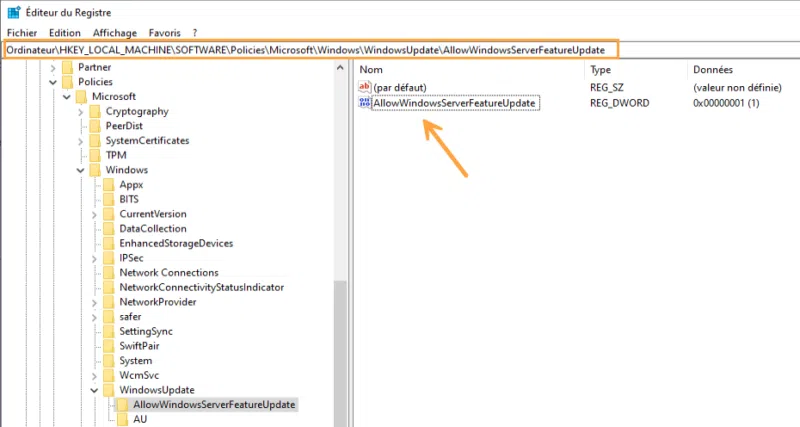
If you do not want to use PowerShell, you can perform these operations manually through regedit.exe.
Triggering the upgrade to Windows Server 2025
If your target server has a graphical interface, you can trigger the upgrade directly from the "Settings" app. But before that, make sure to stop the various services running on your server. In my case, that means stopping Hyper-V.
Open the Windows "Settings" app, then click on "Windows Update". Next, click the "Check for updates" button.
You will see a new block mentioning the feature update to Windows Server 2025, along with a "Download and install" button. Click this link.
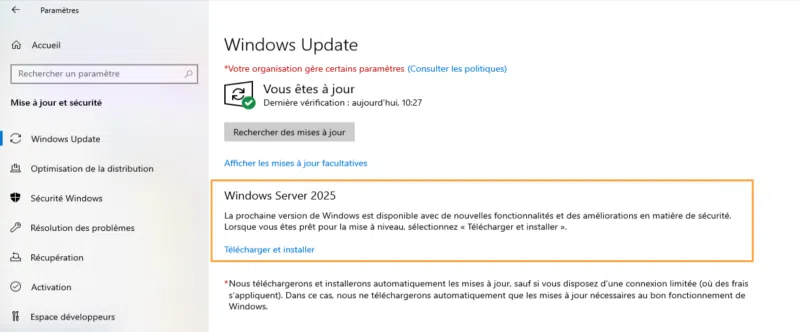
Note: if you are using Windows Server in Core mode, use sconfig to check for updates. The upgrade should be offered.
An information window will appear to present the license terms and the recommendations to follow before you begin. Select "Accept and install" to confirm.
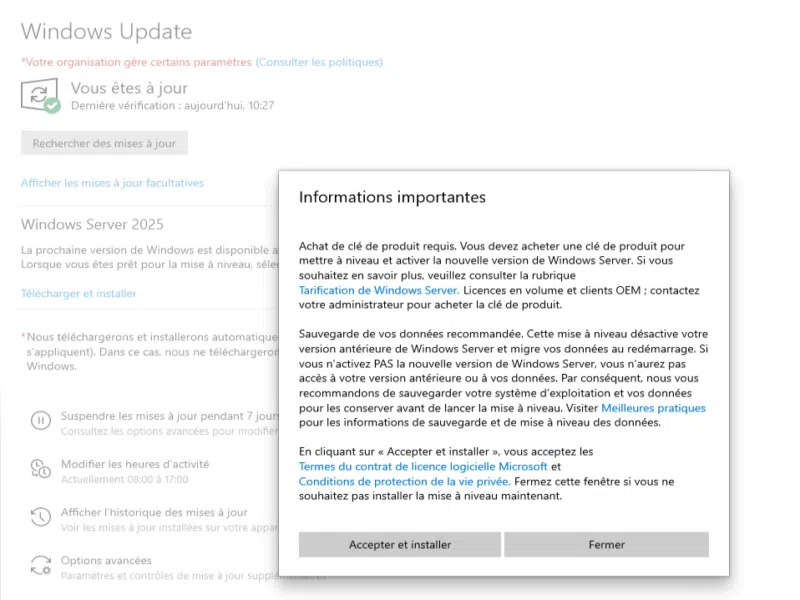
From this point on, the system will download the Windows Server installation sources and work in the background.

Once the download and installation (first phase) are complete, you will be prompted to restart your server. No interaction is required from you until the new sign-in screen appears. You must then authenticate and make your choice regarding telemetry. After that, the Windows Server 2025 desktop will appear before your eyes.
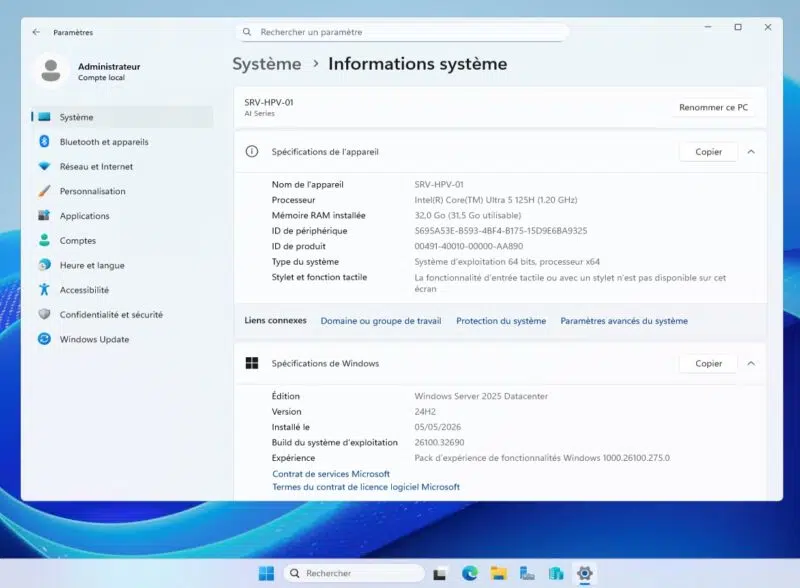
Note: if the upgrade fails, the system will attempt to roll back the changes in progress and return to its initial working state. To diagnose the source of the issue, you will need to analyze the installation logs stored here: C:\Windows\Panther\setupact.log and C:\Windows\Panther\setuperr.log.
Post-migration actions
Once the process is complete and the server is back online, you know what you need to do: check the status of your services and verify your server’s network connectivity. Test from the server and from a client to confirm that the services are working properly (access to a share, for example).
You should then activate the Windows license. I remind you that the slmgr command-line tool makes it easy to check this. Otherwise, check the activation status through Windows Settings.
slmgr /dli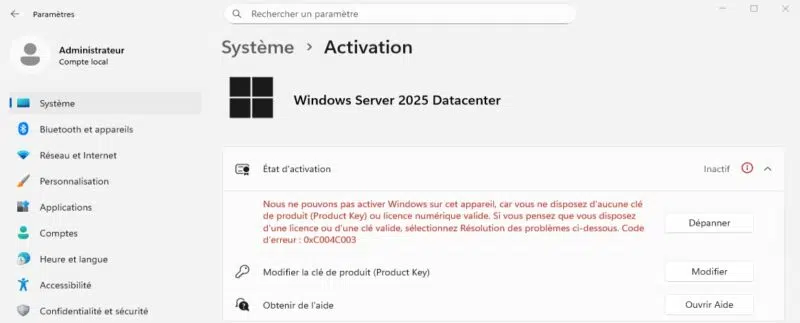
Once you have confirmed the stability of the migrated server over a period of a few days, you can schedule disk cleanup to remove logs and traces related to this upgrade. In addition, there may be other follow-up tasks to perform. For example, on Hyper-V, there is a virtual machine configuration upgrade to complete.
Conclusion
In-place migration via Windows Update is a welcome improvement that makes upgrading to a newer version of Windows Server much smoother. One can even imagine automating the operation through Group Policy on non-sensitive machines (or in a lab). The operation itself is very easy, but be sure to prepare it properly so you do not run into unpleasant surprises.... If you are unsure whether the upgrade is feasible on your server, check Microsoft’s documentation, where you will find the compatibility matrix, among other things.
If you are getting started with Windows Server, I encourage you to read my full course:
FAQ - In-place upgrade of Windows Server
What is an in-place migration?
It is a process that replaces the files of the current operating system with a new version without formatting, which preserves existing settings, line-of-business applications, services, and files.
Can I migrate a Windows Server 2016 server to 2025 with this option?
No. The direct migration path via the Windows Update mechanism is technically supported only from Windows Server 2019 or Windows Server 2022. You must therefore use the classic method.
Are my data and role configurations preserved?
Yes, the whole point of an in-place migration is to keep your file shares, network configurations, installed roles, and all installed software intact.
Do I need to enter an installation key during this Windows Update method?
If your infrastructure has volume licenses with the Software Assurance program, the key will be associated automatically. Otherwise, you must obtain a Windows Server 2025 license to activate the system afterward. This is done after the upgrade, not during it.
How long does the migration take?
The operation itself is fairly long, but in reality it depends on your machine: hardware resources, installed roles, etc.... Allow at least 1 hour.
Why is the upgrade to Windows Server 2025 not showing in Windows Update?
The appearance of this upgrade depends on the prior presence of a registry key named "AllowWindowsServerFeatureUpdate" on the server in question. If you already created it, check that you did not make a typo.
How should version migration be handled for failover cluster nodes?
It is not recommended to run a simple Windows Update on these servers. Microsoft’s documentation states that you should use the "Cluster OS Rolling Upgrade" tool for clustered environments.