www.it-connect.fr

How to Upgrade Windows Server 2019 In Place to Windows Server 2022
In this tutorial, we will learn how to perform an in-place upgrade from Windows Server 2019 to Windows Server 2022. In other words, this operation consists of upgrading the Windows Server operating system without completely reinstalling the machine. The system is updated while keeping data and configuration.
A common operation to keep your servers up to date, or at least on Windows Server versions supported by Microsoft (and that receive updates). The alternative to this method is to perform a full migration, meaning install a new server, migrate the roles/applications to this new server, and "remove" the old server once the migration is complete.
The first part covers upgrade preparation, and the second part is dedicated to the technical procedure.
Before starting a full operating system upgrade, check the health of your server, as well as your backups and the compatibility of your environment with the target operating system. If you are using a virtual machine, you can also trigger a snapshot before starting the upgrade.
If you want to migrate to Windows Server 2025 and you are using Windows Server 2019 or 2022, note that the upgrade is also possible through Windows Update. More information here: Upgrade to Windows Server 2025 via Windows Update.
Note: this procedure does not apply to an Azure virtual machine.
Preparing the Windows Server Upgrade
Windows Server Upgrade Paths
When looking to upgrade a system in general, you need to refer to what are called "Upgrade paths". If you are using Windows Server 2019, you can move to Windows Server 2022 without any issue since it is the next version released. However, if you are considering going from Windows Server 2012 R2 to Windows Server 2022, is that possible? Do you need to go through an intermediate version? The answer is below.
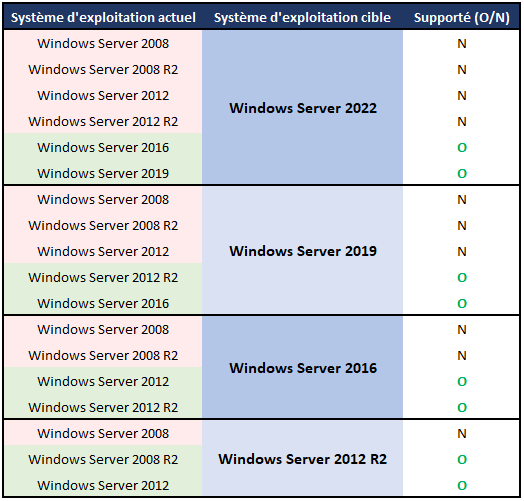
We can see that you can upgrade a Windows Server version by up to version +2. This means that to move from Windows Server 2012 R2 to Windows Server 2022, you will need to go through Windows Server 2016 or Windows Server 2019 as an intermediate version.
However, this rule was true until Microsoft released Windows Server 2025. This version offers new possibilities, such as migrating directly from Windows Server 2012 R2 to Windows Server 2025 in one step. Another option is to move from Windows Server 2019 or 2022 to Windows Server 2025 simply through an update delivered by Windows Update.
I recommend that you check Microsoft’s website, where you can find a complete table highlighting the supported scenarios for migrating to Windows Server 2025.
Do Your Research
It is important to do your research before upgrading a Windows Server server. Do the roles installed on your server support the in-place upgrade? What about the installed applications? You need to answer these questions to avoid unpleasant surprises.
Here are two very useful documents on the subject:
- Microsoft Learn - Role Upgrade Matrix
- Microsoft Learn - Microsoft application compatibility with Windows Server 2022
If everything looks good on your side, you need to obtain a Windows Server installation image corresponding to the target version.
Upgrading Windows Server 2019 to Windows Server 2022
First, you need to mount an ISO image on the virtual machine or connect an installation USB drive (or a DVD) to the server so you can access the Windows Server 2022 installation files.
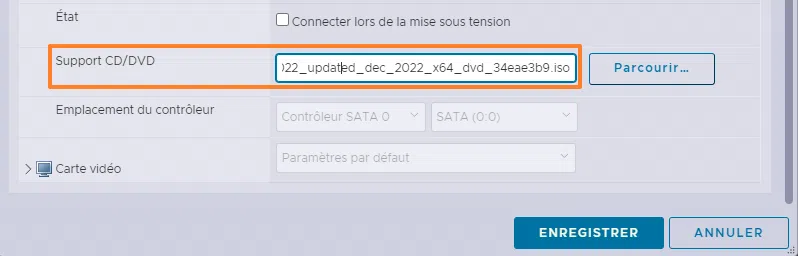
Once that is done, on the machine to be upgraded, the DVD drive, whether physical or virtual, will provide access to the installation files. Simply double-click it to launch the wizard.

The Windows Server setup program will appear. Click "Next".
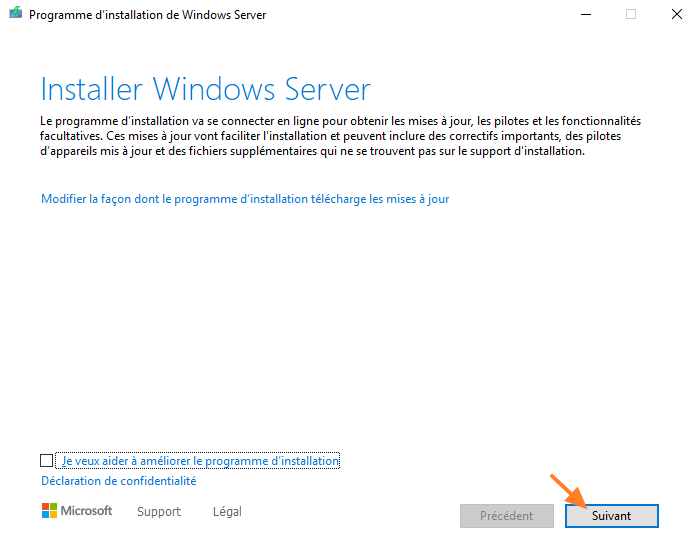
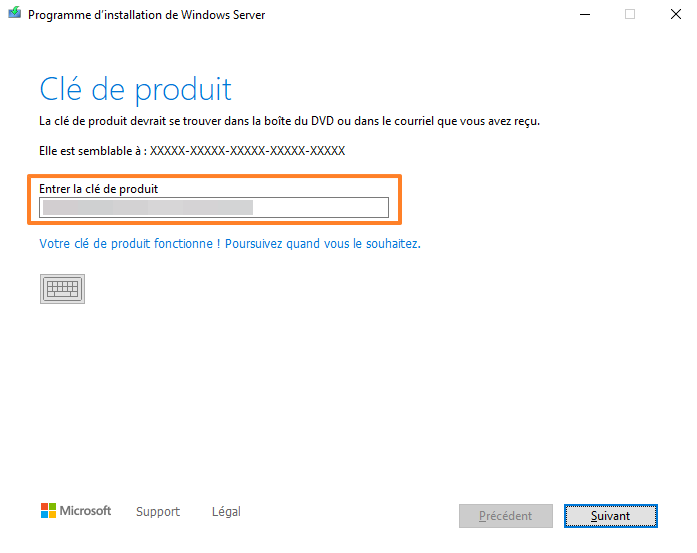
The first step is to enter the Windows Server 2022 product key. Here, the key entered will be checked to see whether it is valid or not.
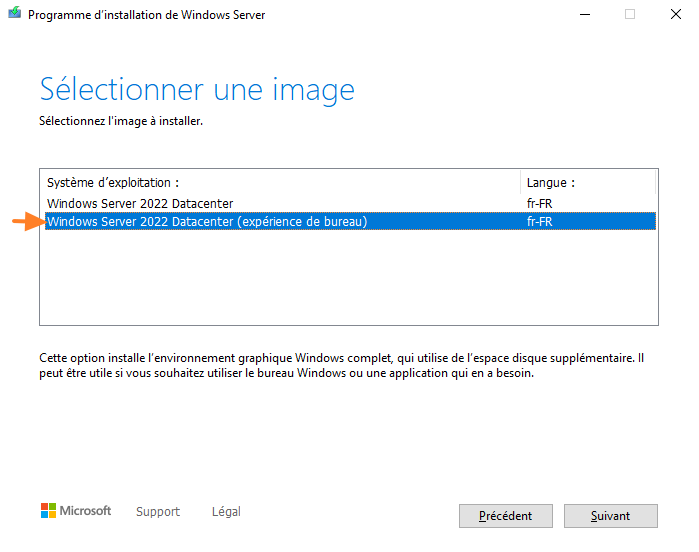
The next step is to choose the image to install, in other words, the edition to install. If the current server is running a Datacenter edition, you must install a Datacenter edition of Windows Server 2022. Otherwise, it will not be possible to keep your data, settings, and configuration. You cannot switch from a Standard edition to Datacenter or vice versa this way without losing data.
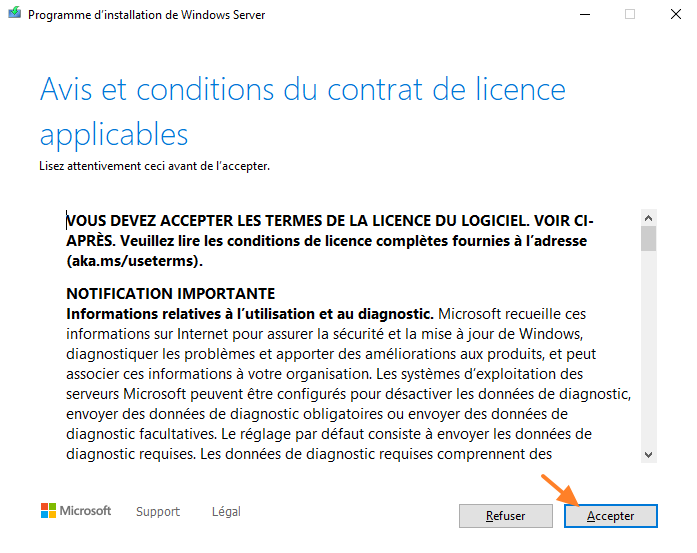
Continue by accepting the license agreement terms.
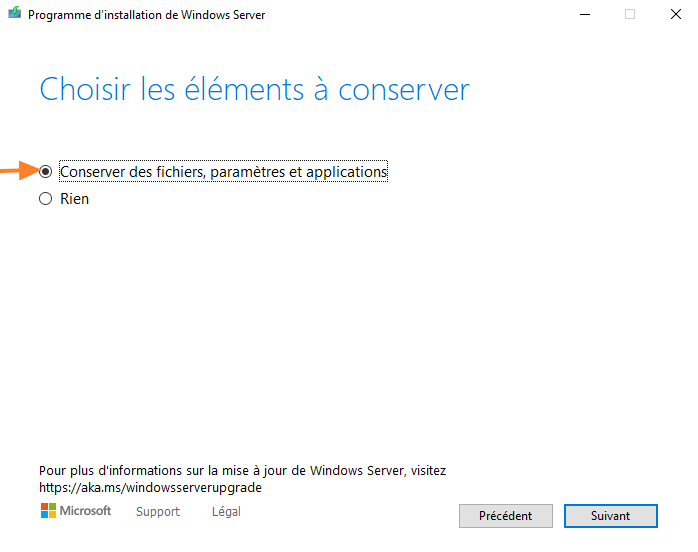
This is a critical step: here you must make sure to select "Keep personal files and apps" to perform an in-place upgrade while preserving the current server state. If the first option is grayed out, it is probably because the source and destination editions are not identical.
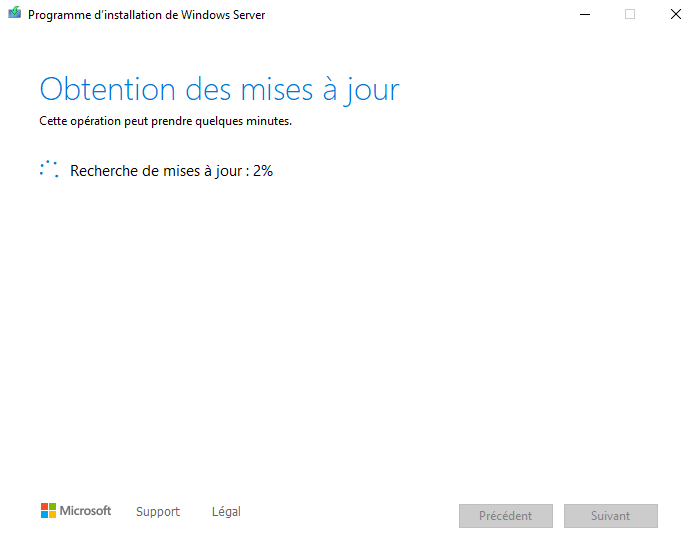
Finally, the wizard will check for available updates and verify whether there is enough disk space on your server. If not (10 GB are required), the wizard will offer you the option to select external storage or a different volume from the system volume to store the data needed for the upgrade.
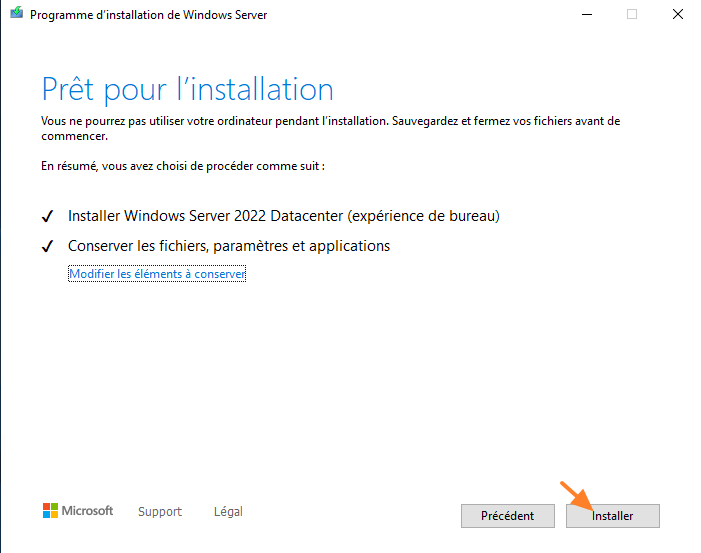
If everything looks good, click "Install".
All that is left is to wait while the system upgrade runs.
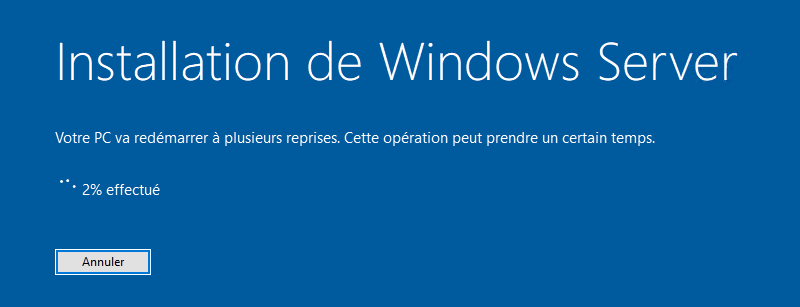
Once the server has restarted, it will be running Windows Server 2022 Datacenter! After this upgrade, you should verify that services and applications are working properly and that your data is present. This observation phase is important.
Conclusion
After reading this article, you now know more about the in-place upgrade process for Windows Server! It is a relatively simple process, but one that requires caution given the importance of such an operation.