 www.it-connect.fr

Sefirah: The Open Source App That Links Android to Windows and Linux PCs
Sharing a link copied on your phone to your PC, finding your Android notifications on the desktop, dragging a file from one device to another: this convenience, long reserved for Microsoft’s Phone Link app or for Linux users with KDE Connect, is now available through an open source tool called Sefirah.
On a Windows PC, the official solution for connecting an Android smartphone is currently called Phone Link. Developed directly by Microsoft and built into Windows, it is therefore a proprietary solution, tied to a Microsoft account and more or less limited depending on your phone brand. In fact, if you have a Samsung Galaxy smartphone, you get bonus features thanks to a partnership between Microsoft and Samsung.
On the Linux side, many people know KDE Connect, the open source application used to sync phone and computer. Sefirah stands out by covering both worlds: it is a free application available on both Windows and Linux, positioning itself as a direct alternative to Phone Link as well as KDE Connect.
In this article, I’ll give you a quick look at Sefirah: what the tool does, how it compares with Phone Link and KDE Connect, and how to use it day to day.
Sefirah: What Is It?
Sefirah is an open source application (GPL-3.0 license) that connects an Android smartphone to a Windows or Linux PC over the local network. It is a free alternative to Phone Link and KDE Connect.
Let me say this right away: it does not depend on any cloud service or any account! There is no sign-up required and everything happens locally: the two devices communicate directly with each other over the same Wi-Fi network, with no intermediary. There are therefore two components to install: a desktop application (Windows or Linux) and a companion Android app. One does not work without the other, as you might expect.
Note: Sefirah works on the local network. Your data does not pass through a third-party server, but both devices must be able to “see” each other on the network. On a segmented enterprise network or with Wi-Fi client isolation, the connection may fail.
Main Features
Sefirah covers the essentials you’d expect from a bridge between a phone and a computer:
- Clipboard sharing: copied content on one device appears on the other (text and, optionally, images).
- Notification sync: Android notifications appear as toasts on the desktop.
- File transfer: send a file from one device to the other, including via simple drag and drop from your PC.
- Storage integration: the phone’s storage appears directly in the computer’s file manager.
- Media control: control PC playback and volume from the phone.
- SMS management: view and send SMS from the desktop, with dual-SIM support.
- Screen mirroring: Sefirah can display and control the phone screen on the PC, relying on scrcpy.
Publisher, License, and Business Model
Sefirah is an open source tool: all the code is available on GitHub. The code is published under the GPL-3.0 license, and the application is completely free. The developer accepts donations (via Buy Me a Coffee) to support the project, but no feature is paid.
It is worth noting that for screen mirroring, Sefirah does not reinvent the wheel: it controls scrcpy, an open source utility from Genymobile. Also note that the project reuses the KDE Connect Android client’s SFTP server for storage access. These are dependencies in how it works, but also a great example of what open source is about!
Here are some useful links before going any further, including GitHub and the apps:
- GitHub repository (desktop app): github.com/shrimqy/Sefirah
- GitHub repository (Android app): github.com/shrimqy/Sefirah-Android
- Windows app on the Microsoft Store
- Linux and Windows binaries: the GitHub releases page
- Android app on Google Play
Sefirah, KDE Connect, or Phone Link: What’s the Difference?
This is probably the question you’re asking yourself. Sefirah’s strength is that it covers both Windows and Linux on the desktop side, whereas Phone Link is limited to Windows and KDE Connect is mainly associated with Linux (even though it is also cross-platform, something I only recently learned). Sefirah positions itself as a solution compatible with both Windows and Linux.
But concretely, at the feature level, how do these three solutions differ? The answer is in the table below.
| Criterion | Sefirah | Phone Link | KDE Connect |
|---|---|---|---|
| License | Open source (GPL-3.0) | Proprietary (Microsoft) | Open source (GPL) |
| Desktop OS | Windows, Linux | Windows | Linux, Windows, macOS |
| Account required | None | Microsoft account | None |
| Operation | Local network | Microsoft account / cloud | Local network |
| Clipboard | Yes | Varies by device | Yes |
| Notifications | Yes | Yes | Yes |
| File transfer | Yes | Yes (photos) | Yes |
| Storage in File Explorer | Yes | No | Yes |
| Screen mirroring | Yes (via scrcpy) | Yes (compatible devices) | No |
| SMS | Yes (dual SIM) | Yes | Yes |
For cross-platform use, KDE Connect remains a safe bet, older and more battle-tested, with macOS support on top. That said, it will be interesting to see how Sefirah can challenge it in the coming months, because the application is promising.
Installing Sefirah
Installation happens in two stages: the desktop app, then the mobile app.
Install the Desktop App (Windows)
The easiest way on Windows is to go through the Microsoft Store: search for “Sefirah” or go directly to its Store listing, then install the app like any other. You can also download an installer or the .Msixbundle package from the releases page. Once launched, the application waits for a device to pair with.

Install the Desktop App (Linux)
On Linux, the developer offers three formats on the releases page, to choose according to your distribution and habits:
- AppImage: a self-contained executable file, no installation required (remember to make it executable with
chmod +x). - Flatpak: the
.flatpakfile (installed withflatpak install). tar.xzarchive: to extract for users who prefer to manage the application manually.
# Example: make the AppImage executable and then launch it
chmod +x sefirah-2.4.0-linux-x64.AppImage
./sefirah-2.4.0-linux-x64.AppImage
Note: Linux support is newer than Windows support. I noticed that Linux-specific fixes still appear in recent release notes. The project documentation also describes some integrations (such as storage mounting) from the Windows point of view.
Install the Android App
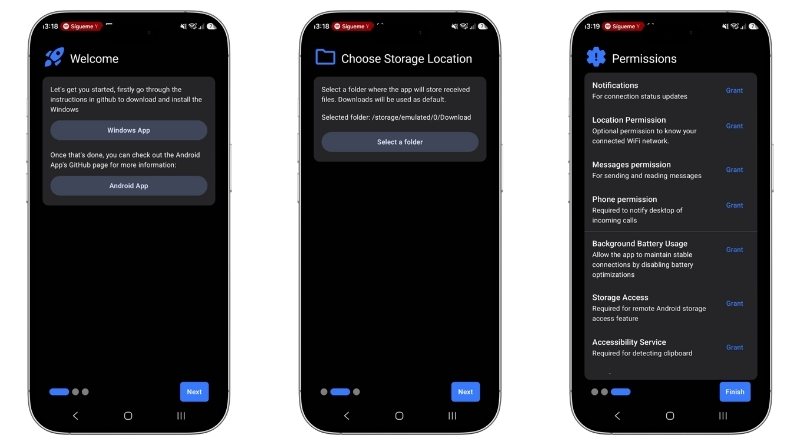
On the phone side, install the companion app from Google Play. On first launch, the app guides you through a permissions page. Grant the necessary permissions (notification access, accessibility for clipboard, storage, SMS depending on your needs). Indeed, the app needs many permissions to relay them to Sefirah on your PC.
Pair the Smartphone and the PC
This is the step that connects the two worlds:
- Make sure the PC and the phone are on the same Wi-Fi network.
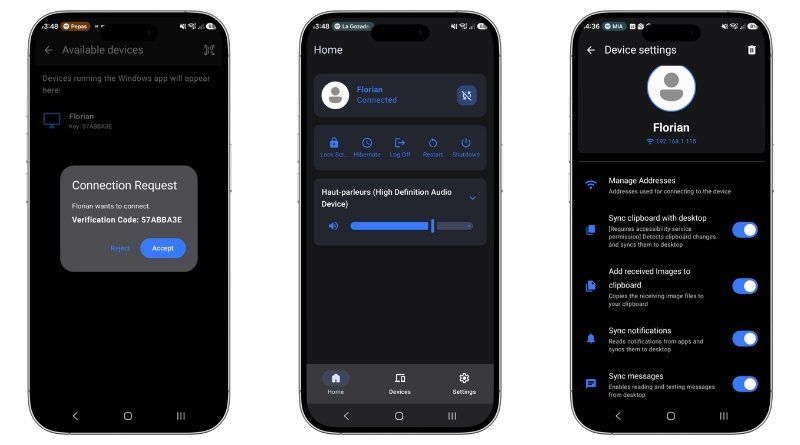
- On the phone, start pairing with the manual connection; you can pair them via a QR code to scan. Network discovery is also performed.
- On the PC, a window asks you to accept or reject the connection. Make sure the keys displayed are identical on both devices before accepting.
- Once authentication is validated, wait a few moments: your smartphone content is loading.
Exploring the Features
Once paired, let’s see what Sefirah actually brings to everyday use.
Clipboard and File Sharing
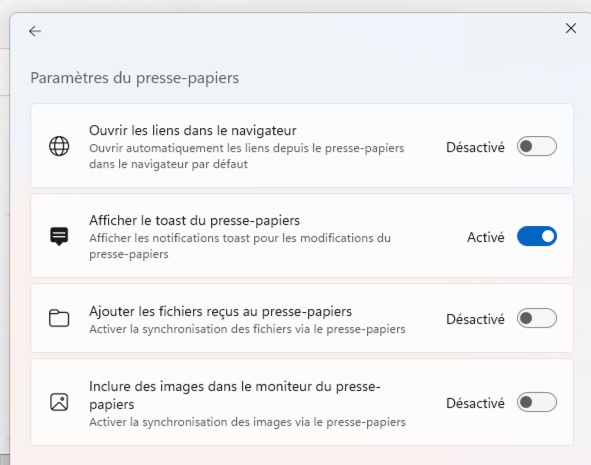
This is one of the most enjoyable features. When you copy text on the PC, it is automatically synced to the phone (provided you enabled the option in the settings). If you also enable image syncing, images will follow too.
For phone-to-PC use, there are two approaches: automatic sharing (which requires accessibility permission on Android and does not work in all cases), or manual sharing via the app’s persistent notification or Android’s share menu. You should take the time to customize clipboard behavior in the app settings.
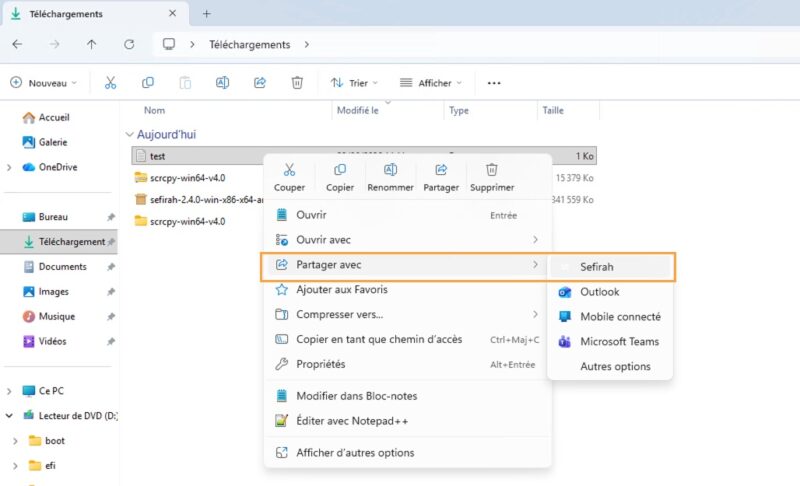
The transfer relies on the native share menu. On Android as on the PC, select a file, choose “Share”, then Sefirah as the destination: the file is sent to the other device. Simple and effective!
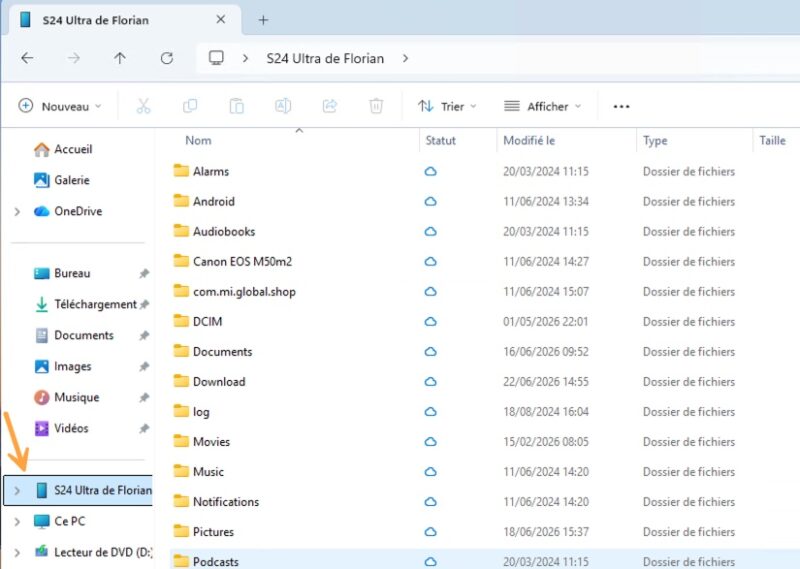
Also, by enabling storage access permission in the Android app, the desktop client creates a link to the phone’s storage directly in File Explorer. You can then browse your Android folders as if they were a local drive.
Notifications and Screen Mirroring
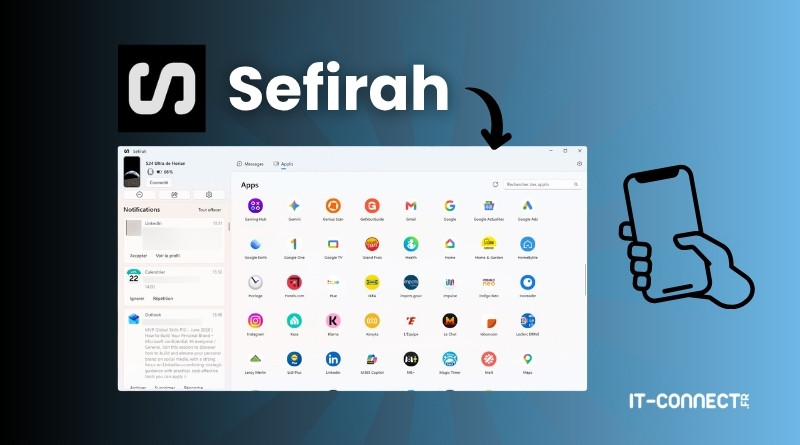
Once connected, your Android notification feed is visible directly in Sefirah’s sidebar on the left. Handy so you don’t have to grab your phone every time it buzzes. You can also access the list of apps, and if you click one of them, screen mirroring starts.

In theory, you can therefore display the app in question directly on your PC screen. In practice, though, it works differently. Sefirah does not support screen sharing itself: it relies on scrcpy, an open source tool.
You need to download scrcpy from its official repository, extract the archive, and then point Sefirah to its location in the settings. You also need to enable debugging mode on your smartphone and establish the connection. I did not do this, because I’m not a fan and I don’t use this kind of feature.
Control Media and Send SMS
From the phone, you can control media playback and the PC volume (for example through support for Spotify).
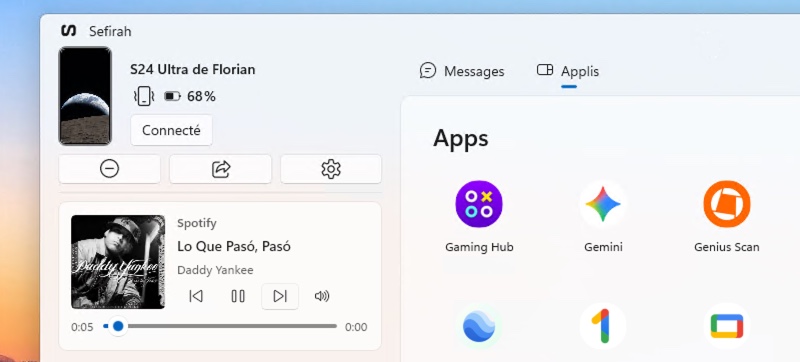
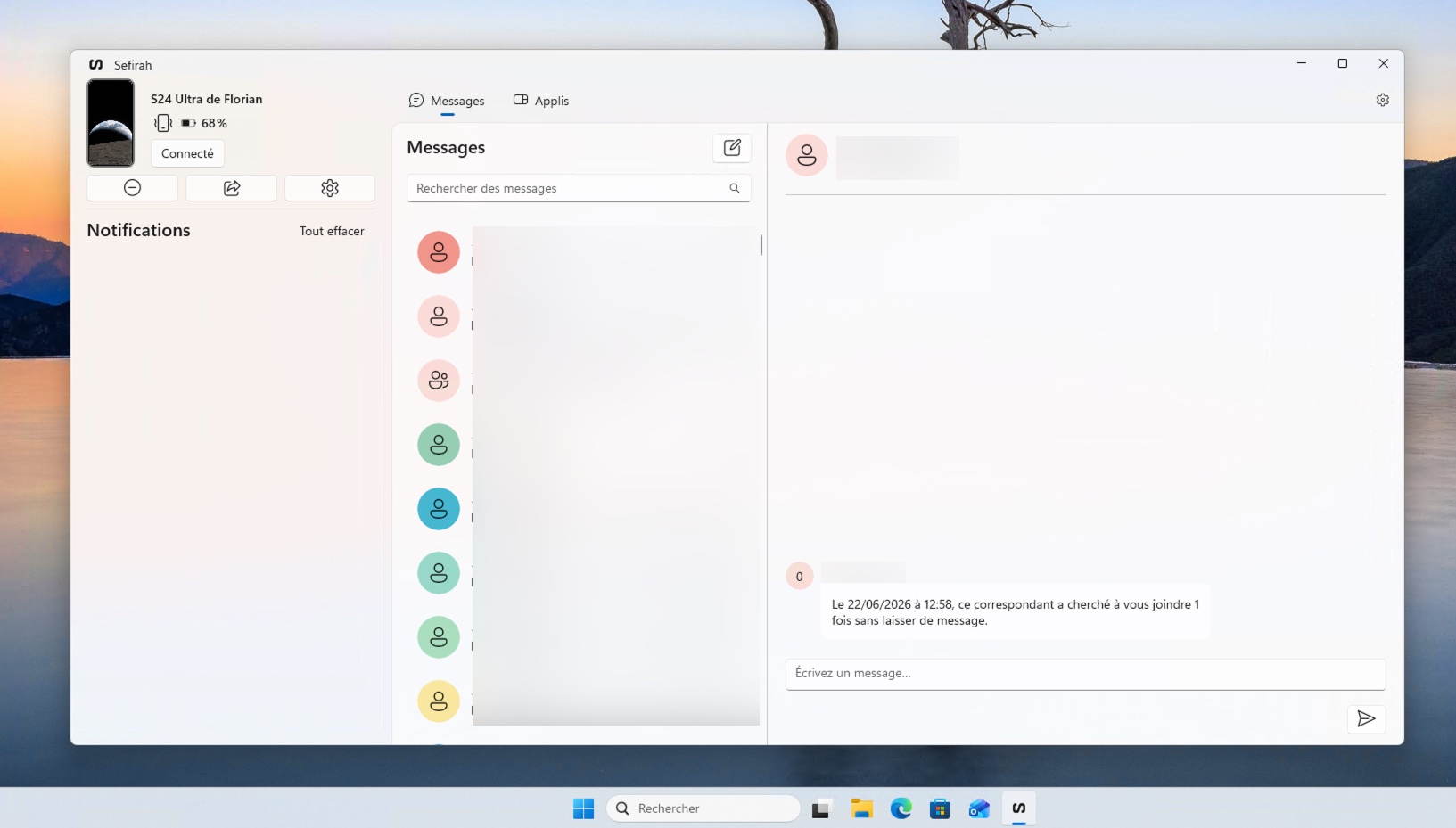
In the other direction, the Messages tab in the desktop app lets you view and send SMS from the computer.
Conclusion
Sefirah is a strong free, local, account-free alternative for connecting Android to your computer, available on both Windows and Linux. The Fluent-style interface is polished (there is a real resemblance to Phone Link), the essential features are there, and the open source philosophy brings a transparency that Microsoft’s Phone Link does not offer. The project is still young, so there are probably bugs (which you can report via GitHub), but it is promising.
To go further:
- Microsoft’s native solution, for comparison: How do you connect your Android smartphone to Windows 11?
- The Linux approach with KDE Connect, mentioned in our review of Zorin OS, the ideal Linux distribution for leaving Windows behind
- To sync files across your devices in a more advanced way: Syncthing, the secure open source file synchronization tool
What do you think?
FAQ - Sefirah
Is Sefirah free and open source?
Yes. Sefirah is completely free and released under the GPL-3.0 open source license. Its source code is available on GitHub, for both the desktop app and the Android app. The developer accepts donations, but no feature is paid.
Which systems does Sefirah run on?
On the desktop side, Sefirah is available on Windows and Linux (AppImage, Flatpak, and tar.xz binaries). There is no official version for macOS. You also need to install the companion app on an Android smartphone for everything to work. The iPhone is not supported either.
What is the difference between Sefirah and Phone Link?
Phone Link is Microsoft’s proprietary solution, limited to Windows and tied to a Microsoft account. Sefirah is open source, free, works on Windows and Linux, locally and without an account. It adds features for all smartphones, regardless of brand (unlike Phone Link and its Samsung exclusives).
Does Sefirah require an account or an Internet connection?
No. Sefirah does not require any account and works on the local network: the phone and PC simply need to be on the same Wi-Fi. No data goes through a third-party server, which makes it a privacy-friendly solution.









Hi, I love that this exists. Done with phone link. I’d like to buy you a coffee if you can tell me how I get my contacts to show up in the Sefirah app in messages on the windows side. Thanks